
 [NOTE: Starting this week, I have in-depth video training on Compressor 4 available to my Video Training Library subscribers. This title will be released in our store the middle of January. Click here to subscribe.]
One of the new features in Compressor 4.1 is hardware acceleration for some compression tasks. What hardware acceleration does is speed the entire compression process. And, what I’ve learned this week in working with the new Mac Pro, is that by changing a single setting in Compressor 4.1 you can reduce compression times by 75% and, in some cases, reduce compressed file size by half.
It’s called hardware acceleration. Let me show you how this works.
UPDATE: A NOTE ON HARDWARE ACCELERATION
One of the speed advantages of the iMac is that it uses an Intel technology called “QuickSync.” This is a special processor “engine” inside many consumer-grade Intel CPUs that accelerates H.264 compression for certain encoding settings; for example, when compressing for Apple devices, QuickTime or MPEG-4 movies using the H.264 codec. The Mac Pro Xeon CPU is considered “workstation-grade,” and doesn’t provide this hardware acceleration.
Hardware acceleration is a two-edged sword. It is MUCH faster than software encoding. However, it only yields image quality and file sizes equal to single-pass encoding. This will often be fine for movies that don’t contain a lot of movement, such as screen captures; or movies where getting it done fast is better than image quality, such as news or digital dailies. However, hardware compression is generally not the best choice for movies with lots of movement between frames or where you need the highest image quality with the smallest file size.
FIRST, SOME BACKGROUND
Hardware acceleration is enabled automatically within Compressor. If your system has the right set of chips, and you select the right compression setting, hardware encoding kicks in.
• Hardware encoding is available on all shipping Macs that use an i5 or i7, Sandy Bridge or Ivy Bridge processor; except the new Mac Pro.
• Hardware encoding is applied to QuickTime and MPEG-4 compression that uses the H.264 codec; but not to Blu-ray Disc compression.
• Hardware encoding cannot be used for multi-pass encoding. In fact, turning on multi-pass encoding turns off hardware encoding.
MPEG-4 SOFTWARE ENCODING

Here’s the clip we’ll use for our example. (Footage courtesy: Hallmark Broadcast Ltd. — www.hallmarkbroadcast.tv)
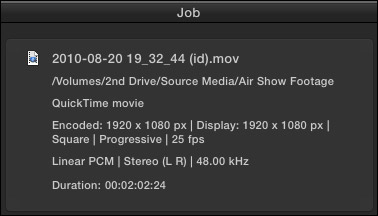
This is a two-minute clip, encoded using XDCAM EX, with an original frame size of 1920 x 1080, at 25 fps.

I created a new MPEG-4 compression setting and applied it to the clip.
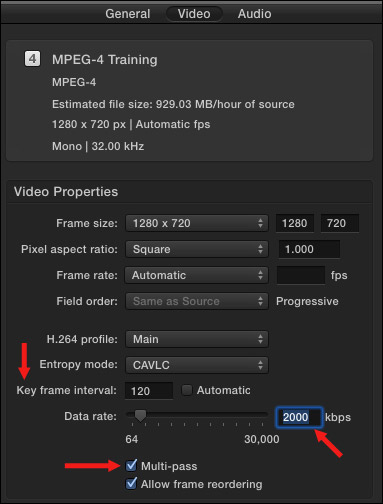
Here is how I modified the settings:
When I compress the file:

MPEG-4 HARDWARE ENCODING
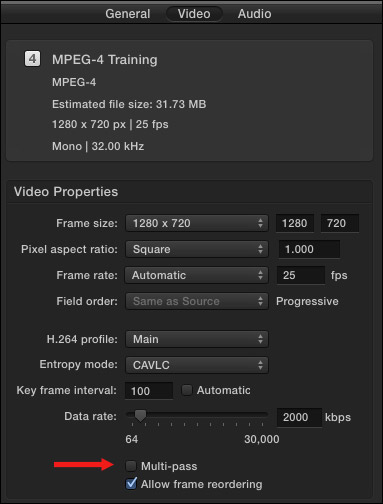
Back in Compressor, all the settings are the same, EXCEPT I turned off Multi-pass. This turns on hardware encoding and single pass compression.

OTHER TESTS
I was fascinated by these results, so I did a couple of other tests, one with a dance clip with lots of movement and one with a screen capture clip with limited movement.
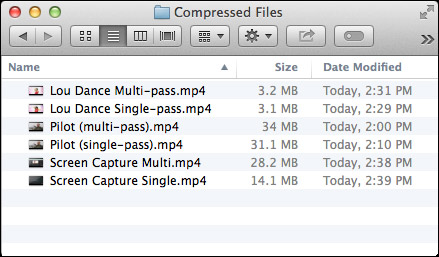
Lots of movement – A dance video
Limited movement – A screen capture movie
SUMMARY
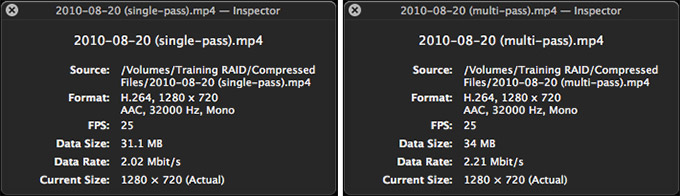
I would expect compression speed increases when hardware is involved. What I was not expecting was this much variation in data rates and file sizes. As the amount of movement increases, the data rate differences between the two files start to become equal. However, as the amount of movement decreases, hardware acceleration lowers the data rate which reduces file size, without doing much damage – if any – to the image quality.
NOTE: As I was researching my Compressor 4.1 training, I learned that when a clip has lots of movement, multi-pass encoding becomes the better option. As with all things, test this on your own projects.
The technique is absolutely worth testing on your own projects. The less movement you have between frames, the more you will benefit from hardware acceleration. In fact, I’m using a modification of this setting for my subscription videos. The differences in file size and bandwidth are amazing.
NOTE: As is typical with the H.164 codec in Apple Compressor, I did notice a decrease in chroma levels when using the multi-pass option. You can compensate for this by applying a color correction filter as part of the compression setting.
IMPORTANT UPDATE
While this article was written and tested on a new Mac Pro, I learned after the fact that the Mac Pro does not support hardware acceleration. The speed differences illustrated here are the result of the native horsepower of the Mac Pro. However, the iMac and MacBook Pro laptops do support hardware acceleration. This article is accurate in terms of explaining hardware acceleration and when to use it..
Here’s an article I wrote that compares compression speeds between the iMac and Mac Pro, and also tests the differences between hardware acceleration and software encoding.

2,000 Video Training Titles
Edit smarter with Larry Jordan. Available in our store.
Access over 2,000 on-demand video editing courses. Become a member of our Video Training Library today!
Subscribe to Larry's FREE weekly newsletter and
save 10%
on your first purchase.

17 Responses to Compressor 4.1: Hardware Acceleration
← Older Comments-
 Larry Jordan says:
January 8, 2014 at 8:07 am
-
 Arn Campero says:
February 5, 2014 at 5:41 pm
-
 ronny jordan says:
July 21, 2014 at 12:15 pm
-
 Greg Wilcox says:
July 23, 2014 at 6:50 am
-
 LarryJ says:
July 23, 2014 at 8:00 am
-
Intel QuickSync on OSX - PhotoLens says:
November 14, 2021 at 2:28 pm
-
Intel QuickSync on OSX - Best Way says:
February 25, 2022 at 4:17 pm
← Older CommentsAl:
I’m working on that article now – it will be in Monday’s newsletter.
Larry
Larry,
Do you know if the hardware acceleration with the Intel QuickSync on the i7 works with the MyCometG3 x264 plug in with Compressor 4.1?
Right now I’ve got a bunch of Mac Pros that run x264 but it would be interesting to see if I could get better performance from either an iMac with hardware acceleration or the new Mac Pro with just multiple instances.
On MacbookPro i7 2675m 2.2 Ghz on osx 10.9 and compressor 4.1 (4.1.2 also) I can’t see any performance boost disabling multipass.
no way to make h/w encoding to work.
I upgraded to Compressor 4.1.2 and my Blu-Ray disks are now pixelated. I wonder if 4.1.2 is deciding to use hardware compression at all times. I tried multi pass, no multi pass, automatically select bit rate, manually set max bit rate, etc. It just didn’t matter, the 4.1.2 disks were “blocky” in places. The disks were mostly comprised of photographs with almost no movement. The file size for the bad disk was 197 meg and 478 meg for the good disk when both were created with the “multi pass” setting enabled. I run the software on a 27″ 3.5GHz i7 iMac with 16 GB RAM and a 512GB SSD. The only way I could get back to good disks was to restore a Time Machine (Compressor 4.1.1) backup (to another volume) that was taken prior to the upgrades which occurred June 27. Any thoughts?
Greg:
I’m starting to get a number of reports on Blu-ray burning problems.
Contact Apple Support and see if they have any ideas. Otherwise, have them reflect this on their bug list of things to fix.
Larry
[…] Source & for further analysis : Compressor 4.1: Hardware Acceleration […]
[…] Source & for further analysis : Compressor 4.1: Hardware Acceleration […]