
One of the newer features in Adobe Premiere Pro CC is how it handles multi-channel audio. In the past, we first needed to specify what type of audio we were editing into each track. Or, editing a stereo audio clip in the the Timeline would result in the two audio channels occupying two separate audio tracks.
With the CC release, things have changed. Let me explain.
ASSIGN AUDIO TYPES IN A NEW PROJECT
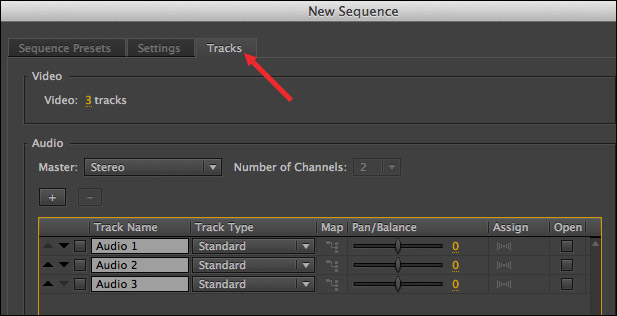
Audio types allow you to define which audio can be edited into what tracks. Making editing life even easier is a new default setting called “Standard.” We can access these new choices when we create a new sequence, but they are easy to overlook unless you navigate to the Tracks tab.
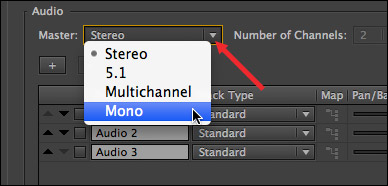
The Master drop-down menu sets the audio output format for the entire sequence. By default, this is Stereo. Other choices allow you to select 5.1 surround, Mono, or multi-channel audio output.
NOTE: Once a sequence is created, the Master Track output setting can’t be changed.
Setting the Master track to multi-channel means the sequence will export the final mix as up to 32 separate channels of mono audio. You can specify the number of output channels in the menu to the right. Multichannel is a good choice, for example, when you need stems exported as discrete audio channels.
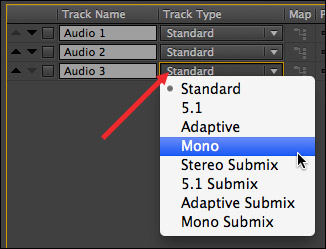
While the Master track is important, the Track Type menu, associated with each track, is the key to this new system. Audio tracks in Premiere can contain mono, stereo, and 5.1 surround audio.
NOTE: Once a sequence is created, these track settings can’t be changed.
There are two categories here:
Tracks contain audio files. Submixes only contain signals routed to them from tracks or other submixes.
There are four track types:
Keep in mind that once a track is created, you can’t change its type; though you can add and delete audio tracks as necessary to support your edit.
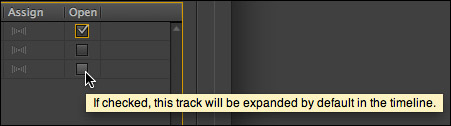
While we are in the Track panel, see these Open checkboxes? When these are checked, the audio tracks are expanded to full-height in the Timeline when you open the sequence, or until you change them.
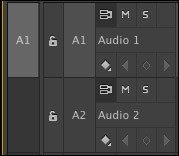
Full height audio tracks look like this, with all controls available.
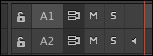
Collapsed tracks take less room and look like this.
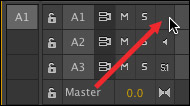
To expand or collapse a track, double-click the gray box to the right of the “S” (Solo) button.
NOTE: By the way, Premiere uses secret indicators to tell you about the track type.
WHY THIS IS IMPORTANT
If all you do is shoot, edit, and output stereo files, you don’t need to worry. All of Premiere’s default settings are perfect for you. However, to simplify a complex edit, you may want to group similar clips into the same track. In which case, these settings can help.
NOTE: Also, this system allows Premiere Pro CC to be compatible with earlier version Premiere projects.
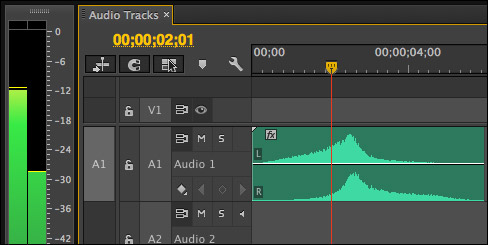
In this example, track A1 is a Standard track, into which a stereo clip is edited. Notice that both channels of the stereo clip are displayed in a single track.
Though, when we play the clip, the audio meters show a clear difference in levels between the two channels.
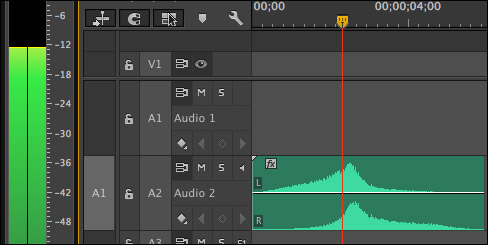
Now, let’s assign that same audio clip to track A2, which is a Mono track. We still see the two audio channels, but, as the audio meters indicate, this stereo clip outputs as a mono track.
This is a fast and easy way to convert a stereo clip to mono, without wasting time transcoding the clip or deleting channels.
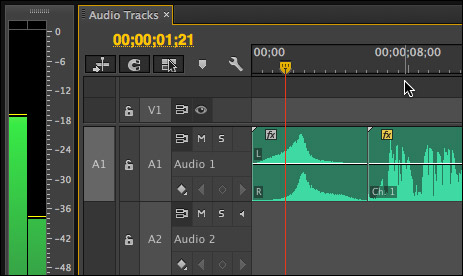
Just to show the flexibility of a Standard track type, track A1 has both a mono and stereo clip in it. Both clips will output as stereo, as displayed by the audio meters, however the mono clip, since it has only one track, will output panned center.
EXTRA CREDIT
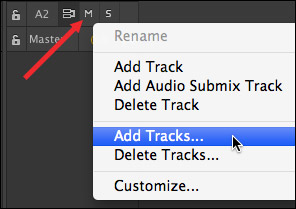
When you right-click an audio track header, if you select Add Track (at the top), Premiere will add a single Standard track.
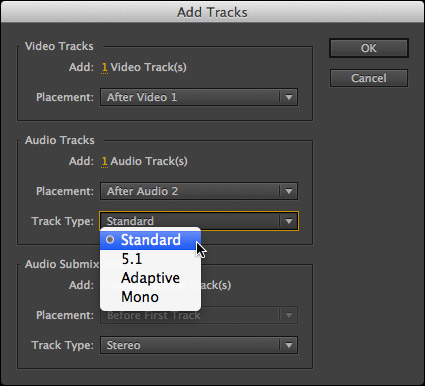
However, if you select Add Tracks… (at the bottom), Premiere opens an expanded dialog allowing you to select which Track types you want to create.
SUMMARY
These new track types make working with audio in Premiere Pro CC much easier than it was in earlier versions when we needed to specify the track type before editing a clip into a track.
Understanding what track types are, where they are set and what they do can help you make sense of even the most complex audio project.
NOTE: Here’s an article I wrote that explains how to separate a stereo audio clip into two dual-channel mono tracks.

2,000 Video Training Titles
Edit smarter with Larry Jordan. Available in our store.
Access over 2,000 on-demand video editing courses. Become a member of our Video Training Library today!
Subscribe to Larry's FREE weekly newsletter and
save 10%
on your first purchase.

36 Responses to Adobe Premiere Pro: Audio Track Types
← Older Comments Newer Comments →-
 Evan says:
April 6, 2015 at 5:45 pm
-
 Larry says:
April 7, 2015 at 4:21 pm
-
 Sean Dahlberg says:
July 21, 2015 at 9:02 am
-
 Larry says:
July 21, 2015 at 10:25 am
-
 Sean Dahlberg says:
July 21, 2015 at 11:01 am
-
 James says:
September 30, 2015 at 7:36 am
-
 Ley says:
January 11, 2016 at 5:34 pm
-
 Larry says:
January 11, 2016 at 5:39 pm
-
 Glenn says:
February 19, 2016 at 3:13 pm
-
 Larry says:
February 19, 2016 at 3:43 pm
← Older Comments Newer Comments →Hello,
I am trying to output a feature film for delivery. The PR422HQ quicktime should have 5.1+2 audio in the following configuration:
Ch 1-6 L, R, C, LFE, Ls, Rs
Ch 7-8 Stereo Lt/Rt
For the life of me, I cannot figure out how to set up Premiere Pro CC (2014) to spit out a quicktime exactly like this configuration. The closest I can get is to have ch 1 mixed w/ ch 2, ch 3 mixed w/ ch 4, etc- obviously not what I need. I want discrete mono channels to be exported- Center (ch 3) should be playing without having LFE (Ch 4) mixed in, and vice versa. In terms of audio files I’m using, I have 6 mono .wav files (for the 5.1) and one stereo .wav file.
Any clarification you can provide here would be a massive help.
Thanks!!
Evan
Evan:
I tracked down an article that can answer your question:
http://strypesinpost.com/2013/06/exporting-mulitchannel-quicktimes-in-premiere-pro-part-2/
Larry
Hi!
I am on Premiere Pro CC 2014 8.1. Mac OS 10.10.3. Maybe you can help?
I designated my audio channels as follows:
Ch1 & 2 Stereo Mix
Ch 3 VO
Ch 4 Dial LR
Ch 5 & 6 Music
Ch 7 & 8 SFX
I used this guide to help me lay everything out: http://strypesinpost.com/2012/11/exporting-multichannel-quicktimes-in-premiere-pro/
How do I go about mixing down channels 3-8 into a 2 channel stereo mix for channels 1 & 2? I tried to export AIFF files but when I bring them back in they are silent. Sorry, I’m used to Avid, where I can just do a simple mix down and place it into the appropriate channels.
Thanks for any and all help,
Sean
Sean:
Generally, you would do this mix in the audio application that is creating the rest of your stems. In other words, the mixdown is created at the same time as the stems and exported as a stand-alone file.
Larry
Hi Larry,
Thanks for the response. I totally understand. I am only using Premiere Pro CC. Not too familiar with the rest of the creative cloud, is there an adobe audio app that works best with Premiere?
Thanks again!
Sean
Hey Larry, I believe I’ve found a workaround for this problem. I also recently made the switch from FCP and just had this same issue as Brian- I had a rough cut of interviews with stereo tracks instead of separate mono ones like I wanted. The way I dealt with it was to: 1) Create a new sequence with the correct mono tracks. 2) Copy and paste over just the video portion of the interviews from the old sequence to the new one. 3) Modify all the affected clips in the browser to the mono designation. 4) Go to the new timeline, and select a clip. I hit my shortcut key “f” to reveal the original clip in my source monitor, and then drag just the audio down to my timeline. This saved me a ton of time, as I would have had to redo the whole edit!
Hi Larry,
Thanks for trying to make the complicated simple… I’ still having trouble but its getting clearer.
I was wondering “This is a fast and easy way to convert a stereo clip to mono, without wasting time transcoding the clip or deleting channels.”
But how is it mixing them? Will you end up with phase cancellation of sorts?
Thanks for your constant help,
Ley
Ley:
Ley:
All this is doing is splitting the channels into separate files. If you had phase cancellation before, you’ll have it now.If you didn’t have it before, you won’t have it now.
Mixing is exactly the same as if they were/are two separate clips.
Larry
Hi, Larry.
Great article!
I have one question, though. Can I mix in multichannel mode and output to stereo for a DVD? Or does it make more sense to do it as a stereo mix if the final output will be stereo?
Glenn
Glenn:
You can mix any audio formats within Premiere, but you can only output a single format – Mono, Stereo, or Surround.
Larry