
 This tutorial was suggested by Patrick Flaherty, who wrote:
Would you please explain the steps to take when you are finished with a FCP editing project – what to save and what to delete?
Sure.
First, let’s set the scene. All your editing is complete, the final project is exported, and the client has signed off on the project. Now what?
A Final Cut project consists of multiple potential elements:
By default, the following elements are contained inside the library:
Whoa! Suddenly there’s a lot more to think about than simply deciding what to do with the Library file.
NOTE: While media can be stored inside the library, it is most often best stored outside of it. Also, archiving and sending files to clients is the main reason I don’t store images in Photos or music or sound effects in the Music folder. Elements in Photos or Music are way too hard to export for archiving. I always store all media files – audio, video, stills and motion graphics – in their own folders outside the library.
It seems to me that there are four things we can do with any FCP project:
CREATE AN XML BACKUP FILE
IMPORTANT: Before you do anything else, create an XML version of your finished project.
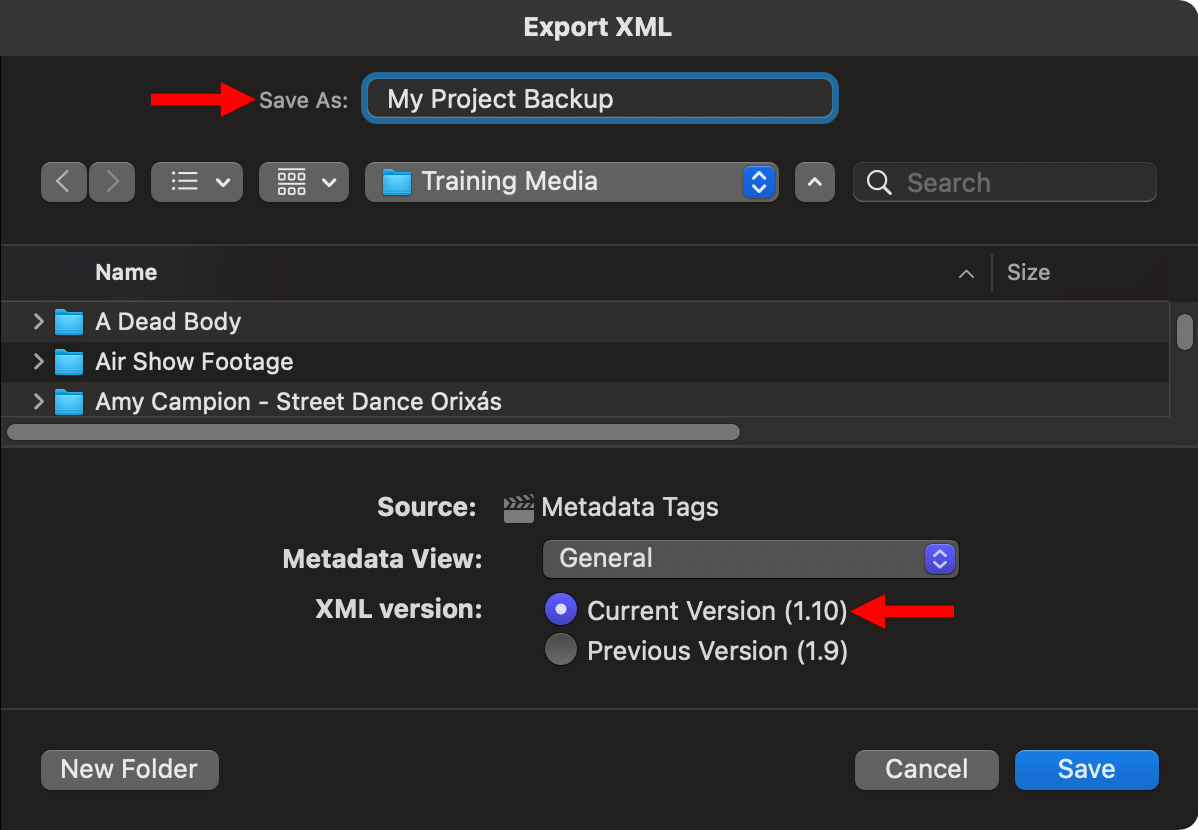
NOTE: Always use the latest version of XML displayed in this dialog for archiving.
Why is this necessary? Because FCP libraries use a proprietary format that only Apple knows. No other application can open an FCP library. However, LOTS of programs can open that XML file. If you ever need to access an older FCP project, you can do so if you created an XML file. You most often can’t if you don’t.
Creating an XML file is a big deal! It is fast, it doesn’t take much storage space, and it can save your tail in the future. Get in the habit of creating one for every completed project.
NOTE: An XML files does not contain media, it only contains the instructions on how that media was edited. Media still needs to be handled separately.
A NOTE ON STORAGE
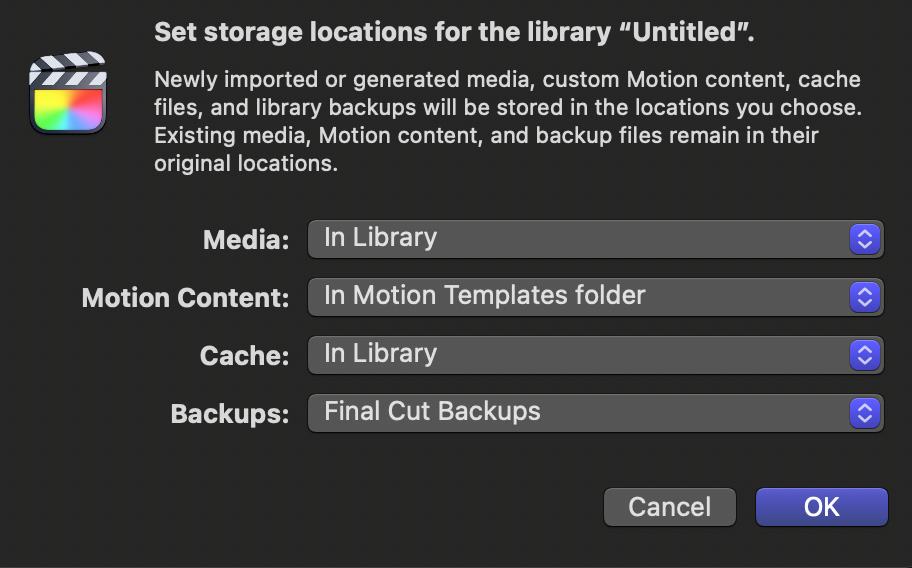
While it is far too late at the end of a project, if you know you need to either delete, archive or return a project, it will make your life MUCH easier to create a single folder – outside of Final Cut – into which you store media, audio, graphics, and work files for that project. Use as many subfolders inside as you want. The key, though, is to have all the media elements related to one project stored in one place. The library can be stored separately from this folder, because it is always easy to find.
Putting all show elements in this single, organized entity makes backups, archiving and transferring as easy as dragging a folder from Point A to Point B.
If you reorganize media after a project is over, you’ll break all the links between FCP and the media, which means everything in your project will need to be relinked. This, you’ll quickly discover, is a MAJOR pain in the posterior.
NOTE: After posting this, Patrick commented: “Editors must understand that how you organize a project in the beginning will affect how you finish.” Organizing where to store media and project elements before you start is really important!
OPTION 1: DO NOTHING
This tends to be the preferred choice. The end of any significant project is exhausting. Nothing is easier than saying: “I’ll clean this up tomorrow.” Except that tomorrow brings a new job and, well, you get distracted.
There’s no harm in this approach – provided you created an XML file. If not, go do so now.
As long as you have the storage room, letting things be is fine.
Really.
OPTION 2: DELETE THE PROJECT FROM YOUR SYSTEM
Frankly, this is what I do with all the demo files I create for my webinars and tutorials. Once the webinar is done, or the tutorial written, I don’t need it any more. So I delete it. (Though I do keep all the media for reuse.)
Let’s say you want to delete everything associated with a project – except for software and plug-ins – here’s what you need to delete and where it’s stored.
| Element | Where It’s Stored |
|---|---|
| Library | On your hard disk |
| Library Backups | [Home Directory] > Movies > Final Cut Backups, unless moved by you to a different location. |
| Media | On your hard disk – or – inside the Library file. |
| Motion Content | [Home Directory] > Movies > Motion Templates – or – inside the Library file. |
| Cache, render, analysis & other work files | Inside the Library file, unless moved by you to a different location. |
Generally, I suggest you delete the Library file, related media and the backups. I would generally leave any motion graphic templates and all plug-ins for use in future projects.
Retaining the XML file is a good idea if you are keeping the media, but, if you trash the media, you can delete the XML file as well.
A few minutes clean-up and you’re done.
NOTE: You can delete Final Cut backups at any time – I just picked up 3 GB of space by trashing backup files of long-ago projects that I hadn’t bothered to delete before today. Just be sure to quit FCP before deleting backup files.
OPTION 3: RETURNING PROJECTS TO THE CLIENT
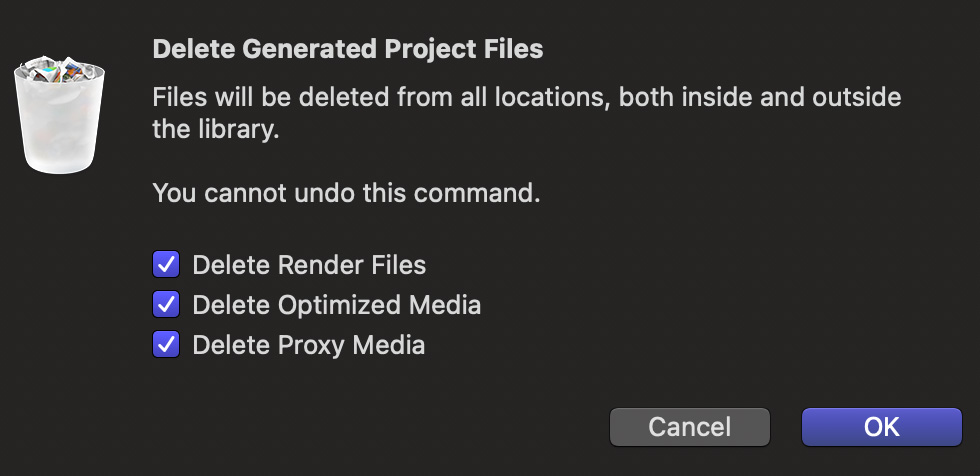
Before returning files to the client, you can safely delete work files that Final Cut created during editing. Doing so will save gigabytes of storage space. These include:
To delete these:
Once these files are deleted, gather the following files for your client:
You don’t need to return any FCP backup, render, proxy, or cache files.
OPTION 4: ARCHIVING PROJECTS
Just as when sending files back to the client, when you archive a project you can delete render, optimized, proxy and backup files as I just described.
Here, creating an XML file is critical, because there is no knowing how long Apple will support older FCP files themselves. As examples, look at FCP 7 and FCP X 10.0. Neither of these project files can be opened today. However, XML files created by both of them CAN be opened in a variety of software, including Final Cut.
Again, you’ll want to archive:
You don’t need to save any FCP backup, render, proxy or cache files.
What makes archiving tricky – and there are no good answers here – is the on-going evolution of operating systems and software. Opening a project a year from now is fairly assured. Opening it ten years from now is not.
Adobe has done a better job of supporting older formats than Apple has. Photoshop is a good example of supporting older files. FCP 7 is not. 3rd-party plugins are also an issue; it’s not unusual for a developer to lose interest in developing a plug-in that was essential for your current project.
Make good notes about the tools you used for a project and include the name and version of:
I think it is a safe assumption that you’ll be able to open both the XML file and media in ten years. But you most likely won’t be able to open any programs or plug-ins. Factor that into your planning.
SUMMARY
The process of wrapping up any Final Cut Pro project is fairly simple, especially if you think about where to store media and project elements before you start editing.
The REAL challenge is planning for technology obsolescence in the future. Here, your best protection is storing media separate from the library and exporting an XML file of the completed project. That, and good notes on what you did, will protect you when you need to revisit this project in the future.

2,000 Video Training Titles
Edit smarter with Larry Jordan. Available in our store.
Access over 2,000 on-demand video editing courses. Become a member of our Video Training Library today!
Subscribe to Larry's FREE weekly newsletter and
save 10%
on your first purchase.

38 Responses to What To Do When You’re Done Editing an Apple Final Cut Pro Project
← Older Comments-
 Mark Suszko says:
December 4, 2023 at 7:08 am
-
 Larry says:
December 4, 2023 at 7:14 am
-
 Bruce G Macbryde says:
December 4, 2023 at 12:24 pm
-
 Larry says:
December 4, 2023 at 12:46 pm
-
 Olaf Burger says:
December 4, 2023 at 1:06 pm
-
 Larry says:
December 4, 2023 at 1:16 pm
-
 Bruce Macbryde says:
December 5, 2023 at 6:25 pm
-
 Larry Jordan says:
December 6, 2023 at 6:50 am
← Older CommentsIf you never want to hear from that client again, make a detailed archive on your own storage.
If the client has not communicated with you for over a year, and you want them to call you, delete the completed project and source files and I guarantee that client will call with an update or change request within a day.
Finally, if you bundle the media up nicely and hand it off to the client, you will never see either, again. (Because the client either will throw that stuff away, not realizing the implications, or, they will hand all that over to an in-house guy or competitor).
All of these have happened to me.
Mark:
Yup. There’s just no easy answer to how to archive a project. Whatever you do … is wrong. (Smile)
Larry
In reference to your XML back up comment. This is pertinent with the new 10.7 version of Final Cut Pro just being released. If I have upgraded a library to a new version of Final Cut Pro and find I need to open that upgraded library with an older version of Final Cut Pro, I produce an XMl of the upgraded library that then can be opened by the older version of the software.
Bruce:
This is a very useful tip. Thanks!
Larry
Final Cut Library Manager has done a good job for me managing all the different types of render, optimised … media to regain disk space and be alerted about some link problems that have slipped though.
AND
I found it to be very good practice to set up a dedicated file structure at the beginning of each project. (I have a template to start with – and one folder holds versions of the XMLs especially if I’m round tripping)
Olaf:
I am a VERY big fan of Final Cut Library Manager. I’ve used it for years and have great respect for their developers.
Your idea of templates is one I use every week for my webinars.
Larry
In a similar vein, I have a method for frequently switching between 10.6 and 10.7 versions of Final Cut Pro in just three steps without needing to reboot the computer or uncompress zip files more than once.
Bruce:
If you can, I’d be very interested in learning your technique.
Larry