
 [ Please read my disclosure statement on product reviews. ]
Apple announced the new Mac Pro at their World-wide Developer Conference last spring. From the moment the image flashed on the screen, I knew I wanted one. Then, last week, when Apple released both Final Cut Pro X 10.1 and the new Mac Pro, they asked if I wanted to test drive a Mac Pro for a month. I instantly said “YES!!”
The next day a new Mac Pro showed up on my doorstep… with its return shipping label already attached. Sigh.
In this article, I want to do three things:
NOTE: This is the first of two articles on the Mac Pro. In my next article, I’ll compare the performance of the Mac Pro with a late model iMac for video compression.
WHAT APPLE SENT
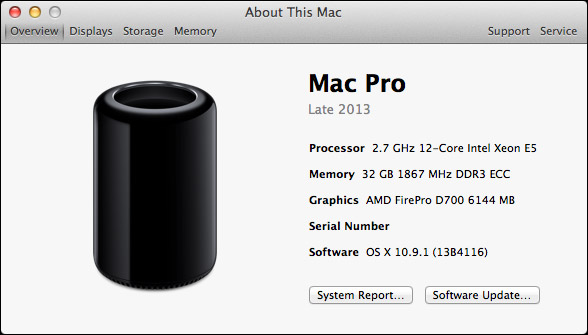
The configuration of this Mac Pro retails for about $8,400. It is two steps down from the absolute top of the line:
From my point of view, the configuration Apple shipped would be identical in performance to a fully-loaded system.
FIRST REACTIONS
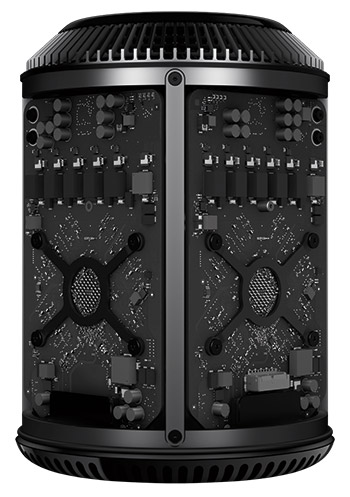 From the moment I pulled the system out of the box, I felt I was looking at an incredible Swiss watch – the fusion of art with technology. It is surprisingly heavy, with a solid feeling of substance.
The cylinder, standing on the desk, has a luminosity, depth and color that feels like looking into limitless depths. Every time someone new comes into the office, I invite them to see it.
In every case, I unplug all the cables, remove the cover, and we marvel over the sheer artistry at how the circuit boards are designed. Even the color of the circuit boards – black – reinforces the theme that every detail has been thought through.
Just sitting there, unplugged, the Mac Pro is a work of art. All the other computer gear that surrounds it, pales by comparison.
To the entire hardware team at Apple that crafted this system, let me tell you that I am blown away by the sheer beauty of what you’ve created.
BACKGROUND ON THE SYSTEM
Apple’s vision of the pro desktop is centered on performance. They looked at the entire system: CPU, GPU, bandwidth, their goal was speed – real-time playback, without the need to render.
NOTE: Rendering is still necessary at some point before output. All those great effects and color grades you are creating in the timeline need, at some point, to be rendered (meaning “converted”) into video. This is true of all editing systems. The trick is to figure out a way to get this rendering done without slowing you down; either during editing or exporting.
There’s nothing unique about dual GPUs, existing MacPros could install multiple GPUs inside the chassis. What is unique is that the MacPro now guarantees dual GPUs in every Mac Pro system. This allows developers to count on both GPUs being there. One GPU dedicated to displays, the other GPU dedicated to supporting the CPU. These are workstation-class GPUs with drivers are appropriate to professional software, as opposed to games. For example, these GPUs are better at the floating point operations used in video editing.
The Mac Pro uses PCIe-based flash storage; which is often called an SSD drive. While it only uses 4 PCIe lanes, it is the fastest flash available today: 1.2 GB/second. Also, the PCIe bus uses Generation 3 PCIe, which provides twice the bandwidth of earlier versions. This is enough bandwidth to handle the fastest flash… and then some.
There’s been a lot of talk about expansion. Here, Apple was thinking outside the box, by providing six Thunderbolt 2 ports with up to six peripherals attached to each port. On the one hand, this is a highly flexible approach that makes changing system configurations fast and simple. On the other hand, this approach requires awkward converter boxes, and additional expense, to attach existing PCIe-slotted devices.
On the third hand, new technology obsoleting older technology is not unheard of in our industry.
NOTE: There is a separate Thunderbolt controller behind every two Thunderbolt ports – three controllers in total. More controllers means less contention on the port and faster throughput.
SETTING UP THE MAC PRO
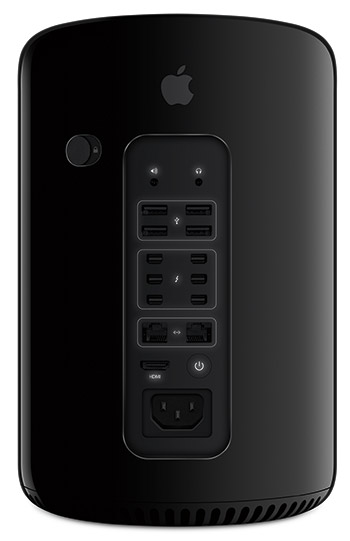 Connecting the system took mere seconds. But getting all the software downloaded and installed took a bit to time. There’s a new firmware update, plus I needed to download Final Cut, Motion, Compressor, and the iWork family of software. (Also, I installed SnapZ Pro, from Ambrosia Software, which I use for capturing all my screen shots.)
NOTE: Apple also provides a version of the Mac Pro where Final Cut and other software is pre-loaded.
I wasn’t in a hurry and I could work on other systems while all these installations occurred. I would guess the whole download and setup process took about three hours.
By the way, this system is QUIET!! 12 dB of total noise. 17 dB of total noise when under a load. My son, who’s ears are a WHOLE lot better than mine, could not hear the Mac Pro because the ambient noise in a very quiet office was louder than the computer. The cooling fan is efficient and quiet. And the amount of air coming out the cooling stack at the top is not enough to rustle loose sheets of paper — I checked.
On the same desk as the Mac Pro is a late 2012 27” iMac, which is the system I currently use for all my editing. All my media is stored on external Thunderbolt RAIDs, so moving media from one computer to the other was as easy as changing a cable connection.
NOTE: I’ve written about my iMac system configuration here and described editing on it, in this article.
MEASURING SPEED
Let me start by saying that the Mac Pro is a computer, it isn’t magic pixie dust. It is fast, but we are not talking miraculous super-powers that will save civilization as we know it. Sometimes expectations grow far past reality.
One of the KEY things you need to keep in mind is that video editing requires more than a computer. The computer is a component of an entire system. You could have the fastest computer in the world, but it if is connected to a USB 2 thumb drive you won’t be able to accomplish anything.
For me, the speed of the computer is secondary to the speed of the computer and storage working together. Storage bandwidth (the rate at which storage and the computer share data) is FAR more important than computer speed alone. To fully utilize the speed of the Mac Pro, you need to team it with storage that is equally fast. With that in mind, let me give you a perspective on just how fast the Mac Pro is.
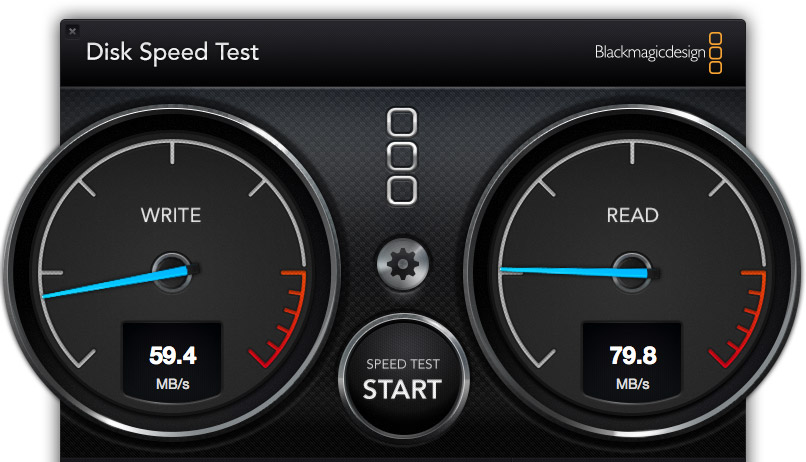
Here’s the speed of the Mac Pro talking with a single FireWire 800 drive. (By the way, this drive used to be my main editing drive, as recently as a year ago.)
The Write speed, on the left, shows how fast you can record data on a hard drive. To help with the comparison, ProRes 422, when used for HD media, requires a data transfer rate (also called “bandwidth,” or “speed”) of about 18 MB/second. Write speed is most important for import, rendering and sharing.
The Read speed, on the right, shows how fast you can play back data from storage. Read speed is most important for editing, and especially for multicam editing.
This drive is fast enough for simple editing and playback of single stream HD media, but not multicam. And definitely not anything using larger frame sizes than 1080p. (These speeds are also fully adequate for editing standard-definition media.)
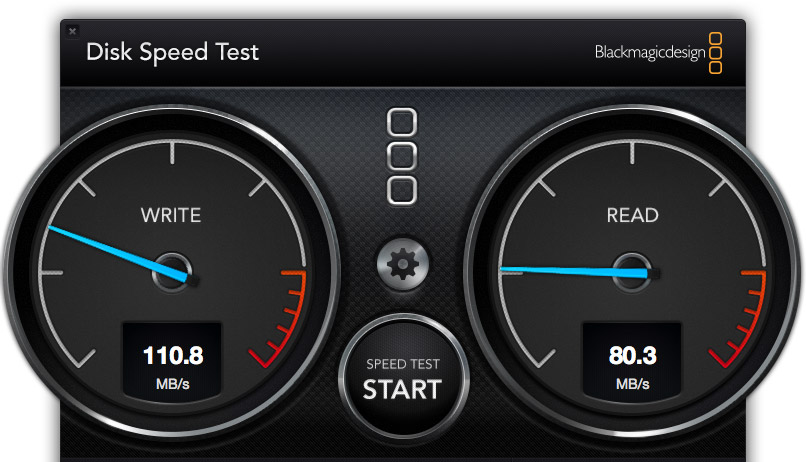
Here’s the speed of the Mac Pro talking with a Thunderbolt RAID connected to a server over a Gigabit Ethernet network. Better than a Firewire drive, but, essentially, only as fast a single hard drive internally attached to, say, an earlier Mac Pro. Not bad, but not good.
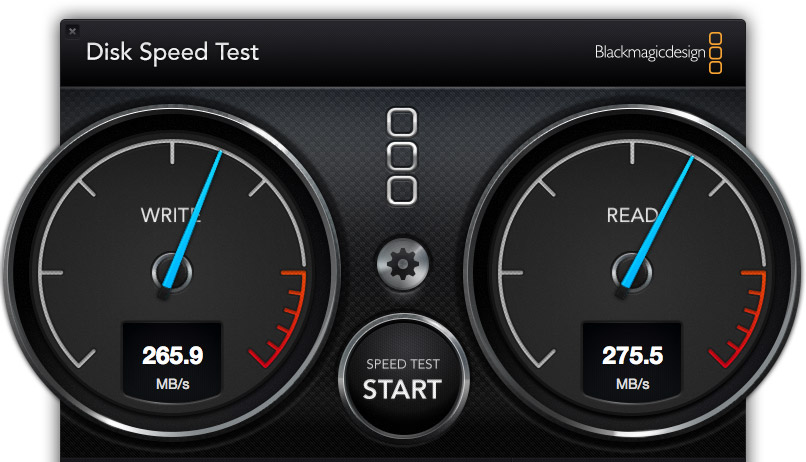
Here’s the speed of the Mac Pro talking with a 2-drive Thunderbolt RAID connected directly to the Mac Pro. Now we are starting to see some significant speed improvements in both write and read speeds. Direct attached storage is almost always better than attaching storage via a network.
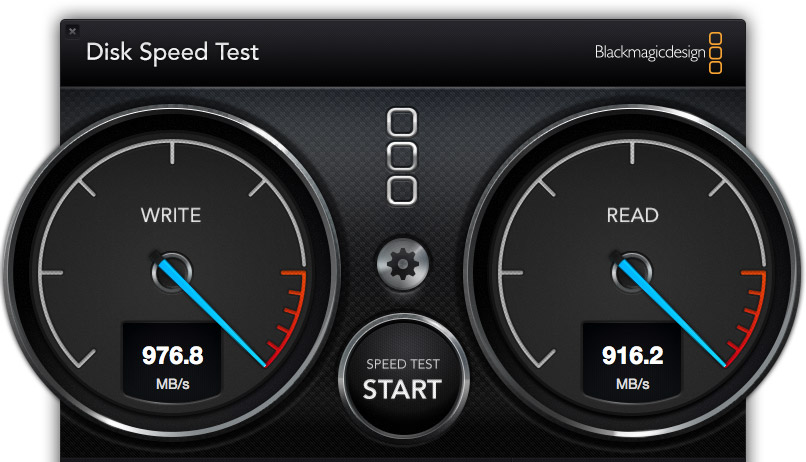
Here’s the speed of the Mac Pro talking directly with its internal flash drive. Holy smokes! I have never measured speeds this fast — BUT, even this speed does not fully load a single Thunderbolt 1 pipe. The new Thunderbolt 2 protocol, which the Mac Pro also supports, is more than twice as fast as the internal flash drive.
All things being equal, I still recommend storing all media on external devices, for reasons of performance, portability, and expandability.
WHEN USING THE INTERNAL FLASH STORAGE MAKES SENSE
Solid State Drives (SSD), also called flash drives, are extremely good at playing back the same files over and over. This makes them ideal as boot drives, where they are playing back OS and application files over and over. I first noticed this performance boost with the iMac and its internal Fusion drive.
However, SSD drives lose their performance edge when they need to play constantly changing data – for example, all the different clips in our project. In this case, RAIDs have the performance edge; especially if the internal SSD is not very big.
An exception to this rule is multicam editing. Since multicam clips use the same media, but switch angles, you’ll have much faster performance copying the multicam source files to an internal SSD drive; assuming you have sufficient room on the drive.
For example, Apple told me that a multicam clip of 16 streams of 4K video plays seamlessly from the internal SSD drive. (I don’t have any way to test this, so I can’t verify that it is true, however, given what I know about SSD and normal hard drives, their statement makes sense to me.)
EDITING WITH THE MAC PRO
All this leads up to the main question: “What’s the value in using the Mac Pro for video editing?” And the answer is: “You spend a whole lot less time waiting around.”
Here’s what you NEED for video editing:
NOTE: I was struck that the new Mac Pro took almost twice as long to startup as an iMac. I suspect this is due to the iMac only needing to check 16GB of RAM, while the Mac Pro was checking 32 GB.
In both these cases, the speed of your computer is far less important than the size and speed of your storage. And, in both these cases, you don’t NEED the new Mac Pro. But this misses the point. These computers satisfy the need to edit today’s video. The new Mac Pro satisfies the desire to be able to do far more and positions you for the future.
Editing with Final Cut Pro X 10.1 felt faster, smoother, “glossier.” (I have not yet installed Premiere Pro CC on this system, that’s on my list to do later this month.)
However, for all its speed, orange render bars did not disappear instantly, and there were several occasions where I got a dropped frame error when trying to play unrendered text titles composited into a four layer video project.
For editing pure video, the performance is stunning. But, as always, as we layer on effects, things can slow down. This simply proves that editing video is enormously challenging technically and, at some point, all computers reach their limits.

NOTE An excellent tool for monitoring your system is Utilities > Activity Monitor. I use this all the time to see how hard the CPUs are working, Memory (RAM) usage, disk data rates and network transfer speeds. I love this utility.
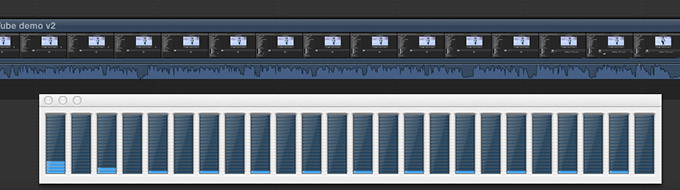
Here’s the CPU load playing back a four layer project in Final Cut Pro X 10.1. This involved two ProRes 4444 clips, plus a text composite and a Photoshop watermark. Each black column represents a single CPU core. The amount of blue, at the bottom, represent how hard that CPU is working. Let’s just say that in spite of the complexity of the project, if the CPUs were working any less, they’d be taking a nap.
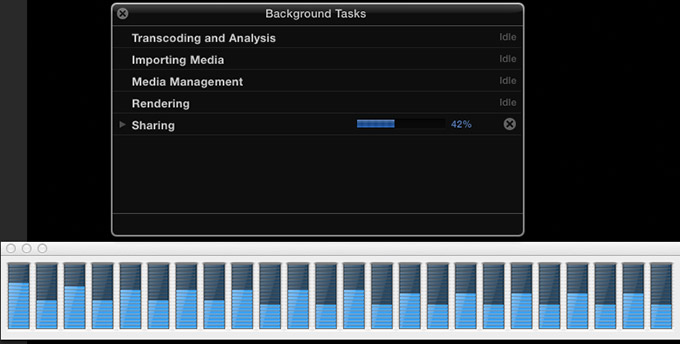
However, other operations, such as sharing, use as many processors as you have available. Here, I’m exporting a ProRes 4444 project as a ProRes 4444 file to locally attached Thunderbolt 1 storage.
Everything I can do on the iMac, I can do on the Mac Pro – only faster, smoother, more fluidly and with less waiting. That’s what the word “performance” means. If your current computer can keep up with you, then you won’t see much benefit in the new Mac Pro.
If, on the other hand, you are constantly waiting for your computer, then the new Mac Pro will make you more productive by decreasing the amount of time you have to wait.
It all boils down to the question: “How much is your time worth?” The Mac Pro is designed to save you time. Lots and lots of time.
UPDATE: A NOTE ON COMPRESSOR 4.1
Since first writing this article, I’ve learned that the Mac Pro does not support hardware acceleration of video compression and several key video codecs, such as H.264, are not multi-threaded. This provides limits on how fast the Mac Pro will compress video. Here are two articles that explain this in more detail:
CONFIGURING THE MAC PRO
If money is no object, get a fully-loaded Mac Pro. It is fast, sleek, screams “high-tech,” and will give you bragging rights for at least a year. You’ll be spending more than you need to, but the money isn’t that important to you in the first place.
For the rest of us, who need to balance configuring the system with the money we have to spend, here’s how I suggest you configure your system. In this configuration, my recommendation is to spend money on those parts of the system that can’t be easily upgraded. While the CPU, and, perhaps, the GPUs are socketed, updating them also requires new software from Apple which may, or may not, be in the works. However, both RAM and the SSD drive can be easily updated.
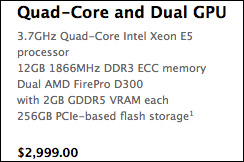
If you are on a budget and only editing HD, or SD, video, the base level system is fine. On the other hand, a well-equipped iMac would deliver about the same performance and cost the same or less. In this case, I’d vote for the iMac, because it includes monitor, mouse and keyboard, all of which are extra on the Mac Pro.
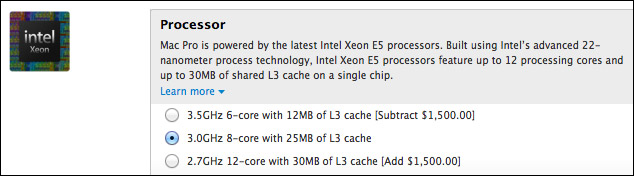
For most of us that need a Mac Pro, we should step up to the bigger system, and I’d start with the 8-core processor. The faster clock speed improves video compression, and Final Cut Pro will still feel very sprightly with 8 cores. Editing performance will be the same as 12-cores, while the performance hit for rendering and exporting will be minimal.
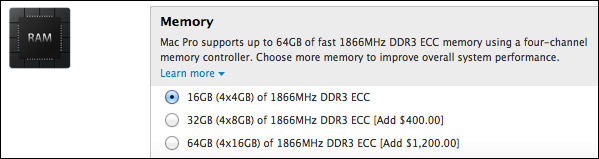
16 GB of RAM is fine to start. I am always surprised at how well FCP X manages memory. If you need more, adding it from the after market is cheaper than buying Apple RAM, and easy to add; even for the ham-fisted.
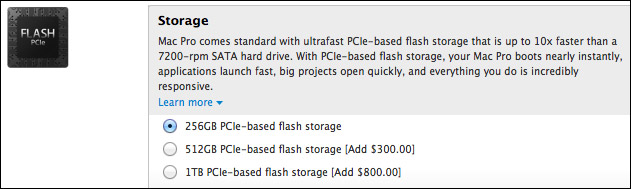
The Mavericks operating system only requires 21 GB of storage. ALL the apps on my current Mac Pro, take less than 45 GB; and this includes the entire FCP 7 suite, all the Adobe CS6 and CC suites, and all Final Cut Pro X, Motion 5, and Compressor 4.1. Plus more utilities, plug-ins, and miscellaneous application files than I can count.
In other words, we don’t need a lot of storage for the OS, our apps and a reasonably sized Home directory. Since the flash storage can be upgraded later, and flash drives are continuing to come down in price, if you are on a budget, get the 256 GB drive. If you can afford the extra $300, get the 512 GB, though I would lean against it. I don’t see any advantage to the 1 TB drive, because we are ALWAYS better off storing media on external devices.
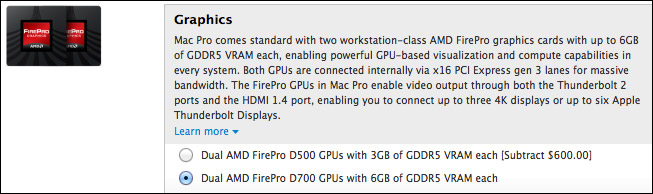
When it comes to GPUs, I recommend you buy the best. These are the real workhorses and the key advantage to the Mac Pro. Skimp everywhere else, but not here.
At the moment, I don’t need a monitor, mouse, or keyboard – all of which are easily available everywhere – because I own them already.

This brings the total price for this configuration to: $6,099. Another $400 gets you a bigger flash drive, mouse, and keyboard.
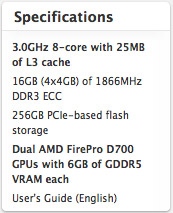
Here’s a copy of the final specs for my system. (Your needs may be different, but if you ask what I would recommend, this is it.)
SUMMARY
Do we WANT this new computer? Absolutely.
Do we NEED this new computer? That is a much more complex question because there is such a fine line between need and desire.
Not all software is updated to take full advantage of the dual-GPUs in the Mac Pro. As those updates become available, the Mac Pro will continue to increase in speed.
Finally, to fully take advantage of the speed of a Mac Pro, you also need to invest money in high-speed Thunderbolt storage to work with it. There is debate about whether media should be stored on the internal flash drive. For now, I am still recommending that media be stored on external RAIDs; though, if all you have is a single Thunderbolt drive, the internal flash drive will be far, far faster.
When my time with this unit is up, I will send it back to Apple, then, head over to the Mac Store and buy a new Mac Pro for myself. Do I really need it? Well, that’s debatable.
But do I want it? Oh, yeah!

2,000 Video Training Titles
Edit smarter with Larry Jordan. Available in our store.
Access over 2,000 on-demand video editing courses. Become a member of our Video Training Library today!
Subscribe to Larry's FREE weekly newsletter and
save 10%
on your first purchase.

73 Responses to The New Mac Pro: Ridiculously Fast
← Older Comments Newer Comments →-
 Andrew says:
January 2, 2014 at 2:21 am
-
 Larry Jordan says:
January 2, 2014 at 9:03 am
-
 Benji says:
January 2, 2014 at 9:42 am
-
 Larry Jordan says:
January 2, 2014 at 10:16 am
-
 John says:
January 2, 2014 at 10:39 am
-
 Larry Jordan says:
January 2, 2014 at 10:55 am
-
 Benji says:
January 2, 2014 at 11:02 am
-
Everything You Need to Know About the New Mac Pro | Premiumbeat.com says:
February 5, 2014 at 11:10 am
-
 Sameer Ahmed says:
February 6, 2014 at 1:15 pm
-
 Larry Jordan says:
February 6, 2014 at 2:11 pm
← Older Comments Newer Comments →I’m also interested in this claim of poor performance with editing directly from the internal SSD. Is there a way to measure performance with the internal SSD vs an external thunderbolt drive/RAID system with the nMP? How poor is the performance of accessing the constantly changing data vs. the unchanged files? I know there are a lot of variables, but is there any way to measure the kind of performance issues we might see in editing with the internal SSD?
I was planning to upgrade the internal storage to 1TB to edit projects and use a Drobo 5D to act as storage/backup. Now I’m thinking of maintaining the 256GB storage for apps/games/misc and using that money I would have used to upgrade the flash to instead pay for something like the Promise Pegasus2 R4, which is about the same price.
Andrew:
I am NOT! saying the internal drive has poor performance. I am saying that using external storage – specifically a RAID 5 – provides storage that is dedicated to media playback, can be easily expanded or moved from one computer to the next, and yields speeds equal to or faster than internal storage.
Larry
Thanks for clarifying Larry, I think we were responding to this:
“However, SSD drives lose their performance edge when they need to play constantly changing data – for example, all the different clips in our project. In this case, RAIDs have the performance edge”
5 7200rpm drives in a RAID is still going to cap out at around 600GB/sec right? Does the Mac Pro’s SSD struggle to the point where you’re going to appreciate the Pegasus performance better or is the performance edge more about expandability and portability of the RAID?
I’m thinking the question on whether to upgrade the SSD in the Mac Pro may be more about how big your average projects are. If most of most your projects exceed 600GB or so (I do a lot of compositing projects, so I don’t have any editing projects greater than a few hundred GB) you probably need some external speedy storage. I want the convenience of working with my current projects on the fast internal drive (but not if they suffer a noticeable amount of “SSD lag”, if that is even a thing). Also being able to have my user folder with my entire iPhoto library internal and my iTunes folder on the internal drive insures that my important stuff is all on the internal portable SSD, so it’s with me if I need to take the system somewhere.
Benji:
Good comments. I think for small projects you’ll be fine using the SSD because the projects are small and the bandwidth needs are minimal.
However, if you ask what I recommend, I always recommend a second drive.
Larry
Larry,
I posted this reply the other day:
My clients never shoot anything higher than some flavor of HD, editing in ProRes HQ. I’ve been working with FCP 7 on my MacBook Pro with Firewire 800 externals or at best, a Thunderbolt RAID set. However, one of my clients wants to start working with multi-cam projects and I wouldn’t mind positioning myself for the future. The way I see it, if I can take the time to save up for a new edit system, it might as well be for a Mac Pro rather than an iMac. Thoughts?
Also, one of the most time-consuming parts of my job is rendering and outputting hi res QT files for clients. How much of a difference would I see in render and output times with the new Mac Pro, compared with my current 2.6 GHz processor and internal SATA disc?
Your advice would help a lot. Thanks for all you do!
John
John:
I haven’t had time to do these comparisons, yet. It is on my list for today.
Larry
Sweet! It would also be awesome to know if the GPUs are utilized for h264 export from Compressor. One idea for a test would be to try to do an export of a pro-res file from Handbrake (which doesn’t use the GPUs) and a similar export from Compressor (which does use the GPUs, I think anyway).
[…] From a creative standpoint Larry Jordan has posted his thoughts on the performance of the Mac Pro for video editing and which configuration would give you the best bang for your buck in this extensive review. […]
Dear Larry,
Thanks for your review and advice. I was wondering would a 6 core new Macpro handle 2K footage? or would an full iMac handle 2K footage. I think I understood that the 8 core would be great for 4K and above footage.
Your thoughts please
yours
Sameer
Sameer:
Both systems can edit 2K footage. The Mac Pro will be faster at rendering and export.
Larry