
 Most of us have heard of Apple’s transition from Intel CPUs to its own Apple silicon. But these new systems upend the established rules for how to configure a computer system for media editing.
Because I frequently give guidance on how to spec a computer, I wanted to find out the “new rules” when considering these systems.
So I did some research. Here’s what I learned.
HERE ARE MY THOUGHTS ON:
OVERVIEW
This first iteration of Apple-designed chips is called the “M1.” And this is the most important point: The M1 represents the start of a new architecture. Apple has promised all of its computers will transition to Apple-designed chips over the next year or so, but only the first ones will use the M1. Future computers will use newer versions of this architecture.
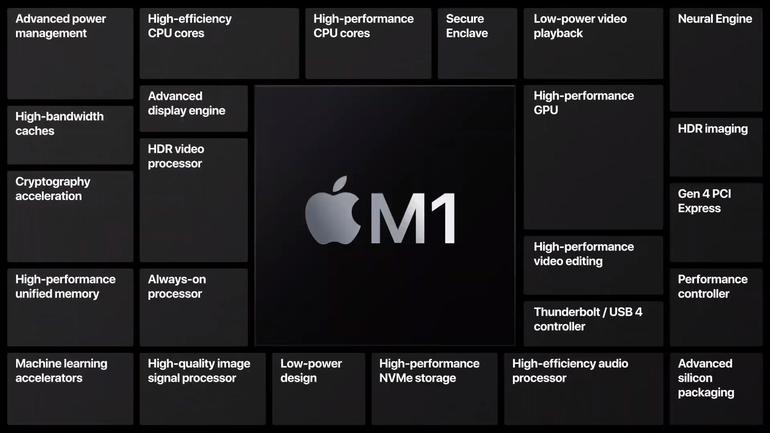
In other words, while the system design will probably remain consistent between chips, the specifications and performance will continue to improve.
Why will performance improve? Because there is absolutely no reason for Apple to make the immensely difficult switch to new computer technology unless there were striking benefits to the new gear. Apple has never been about providing the lowest price. Their focus is on the user experience, system integration and performance.
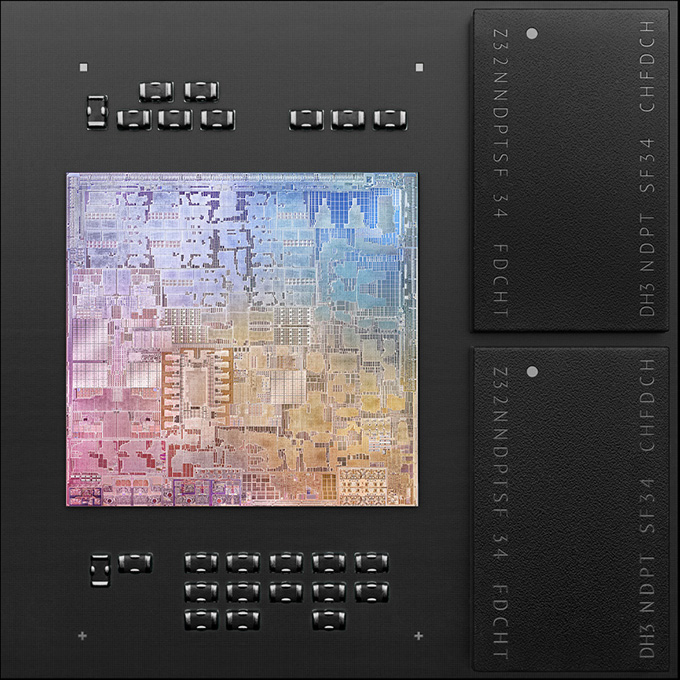
The second key thing you need to understand about the M1 is that it is not a CPU. It is an entire computer system on a single chip – called a “System-on-a-Chip” (SoC). CPU, GPU, RAM and all the supporting chips needed to make the computer work are all combined together in one place.
NOTE: Well, OK, that’s an overstatement; a computer consists of many, many different chips. But the heart of the system is this single SoC, designed by Apple and tightly integrated for performance.
It’s this integration that makes planning very different as we think about our next computer system for media editing.
RAM
In the past, Apple recommended that, when editing HD (high-definition) media, 16 GB was an appropriate amount of RAM. But as frame sizes exceeded 4K, frame rates increased and we moved to HDR (high-dynamic range) media, Apple recommended expanding the RAM to 32 GB, or more. The M1 maxes out at 16 GB. Can we use it for video?
Within reason, yes.
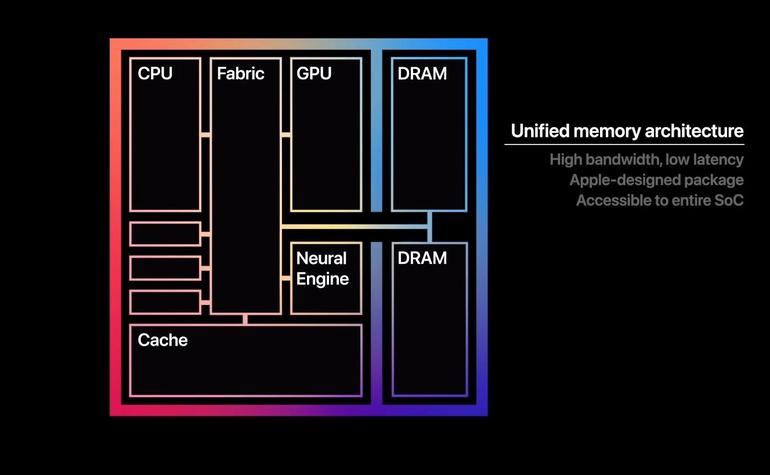
In the past, when Apple combined CPUs from Intel, GPUs from AMD and RAM from, um, RAM suppliers, each vendor had its own way to store data. This meant that the same file often needed to be duplicated in RAM – one in Intel format, another in AMD format and so on. These duplicated files took up a lot of space.
NOTE: It is worth noting that when a compressed file, like H.264, is loaded into RAM it is also decompressed. Video NLEs can only edit uncompressed media. So, a file that may not take much space on your hard disk can explode in size once it is stored in RAM. However, a video editing program never loads the entire clip – it only loads a few seconds or so as needed – simply to preserve RAM for other tasks.
The M1 uses integrated memory. This is a giant puddle of RAM which every component in the computer can access without first duplicating the file. This speeds performance, while decreasing the amount of RAM needed for each application. It may contain less RAM but it can hold more data.
NOTE: While the new M1 systems are very efficient with RAM, I would still recommend getting a system with at least 16 GB of RAM for editing media.
The key to video editing performance is the speed of our storage, even more than the amount of RAM or the speed of the CPU.
While it is possible to hit the wall with a 16 GB system, especially when running multiple applications at the same time, or editing large-frame size, high-frame rate HDR media, keep in mind, again, that these initial systems are not designed for high-end video editing. Intel-based iMacs and Mac Pros are still better for this than current M1 chips – though, again, that will change as Apple releases more of the M1 chip family in future computers.
NOTE: “Paging” also helps when dealing with smaller amounts of RAM. Paging transfers files that are not immediately needed from RAM to storage (and back). Since the speed of the SSDs in these new computers is very, VERY fast – approaching 3,000 MB/second, compared to the 600 MB/sec of older SSDs – this means that files swap between RAM and storage four times faster. This boosts performance, while maximizing RAM usage.
CPUs
(Click to see larger image.)
In the past, bar fights broke out between editors over the importance of CPU speeds for video editing. We would argue endlessly about the i3, vs. i5 vs. i7 vs. i9. I’ve written in the past that CPU speed is over-rated, especially when compared to the GPU and storage bandwidth. Apple agrees, which is why they don’t promote the speed of the CPU in the M1.
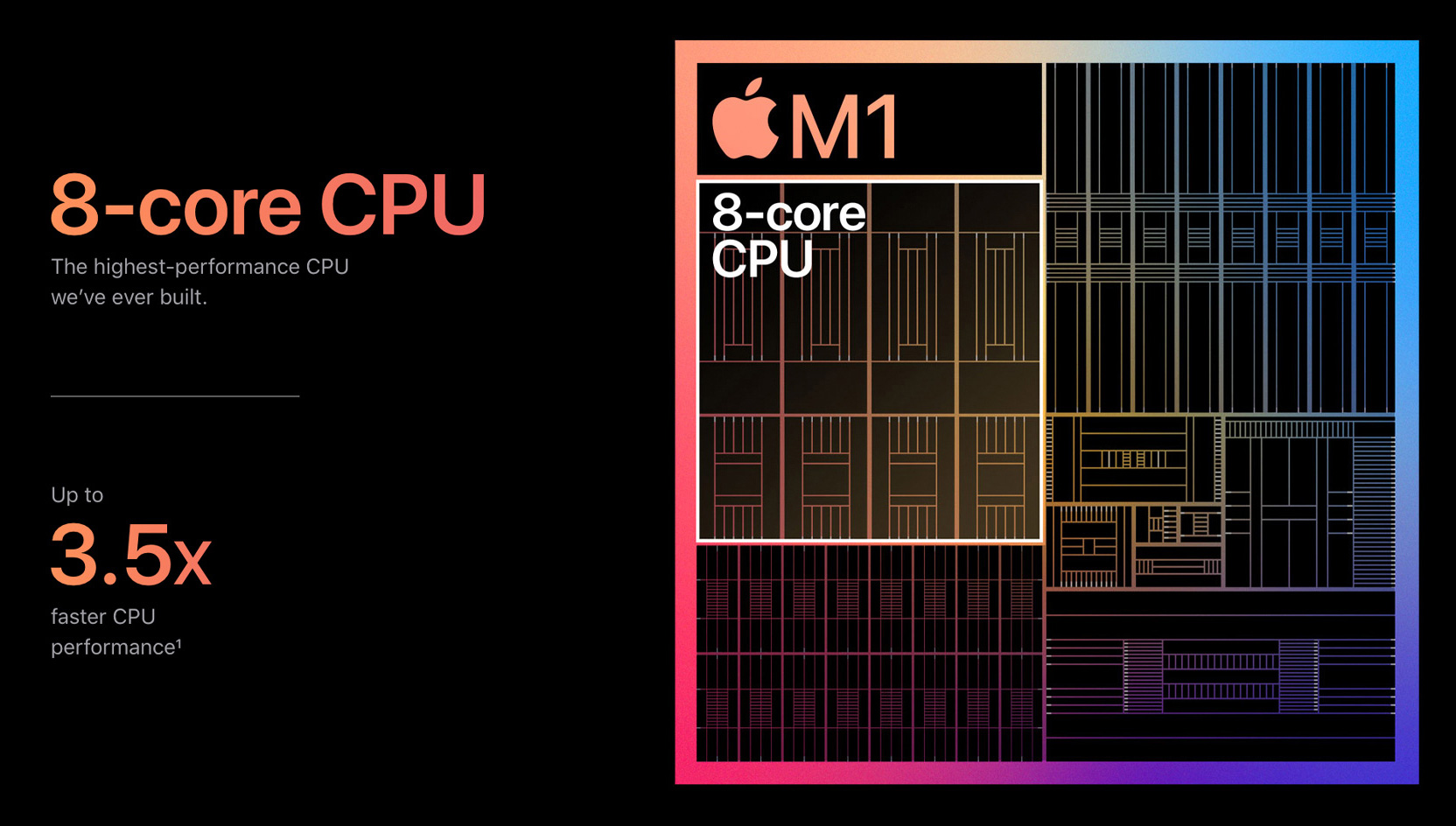
The M1 simplifies picking the “right” CPU by creating a system with multiple high-performance cores for video editing and high-efficiency cores for less complex tasks like web browsing, email, word processing and the like. The system dials in whichever CPU is needed for the task you are doing.
NOTE: The M1 also includes hardware-accelerated H.264 and HEVC compression and decompression, making these formats much easier to edit.
SSDs
Storage is a bit trickier. Apple is using custom-built SSDs based upon the NVMe (Non-Volatile Memory Express) specification, which is very, very fast; approaching 3,000 MB/second
However, unlike spinning media, SSDs have a limit on the number of times they can write data to a memory cell before it fails. With all NLEs creating vast amounts of render and cache files, it will be important for us to look for ways to maximize the longevity of our SSDs – especially because, in these first systems, replacing an SSD is not easy. Where possible, buying an SSD slightly larger than you need is probably a good idea.
This is something we need to watch in the future, especially for systems we expect to use intensively for several years.
NOTE: Just as with current systems, external media storage will be necessary. Internal storage, no matter how big, will never be enough for all media projects. For maximum speed, an NVMe SSD connected via Thunderbolt 3 is the best choice. And, as with Intel systems today, RAIDs, either using spinning media or SSDs, are always recommended.
GPUs
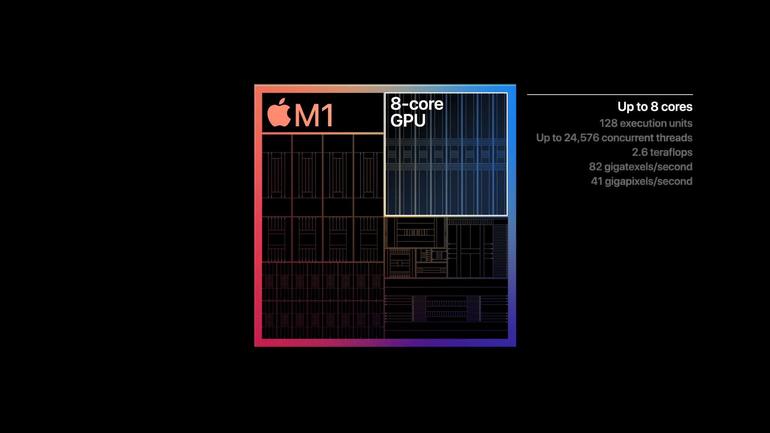
In the past, we had a plethora of GPUs to pick from when configuring a system. While the quality of an image created by a GPU doesn’t vary, the speed with which images are created can vary a lot. GPU speed is an important determiner of performance in color grading, effects and rendering.
Currently, the M1 chip processes graphics faster than any integrated GPU (such as the integrated Intel GPUs on lower-end systems). But it does not yet fully compete with high-end GPUs. This does not mean current M1 systems create images of lesser quality, simply that they do not do so as quickly.
METAL MAKES A DIFFERENCE IN YOUR GRAPHICS
Metal is the technology that provides near-direct access to the graphics processing unit (GPU), enabling developers to maximize the graphics and compute potential of their apps. For maximum performance, look for Universal, Metal-optimized applications to make the most of an M1 system, along with macOS Big Sur. For NLEs, these include:
BUY NOW – OR WAIT?
So, what’s the takeaway?
The history of computing has proven that computers always get faster. So, there’s a reason to wait until we see the full range of what Apple has up its sleeve. Still, there are several benefits to purchasing one of the current M1 systems – even for professional editing:
The M1 SoC is the start of something very big. So much so that the rules we knew to be true in the past no longer fully apply. No, the M1 doesn’t violate the laws of physics, but by integrating different elements into a single common infrastructure, Apple is able to achieve better performance in less space that before.
If you need an editing system right now, the Mac mini is an amazing editing powerhouse in itself, with a starting price of only a few hundred dollars. If you need serious performance with a larger screen and additional ports, the current 27″ iMac with an Intel chip is a better choice.
Other systems are on the horizon. Apple has announced that it will convert all its Mac systems to the new Apple silicon over the next 18 months; though no specific timing or gear are yet announced. Still, when those systems ship, they could redefine desktop computing as we know it.
Personally, I’m looking forward to it.

2,000 Video Training Titles
Edit smarter with Larry Jordan. Available in our store.
Access over 2,000 on-demand video editing courses. Become a member of our Video Training Library today!
Subscribe to Larry's FREE weekly newsletter and
save 10%
on your first purchase.

36 Responses to Thoughts on Apple’s M1 Silicon for Video Editing
← Older Comments Newer Comments →-
 Jack Kidd says:
June 12, 2021 at 5:51 am
-
 Larry says:
June 12, 2021 at 7:57 am
-
 Jonathan Alexander says:
July 12, 2021 at 8:09 am
-
 Daksh Dhawan says:
July 17, 2021 at 1:58 am
-
 Larry says:
July 17, 2021 at 7:36 am
-
 Ashleigh says:
July 29, 2021 at 10:12 pm
-
 Larry says:
July 30, 2021 at 7:35 am
-
 Liz L. says:
July 30, 2021 at 4:50 pm
-
 Larry says:
July 30, 2021 at 5:38 pm
-
 Gurvitch Dutès says:
October 16, 2021 at 8:35 am
← Older Comments Newer Comments →I just put Premier Essentials 2021 on my new iMac kwith the M1 chip. I lags between tasks. My PC works better.
Jack:
Premiere Essentials does not yet support M1 Macs natively. Adobe is working on it.
Larry
Agreed! thanks for breaking it down into plain language and easy to understand points.
I am planning to buy the same system. Mac Mini M1 16GB. But confused if I will be able to run Davinci Resolve for editing my A7siii SLOG2 footage 10 bit. I want to colour grade, speed ramp, etc and want to use a liitle bit of fusion. Is it a good setup to fulfill ny requirements ??
Dakesh:
DaVinci Resolve now supports M1 Macs natively. This means that anything you want to do in DaVinci Resolve will run on your Mac Mini. You are wise, also, to get 16GB of RAM. That extra memory is a good idea.
Larry
Hi there Larry,
First time reader here! I’m a cinematographer and am learning lots about what specs I should be looking at to properly process my footage. This was incredibly helpful! Loved the explanations.
I’ll be editing blackmagic raw 6k files in premiere and resolve and also colour grading them in resolve. I need a laptop now, my 2013 Macbook has seen it’s last days. Will the 13” M1 with 16gb be sufficient? There’s always so much to weigh up. I’ll cry if I get constant crashes and slow renders / delayed command reactions! Although probably anything I get will be a huge upgrade from my old system now.
Thanks so much!
Ashleigh:
Thanks for writing!
Smile… no need to cry. This is not that traumatic. Given the 2013 ystem you have, your new system will blow its doors off. (Well, OK, that may be an exaggeration, computers don’t have doors.) Nonetheless, it will be very quick.
Here’s your choice: Get a system now with an M1 chip or wait a bit for the next generation of chips. That wait is likely to be 2-3 months for a new 16″ MacBook Pro, but nothing is known for sure about the release date.
Premiere JUST last week released a version that supports the M1 chip. DaVinci Resolve and Final Cut Pro both support it currently. Not all plug-ins are fully compatible yet. You should NOT! get constant crashes nor slow renders. If you do, it will be caused by something other than your computer.
If you need a system now, buy the 16 GB higher-end GPU version of the MacBook Pro. If you can wait a couple of months, the newer system will have more capability.
I don’t think you will lose either way.
Larry
Hello – great article and comments! I’m edging back into video production after a 14 yr hiatus and looking at next system purchase. Will be working mostly in 4k. So far.
Per your 7/30 response to Ashleigh
“If you need a system now, buy
the 16 GB higher-end GPU version of the MacBook Pro.
If you can wait a couple of months, the newer system will have more capability.”
Do you mean the GPU is just better with 16GB RAM (vs 8) ? Which would make sense with the SoC paradigm.
Or is there somehow a high-end GPU on the logic board external to the SoC that comes with 16GB versions of Mini or Macbook Pro.
Curious and I don’t mind sounding like a dunce on this.
Cheers and thanks in advance,
Liz
Liz:
Not a dumb question at all.
There are two separate issues here:
1. 16GB of RAM helps when running multiple applications, handling larger frame sizes, and handling faster frame rates. That one puddle of RAM supports the CPU, GPU, Neural engine and everything else. More is generally better.
2. Regarding the GPU, Apple supplies two versions: 7-core and 8-core. The 8-core version processes graphics – like video rendering – faster than the 7-core version. This additional speed will be especially helpful with video, which leverages the GPU a lot.
Larry
Thanks soooo much for this wonderful article.
I am a creator, a video editor (for my personal projects, so far☺).
I have found plenty of information in your article, and it is very helpful to me, because I am about to jump into the Apple world with the M1 or M2 or M1X chip.
My question is: Do you think I should purchase the M1 imac (within the colored ones) for video editing since the M1 chip is on or a the 13″ M1 Macbook pro?
The last little word “pro” makes me hesitate.
Please, your answer will be valued..
Best regards,
Your reader.