
 Last week, I posted a video demo on how to use Preview to transfer media files from an iPhone to a Mac. (See it here.) Afterward, a reader wrote to say they used Image Capture (another Apple-supplied application) for the same purpose and found it easier to use.
Hmm… I don’t think I’ve ever launched Image Capture, so this week, I decided to take a closer look. And what I discovered is that this app makes transferring media even easier than Preview.
NOTE: You can use Image Capture to transfer files from an iPad or a camera. The Image Capture Help files go into these options in more detail.
Here’s how it works.
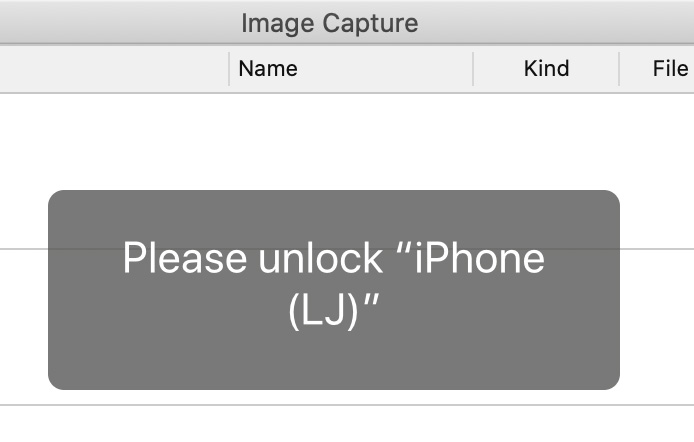
NOTE: During launch, the application will ask you to unlock to your iPhone. This app can’t transfer files from phones you don’t have login access to.
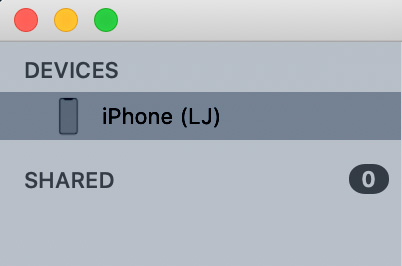
NOTE: If you have connected different iPhones to your computer over time, you may see more than one phone listed. Click the name of the currently-connected phone.
(Click to see larger image.)
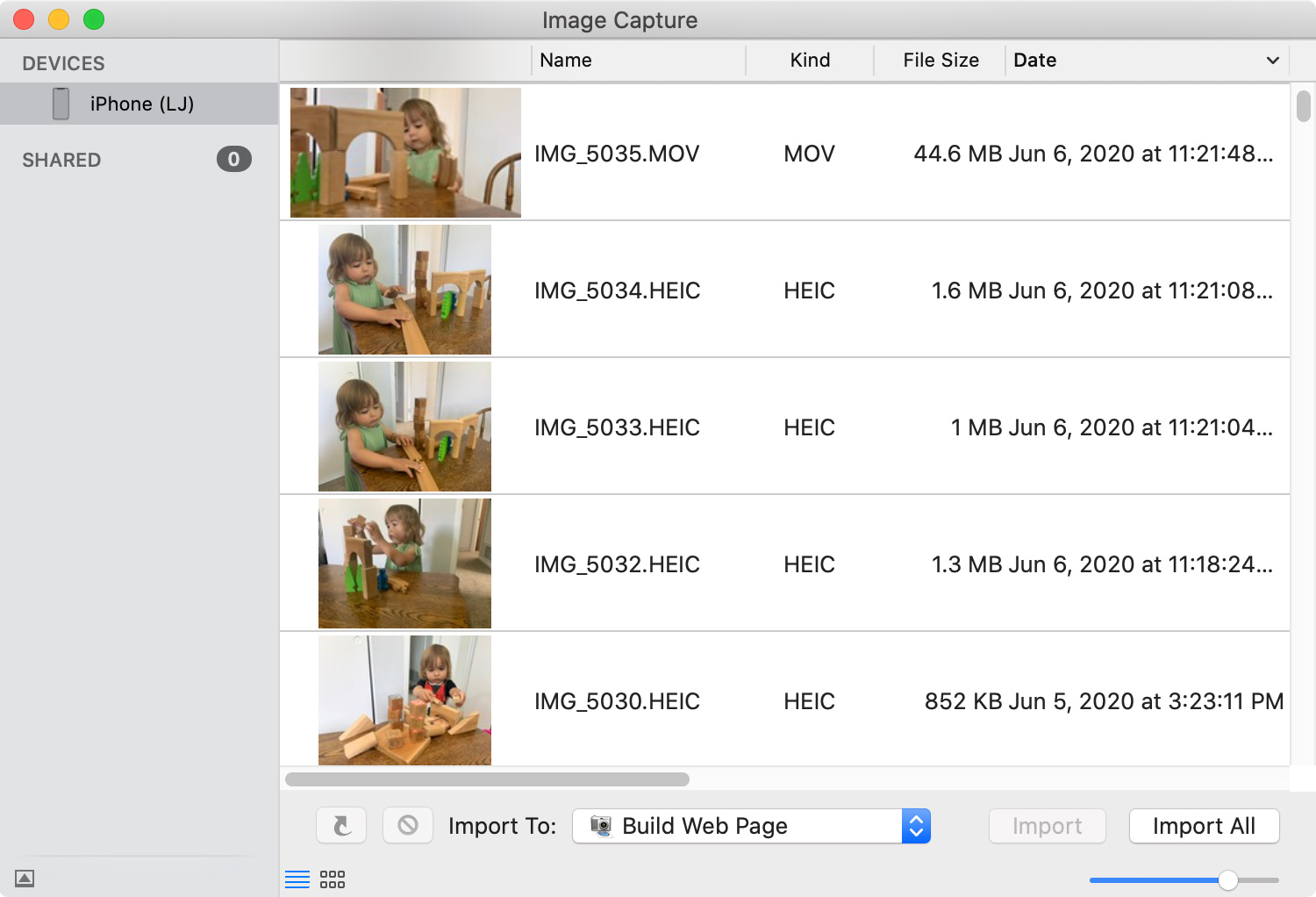
The screen on the right displays all the still (HEIC) and movie (MOV) files stored on your device.
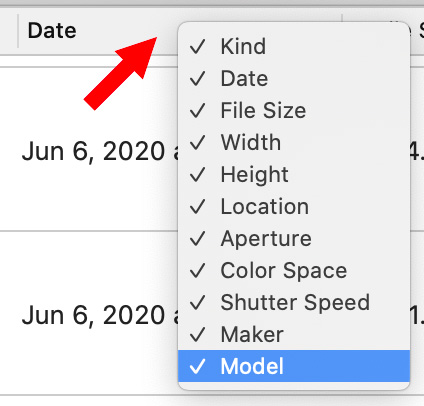
The twelve columns display a variety of technical information, and thumbnails, about each image. Control-click any column header to enable or disable any column. (As you would expect, you can also change the order of columns by dragging the column header to a new position.)

At the bottom of the screen, the two icons on the lower left switch between list and thumbnail view; while the slider on the right adjusts thumbnail size.
Immediately above the thumbnail icons, the curved arrow rotates an image counter-clockwise. (Press Option when clicking to rotate images clockwise.)
NOTE: This button is disabled for video or images shot natively on an iPhone.
IMPORT IMAGES
You have two basic options to import images: drag them or use automation. For example, with dragging:
However, the real power of Image Capture is in its automation.
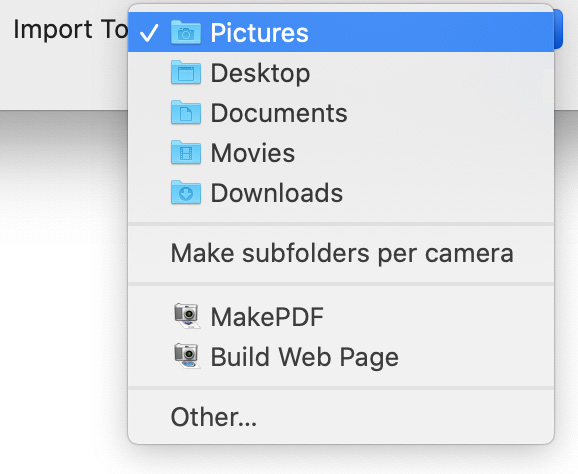
Click the Import To menu to reveal a variety of pre-built locations to import files, as well as the ability to specify a custom folder for import.
You can also convert any selected range of images to a PDF or build a webpage consisting to clickable thumbnails which expand to show the entire image full screen.
Once you’ve determined the destination for imported images, click Import.
NOTE: Click Import All to import all images from your iPhone to your Mac.
WHY USE IMAGE CAPTURE
In my earlier article readers asked why not use AirDrop? AirDrop is a method to transfer data; especially when two different people are involved with different security on each device.
However, using Image Capture (and Preview) provides the following benefits:
Apple’s Help files also state that we can set up Image Capture to:
SUMMARY
I’m very impressed with how Image Capture simplifies moving files between iPhone and Mac. It is easy to use, capable, fast and secure. AirDrop is quick and easy for single images, but when dealing with lots of files, Image Capture is my application of choice. And, best of all, it’s already installed on your system.

2,000 Video Training Titles
Edit smarter with Larry Jordan. Available in our store.
Access over 2,000 on-demand video editing courses. Become a member of our Video Training Library today!
Subscribe to Larry's FREE weekly newsletter and
save 10%
on your first purchase.

17 Responses to Quickly Transfer Photos and Video Using Image Capture on a Mac
← Older Comments-
 Larry says:
December 29, 2020 at 1:23 pm
-
 Steve says:
August 20, 2021 at 11:25 pm
-
 Larry says:
August 21, 2021 at 3:58 am
-
 Rhonda Starkman says:
July 28, 2023 at 8:11 am
-
 Larry says:
July 28, 2023 at 8:20 am
-
 MITCHELL SMITH says:
December 2, 2024 at 7:23 pm
-
 Larry Jordan says:
December 2, 2024 at 7:55 pm
← Older CommentsSarah:
Thanks for your suggestions. Photos is an app that I avoid using, so I appreciate your thoughts.
Larry
For some unknown reason, when I import ANY photo from my iPhone to my iMac using Image Capture a .mov file of the same image is also created, even though I didn’t take a video, just a still shot.
This has been happening since I updated my iPhone software (14.7.1)
Steve:
My guess is that you are shooting Live Photos. This puts a short video (5-10 frames) at the start of a still image so that if someone blinks, you can pick a different still. When you import these, they import as movies.
Do a Google search for converting Live Photos to stills and that will solve the import problem.
Larry
Brilliant! I was ready to delete the videos from my iPhone because every transfer process was so slow. Image Capture is fast… but more than that, it allowed me to select multiple files and transfer them to a specific folder on an external drive…so I organized all photos and videos as I transferred them. The only issue I had… Could not find “‘Delete after import’ in the lower-left corner of the window” but that was okay. After the files transferred, I checked them, returned to Image Capture, right clicked on one of the selected files and clicked “Delete.” After confirmed, the files disappeared from the screen and from my phone. I transferred 40 GB of photos and videos in less than an hour, including organizing into folders! Thank you!
Rhonda:
Yay! I’m happy I could help. Thanks for letting me know.
Larry
I have IPHONE PRO MAX 12, TRYING TO USE IMAGE CAPTURE TO TRANSFER PHOTOS TO EXTERNAL DRIVE, I SELECT MY PHONE AND IMPORT ALL BUTTON BUT IT WILL SHUT DOWN WITH ERROR 28, TRIED SEVERAL TIMES WITH SAME RESULT
Mitchell;
Good question but I don’t have an answer. I suggest calling Apple support.
Larry