
 ( Please read my disclosure on product reviews here. )
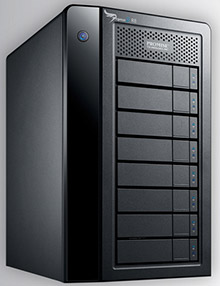
Recently, the folks at Promise Technology sent me an 8-bay Pegasus2 Thunderbolt RAID to evaluate.
NOTE: This is due to my meeting Elaine Kwok, product marketing manager for Promise, at the recent Storage Visions 2014 conference. You can hear her audio interview here.
As I was researching and testing this unit, I realized that this article needs to be part technical review and part a discussion on our expectations on storage technology today.
EXECUTIVE SUMMARY
The Promise Pegasus2 Thunderbolt RAID is fast, easy to setup, fast, easy to use, fast, provides a ton of storage space, fast, and runs like any other Macintosh hard disk. Oh, and did I mention that it is fast? It is.
It provides massive storage, excellent speeds, all at a reasonable price. It isn’t as fast as an all-SSD unit, but it costs far less and holds far more.
WHAT I WAS SENT
Promise sent me their latest Pegasus2 8-bay RAID, containing eight 3 TB drives configured as a RAID 5. It formatted to 21 TB of usable space. All the drives were installed prior to shipping. It has a retail price of around $3,500, including all drives.
NOTE: Here’s an article that describes what RAID 5 means.
In the box are seven Quick Start Guides in fourteen languages. New users should quickly skim this because of an important note on synchronization. Connecting the drive is trivial: Plug in two cables – power and Thunderbolt – turn on your computer and the Pegasus, and get to work.
The Pegasus arrived formatted, but not synced. What syncing does is build the parity data between all the drives so that if a drive dies, you don’t lose all your data. While the drive is useable immediately out of the box, you don’t get access to its full performance until syncing is complete. For a drive this size, syncing took 10 hours, 42 minutes and 33 seconds. (Um, why, yes, I did time it.)
IMPORTANT NOTE: Before doing any work requiring maximum performance, wait until syncing is complete. The best advice is to plug the unit in and let it do its thing overnight. In the morning both you and it will be ready to work.
I ran these tests based upon the factory default settings. You can improve performance a bit more by turning on “Forced Read Ahead,” which is disabled by default. However, this requires working with Terminal and the Unix command line interface. Promise can provide instructions.
This unit comes configured as a RAID 5. You can also configure it using Disk Utility as a RAID 0. This will be faster than RAID 5, and store more, but in the event one drive dies, you lose all your data. I happily use smaller RAID 0’s in my editing. But for something this big, I want the security of knowing my data is safe in the event of a drive crash.
WHAT MAKES THIS SPECIAL
 The Pegasus2 is the first RAID that supports Thunderbolt 2, the new communications protocol that was released with the new Mac Pro. This new protocol supports data transfer rates up to 2.2 GB/second.
NOTE: That preceding paragraph is a completely true statement, but it leads to some wildly incorrect conclusions. I’ll explain further in the next section.
Thunderbolt 2 is fully compatible with Thunderbolt 1 devices. As you’ll see below, the Pegasus works perfectly – though not at the same speeds – with both iMacs and Mac Pros, and operating systems 10.8.5 and 10.9.1. In other words, you can use this unit on any Mac with a Thunderbolt connection.
THE PROMISE RAID UTILITY
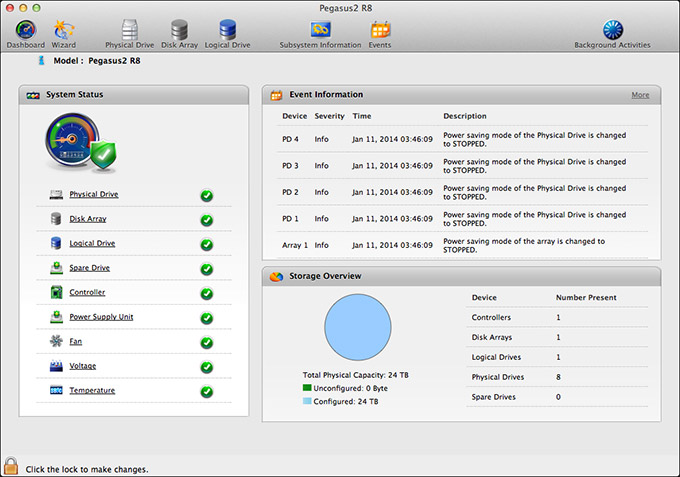
Shipped on the Pegasus RAID is a utility that allows you to configure and monitor your RAID. I found this utility cleanly designed, simple to navigate and with access to the controls that I needed to configure and monitor the unit.
My only wish for this was that it would allow us to turn on Forced Read Ahead and avoid a trip to the Terminal.
THE THUNDERBOLT TRAP
Thunderbolt 1 supports data transfer speeds (also called “bandwidth,” or “data transfer rate”) of up to 1.1 GB/second. Thunderbolt 2 supports data transfer speeds of up to 2.2 GB/second. EXCEPT… that is the speed of the connection between the two devices. Actual device speeds are less, sometimes FAR less, than the protocol will support.
In the “olde days” of USB 2 and FireWire, both of which are communications protocols between hard disks and computers, the protocol was slower than the hard disk. So the protocol determined how fast your storage could transfer data.
Now, with Thunderbolt, the protocol is FAR faster than a hard disk. This means that the speed of your storage is determined by the speed of the hard disk, NOT the protocol.
Here’s the secret formula: For every hard disk in your storage device, the data transfer rate is about 120 MB/second. There is some variation between drives, but this number is a good place to start.
Solid State Drives (SSD) will transfer data faster that spinning hard disks, but even an SSD drive is slower than the protocol itself.
NOTE: The Pegasus2 only uses spinning hard disks, driven by a hardware RAID controller, without any SSD acceleration. Hardware RAID controllers are MUCH faster than software RAID controllers. (Drobo, for example, uses a software RAID controller.)
Here are some speed examples:
In other words, the Thunderbolt protocol is screaming fast. But the speed of your storage is determined by the number of drives contained in it.
NOTE: For comparison of how much speed you need, a single ProRes 422 clip in HD requires about 18 MB/second for playback. AVCHD files require about 3 MB/second. So if you are doing single-camera editing, ANY Thunderbolt device will be fast enough for editing. The challenge comes in editing multicam footage, or higher resolutions than 1080p HD.
The advantage to the Pegasus2 supporting Thunderbolt 2 is that, while the RAID won’t take advantage of the speed of this protocol, any Thunderbolt 2 devices (think monitors) that are connected into the Pegasus will get the full benefit of the Thunderbolt 2 protocol.
MAC PRO PERFORMANCE TESTING
I decided to do four types of performance testing:
All speeds were measured using the Blackmagic Design Disk Speed Test utility.
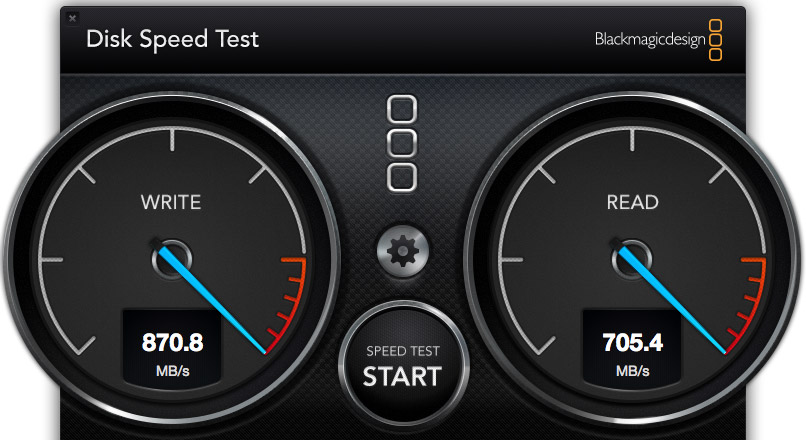
The Pegasus2, when directly attached to the Mac Pro, generated these results. Write speed shows how fast the unit records information (think importing, rendering and exporting), while the Read speed shows how fast it plays back information (think editing).
These speeds are the fastest of any RAID I’ve measured to date.
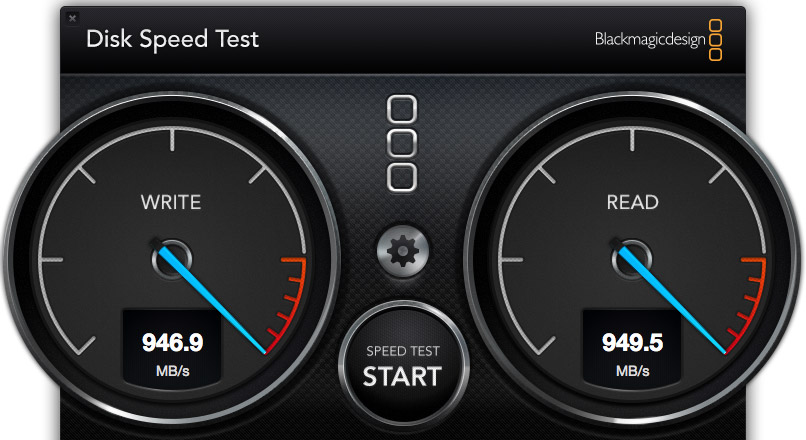
However, compare the speed of the Pegasus to the internal SSD drive of the Mac Pro. WOW! Much faster. Obviously, we should only use the internal Mac Pro drive for all of our editing.
Wrong. Really, really wrong!
First, the internal Mac Pro drive only holds 256 GB of data. Just one season of my 2 Reel Guys web series has more than 2 TB of data, which far exceeds the size of any SSD drive affordable by mere mortals. Or, more recently, my FCP X training created 8 TB of master video files! SSDs can’t handle media files of this size.
Second, as I discovered later in my testing, performance drops when background processes run, in fact, it often fell 30 – 50%. This means that we can’t count on consistent performance from the internal drive, because it is serving the needs of the operating system, all active applications, and all background processes. What may be fast enough one second is too slow a second later because some process is now running in the background.
Third, it is easy to add more external storage. Expanding the internal SSD is not simple.
Fourth, it is easy to move external storage from one computer to the next by simply unplugging the cable.
The internal drive is useful and has some advantages for certain specialized edits, but external media storage is essential for any except the smallest projects.
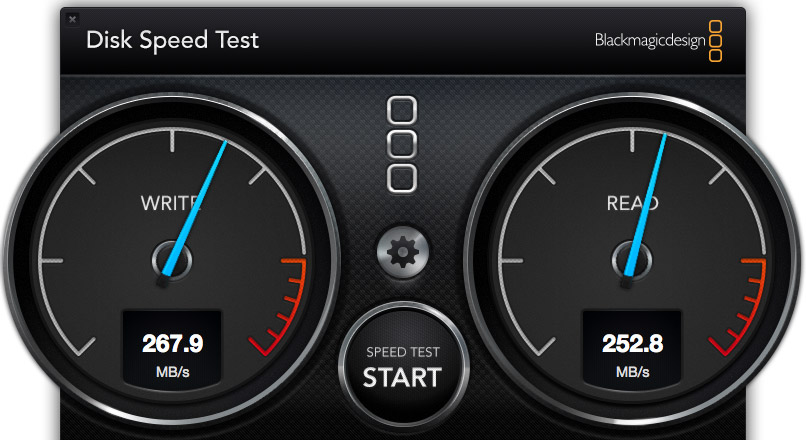
I also wanted to test whether there was any loss in speed when connecting a second RAID to the Promise. These are the results when connecting a G-Technology 2-drive RAID 0 directly to the Mac Pro.
NOTE: The G-Tech, too, is a Thunderbolt device, but its speeds are less because it only contains two drives. Hence my earlier discussion about the protocol not determining the speed of your storage.
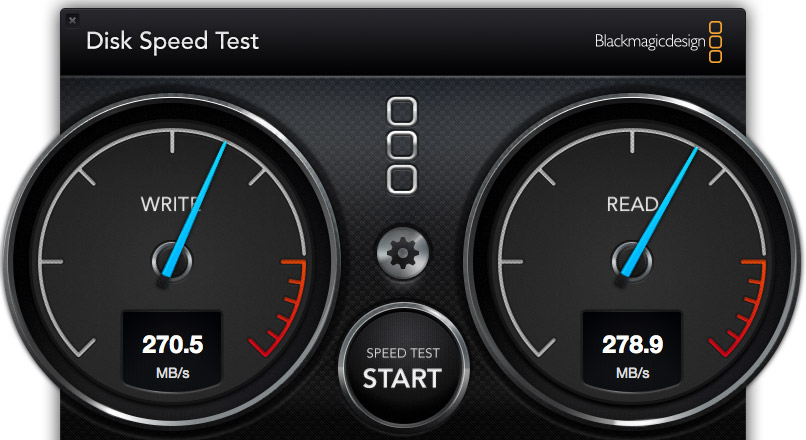
These are the results when connecting the G-Tech RAID as part of a three-drive chain. The RAID was at the end of the chain. It was faster, in fact. So there does not appear to be any significant speed loss when daisy-chaining devices. Essentially, the G-Tech transferred data at the same speed, regardless of whether it was attached directly to the Mac Pro, or as part of a storage chain.
NOTE: Another weird fact is that test results vary. Hard disk speed is a factor of how empty it is – empty is faster, how big the files are – bigger files transfer faster, and the size of the data blocks being transferred at one time – bigger blocks transfer faster.
iMAC PERFORMANCE TESTING
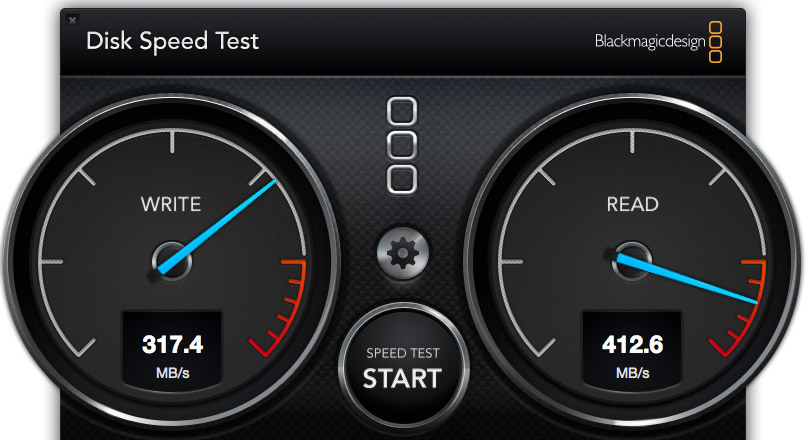
Here’s the speed of the iMac’s internal Fusion drive, running under Mac OS X 10.8.5, in a dual-boot configuration. Notice that it is about 1/3 the speed of the Mac Pro, even though the iMac is accelerated with an internal SSD drive.
NOTE: It was when running this test that I saw the 35% drop in performance when a background process started running.
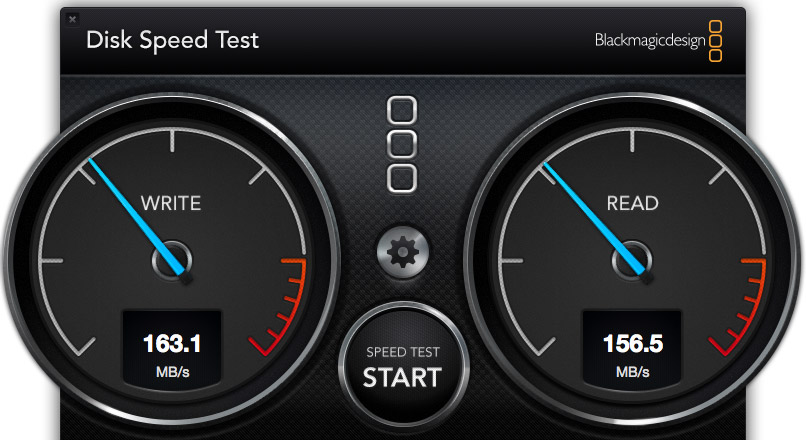
To further complicate matters, this speed test shows the same iMac, running under Mac OS X 10.9.1, and accessing its internal drive. The speeds are 50% slower than when running 10.8.5. This is probably because the dual boot drive doesn’t have enough free space. Using the internal drives is easy, but is no guarantee that we will get consistent performance.
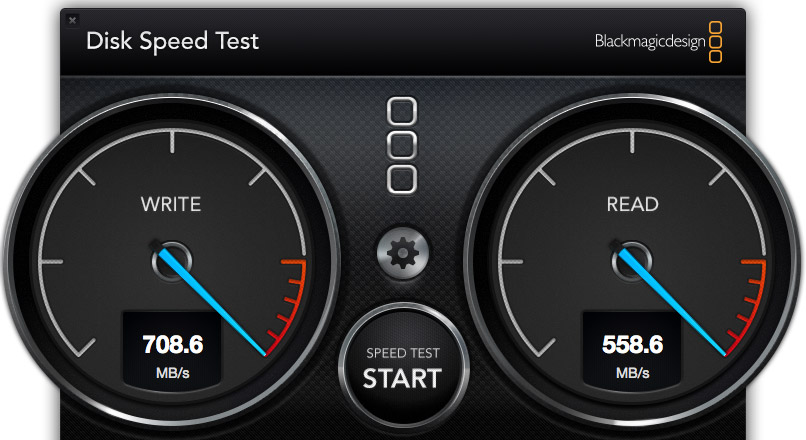
Here’s the speed of the Pegasus direct connected to the iMac running 10.8.5. Not as fast as when connected to the Mac Pro, but still pretty darn quick.
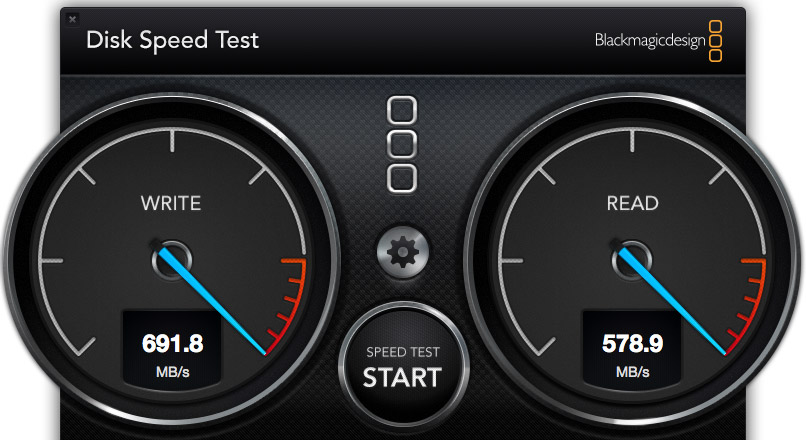
Here’s the speed of the Pegasus direct connected to the iMac, running 10.9.1. Essentially, while the speed of the Pegasus is not as fast as the Mac Pro, the speeds are pretty much the same for both 10.8.x and 10.9.x.
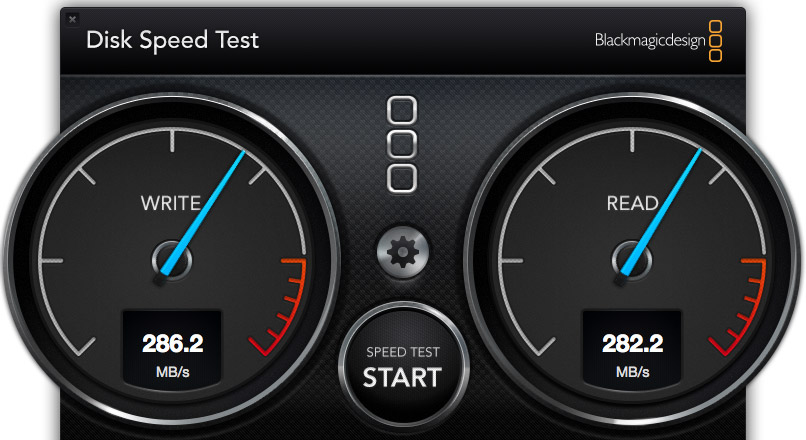
Here’s the speed of the G-Tech when connected to the iMac. In this case, it is about 10% faster on the iMac than on the Mac Pro. (The speeds were the same regardless of operating system, and regardless of whether the unit was directly connected or looped through the Pegasus.)
REAL-WORLD TESTS
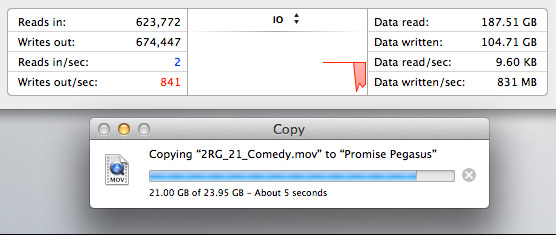
The Pegasus copied a 23 GB file from the Mac Pro’s internal drive to the Pegasus at more than 800 MB/second. I ALWAYS want file transfers to go faster, but these are excellent numbers.
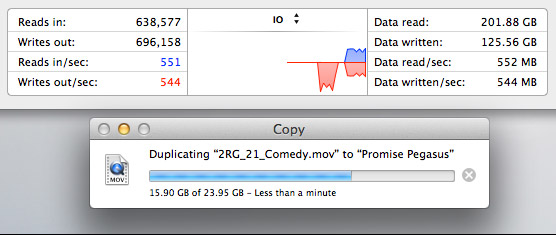
The Pegasus duplicated a 23 GB file stored on the Pegasus back onto the Pegasus at about 550 MB/second. This is slower because the file needs to be read from the RAID, then written back to the RAID all at the same time.
MULTICAM EDITING
Multicam editing taxes your computer and storage systems more than any other form of editing.
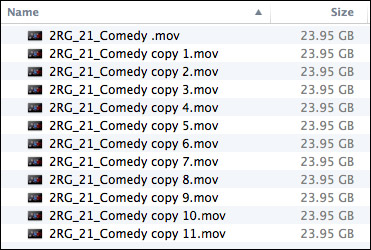
So, to test this, I created 12 versions of a 12 minute 2 Reel Guys episode.
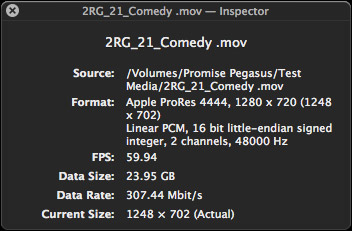
Each movie was 23 GB in size, using the ProRes 4444 codec with a 720p image size and 59.94 frame rate. (ProRes 4444 is both the highest quality and largest file size of all the ProRes codecs.)
Upon importing into Final Cut Pro X v10.1, the software immediately started creating audio waveforms and transcoding the media into proxy files (at my request). Just as a test, I tried doing multicam editing while those background processes were running. Didn’t work, I got dropped frames immediately. It took the system about fifteen minutes to finish all its prep work.
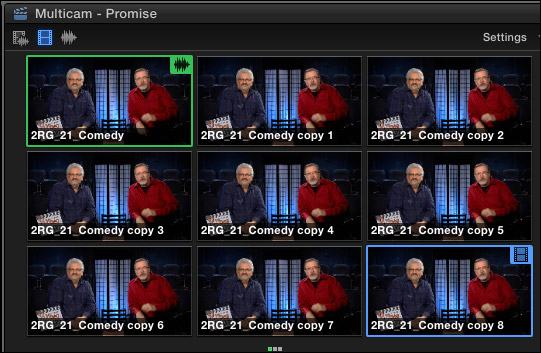
Once the background processing was done, FCP X could play and edit a nine-camera multicam clip with image quality set to Better Quality with no dropped frames. Wow. Just, wow…
NOTE: I did get dropped frames when trying to play 12 clips, however.
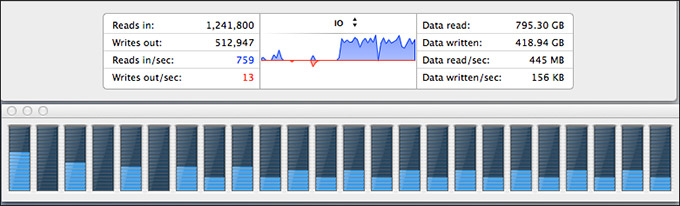
As you can see, playing all nine streams did not tax the storage system….
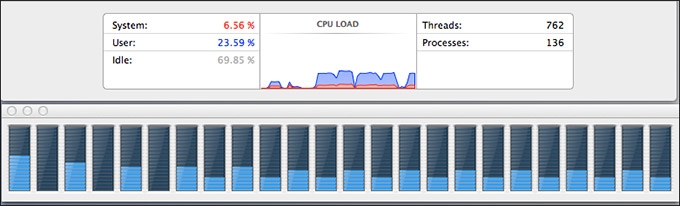
… or the CPUs.
However, my STRONG recommendation for multicam editing is to edit using proxy files. For example, the Mac Pro edited all twelve proxy streams without breaking a sweat. Based on what I saw, I would expect the Mac Pro, combined with a Pegasus RAID to easily, easily edit 24 streams of multicam video with horsepower to spare.
MISC. OPERATIONAL NOTES
The Pegasus follows the computer in terms of sleep. If the computer goes to sleep, so does Pegasus. It can take up to 20 seconds for it to wake back up after going to sleep. It the computer doesn’t go to sleep, the Pegasus stays awake, too.
The Pegasus took longer to mount to the desktop than the G-Technology drives. G-Tech was ready in about five seconds. The Pegasus was ready in about 15.
The RAID management tool shipped with the Pegasus is very nicely done.
CONCLUSIONS
The Pegasus2 is a very fast RAID, easy to setup and as easy to use as any other Macintosh hard disk.
It runs on any Mac that has a Thunderbolt connection, with the added advantage of supporting the new Thunderbolt 2 protocol. It runs the fastest on a Mac Pro, but, for most editing projects, the Promise has speed to burn for any editing project on any Mac.
Apple has long supported these devices for any intensive media application, and, now, after working with one myself, I can agree.
The Promise Pegasus2 Thunderbolt RAID is an amazing tool at a very reasonable price.
Learn more at www.promise.com.

2,000 Video Training Titles
Edit smarter with Larry Jordan. Available in our store.
Access over 2,000 on-demand video editing courses. Become a member of our Video Training Library today!
Subscribe to Larry's FREE weekly newsletter and
save 10%
on your first purchase.

142 Responses to Product Review: Promise Pegasus2 RAID
← Older Comments Newer Comments →-
 Marc says:
July 18, 2014 at 5:42 am
-
 LarryJ says:
July 19, 2014 at 2:00 pm
-
 LarryJ says:
July 19, 2014 at 2:01 pm
-
 Dieter says:
August 16, 2014 at 12:39 pm
-
 LarryJ says:
August 16, 2014 at 2:33 pm
-
 Jacob Nasim says:
October 2, 2014 at 9:05 pm
-
 Victor says:
October 3, 2014 at 9:51 am
-
 Jacob Nasim says:
October 3, 2014 at 2:27 pm
-
 Victor says:
October 3, 2014 at 2:36 pm
-
 Jacob Nasim says:
October 3, 2014 at 2:39 pm
← Older Comments Newer Comments →My first though and question (having an 8*3 Pegasus, 24 usable)
In which manner the 3TB harddisks could be changed with 4TB (or even 6TB) harddisks?
Fabrizio:
Absolutely correct.
The fuller a hard disk gets the slower it goes. The general rule of thumb is to keep about 25% free space or more on a hard disk or RAID. When drives get fuller, it takes the RAID OS longer to figure out where to store stuff, or to play it back.
There are 8 drives in your RAID, containing a total of 4 TB of free space (roughly). This averages out to 500 GB per drive – which is WAY less than 25%. In fact, its about 12% free space. Not dangerously low – but definitely impact performance.
Larry
Marc:
You will need to upgrade all your disks to the larger size at one time. The only way to do this is to copy the data from your existing RAID drives somewhere separate, then, install the new drives, and copy the data back.
This is, as you can guess, neither quick nor simple.
Larry
Pegasus2 R8. 8 physical drives SATA HDD 4 TB. Raid level 5. Capacity 28 TB. How to migrate from raid 5 to raid 10 ? Disk array migration software utility offers only target raid levels 5 or 0.
For an all-SSD system, I would not recommend this. You won’t see any significant improvement in speed and you’ll cut your total storage capacity in half (to 2 TB).
SSD media doesn’t fail the same way spinning hard disks do. For this reason, I would stay with RAID 5.
Larry
Great article!
I’m very curious about ProRes 4444XQ @ 3840×2160 throughput on the Pegasus2…
For example, I’d love to have the ability to have real time playback of 4K footage with, say, an unrendered effect…what I’d think would be “2 real time streams?”
Using the MacPro + Pegasus2 8-bay RAID5 setup, you got about 700MB/s sustained read.
The target data rate listed for 4K ProRes 4444XQ (3840×2160) is 1989 Mb/s. (https://www.apple.com/final-cut-pro/docs/Apple_ProRes_White_Paper.pdf )
If the chart does not have a unit typo, this would mean that the necessary 4K ProRes bandwidth is only 248 MB/s. Yes?
So at 700MB/s, the Pegasus2 should be robust enough to handle at least two streams…No?
Are there any MacPro tests on 4k footage with Pegasus out there? I haven’t found one.
Really appreciate any help on this!
Jacob
That is accurate @ 30 fps. you can safely ingest a single stream of that resolution and playback two streams with out dropping a single frame on Pegasus R8.
We are working on publishing some video data points in the near future. Thanks for the input.
Victor,
Thanks for your reply!
Do you think the Pegasus2 R4 would handle 1 realtime stream of 4K ProRes 4444XQ (3840×2160)?
Best,
Jacob
Jacob
Pegasus 2 R4 will deliver 1 stream of 4K ProRes 4444XQ (3840×2160).
Thanks
Victor Pacheco
And the R4 would still be configured at RAID 5?
J.