
 [Please read my disclosure statement on product reviews.]
Thunderbolt 2 was announced by Intel in June, 2013. Apple started shipping Thunderbolt 2 MacBook Pro computers in October, 2013. Since, then, while RAID 0 configurations of Thunderbolt 1 were reasonably plentiful, finding a Thunderbolt 2 RAID 5 system took some looking.
NOTE: The big benefit to Thunderbolt 2 is that it has twice the potential speed of Thunderbolt 1. However, as you’ll learn, actual speeds are based on more than just the protocol connecting the storage to the computer.
Promise Technology was first to ship, with many new announcements made by a variety of manufacturers at the 2014 NAB Show. Still, getting actual products shipping seemed to take forever. This was partially due to hardware manufacturers retooling their Thunderbolt 1 devices after Thunderbolt 2 was announced and the rigorous testing necessary to certify Thunderbolt 2 devices.
NOTE: Part of what makes Thunderbolt 2 so challenging to many storage developers is that the spec includes both storage protocols, which they are used to, and monitor display protocols, which require a significant amount of technical expertise well outside normal storage systems.
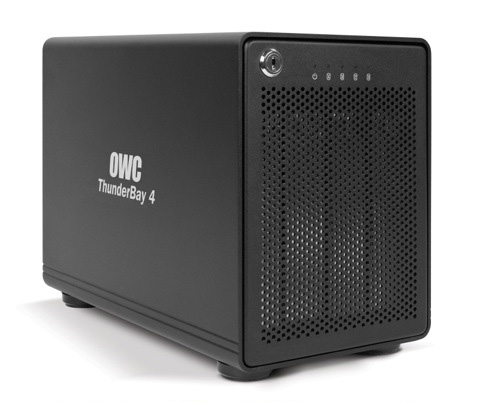
Now, OWC has released the ThunderBay 4 a high-performance, 4-drive, Thunderbolt 2 RAID. Using four SATA drives supplying up to 24 TB of combined storage, this system joins the ranks of actual shipping product.
I asked Larry O’Conner, the president of OWC, why they created this system:
“Customers have been requesting RAID 5 support with our ThunderBay since we first began shipping it. While the ThunderBay 4 offers exceptional performance and configuration flexibility as a JBOD solution, we wanted to address those with needs of high performance and redundancy in a plug-and-play solution, something our SoftRAID 5-enabled ThunderBays now provide. It’s truly the tip of the iceberg for what these solutions offer and are capable of, and going this route offers an extremely competitive price point with advanced RAID monitoring features + up to 35% higher performance compared to other comparable RAID 5 HW solutions that typically cost twice as much.
“You won’t see a real peak performance difference via 10Gb/s or 20Gb/s Thunderbolt, unless you RAID across two units. And you also get a benefit on 20Gb/s systems in terms of how the bandwidth is shared on a Thunderbolt chain with multiple 20Gb/s devices.
“Consistent, high throughput and amazing flexibility is the status quo, regardless. And whether it is with a ThunderBay IV or ThunderBay 4, SoftRAID 5’s drive health monitoring and email notification are also huge benefits, no matter what machine is connected.”
OWC gave me the opportunity to test a finished unit a few days before the release and here are my thoughts. (As a note, the four drives I used for testing were spinning media, not SSD.)
EXECUTIVE SUMMARY
As sexy as computers are, media creators will spend far more money for storage than they will ever spend on a computer. Additionally, the performance of your editing system is far more dependent upon your storage than the speed of your computer. For this reason, getting high-performance, high-capacity storage for any media work is essential.
The OWC ThunderBay 4 delivers solid performance from a 4-drive RAID 5 system at a very reasonable price. Plus, the ability to use RAID 5 to protect your data makes this a superior choice to any RAID 0 system.
The system ships in two basic configurations: one without a software RAID controller and one with. My recommendation is to spend the extra money and get the configuration with SoftRAID.
MSRP: $1129.99 (as tested with SoftRAID and 12 TB of storage)
(Prices range from $499.99 empty to $1,849.99 for 20 TB of storage.)
Website: www.macsales.com
Link to product page.
= = = =
THOUGHTS ON CONFIGURATION
The system offers five levels of storage: 4, 8, 12, 16, and 20 TB; as well as a bare bones box where you can add your own drives. And picking the amount of storage you need is fairly simple — buy as much as you can afford.
OWC also offers the ability configure the system using your own software RAID controller. On the Mac, OWC suggests Disk Utility. For Windows, they suggest either Disk Management or Storage Spaces. The software is already installed on your system and it works well.
However, I recommend you spend the additional dollars (between $120 – $150, depending upon configuration) and purchase SoftRAID, the RAID controller OWC recommends for the system. This utility provides better performance, better system monitoring, and better configuration controls over the RAID. Yes, it costs a bit more, but the reliability testing alone makes the expense worth it. (As you’ll see a bit later in this article.)
UNPACKING
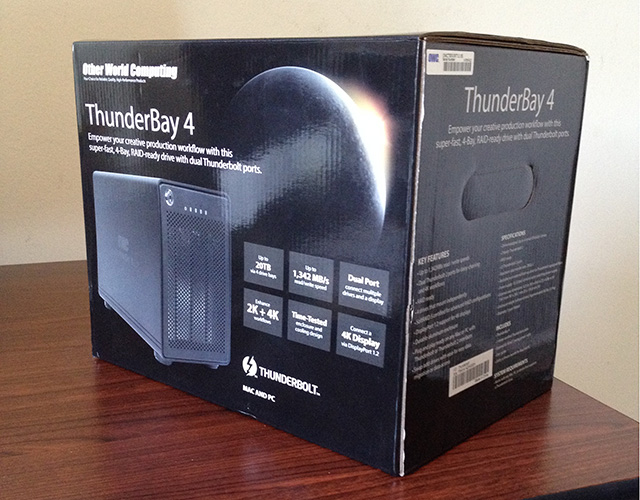
The unit ships in a sturdy box, with the drives carefully bundled separately in professional-grade bubble-wrap.
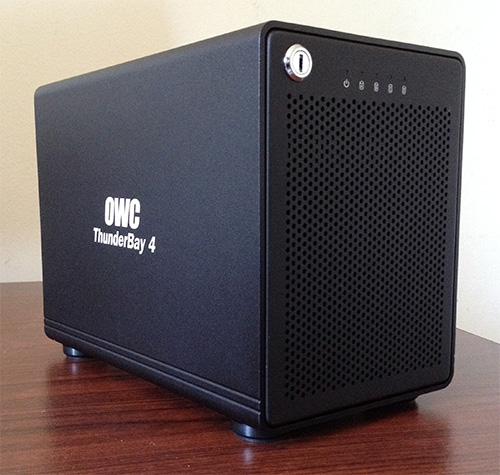
Unpacking the unit is simple and there’s a very good printed 4-page installation guide sitting right on top. YAY! I LOVE printed installation guides!
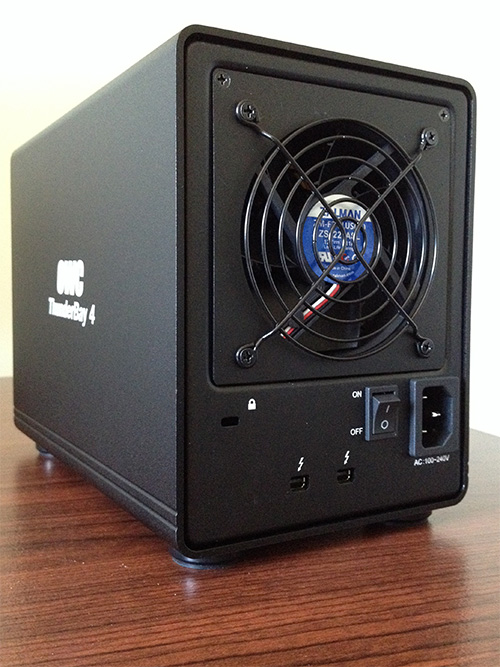
The back of the unit contains a very large, quiet fan along with two Thunderbolt ports and a power plug. This takes actual AC current, no wall wart is needed.
NOTE: I can hear the fan but the noise is not objectionable. It is quieter than other units I’ve looked at from other manufacturers. In fact, the spinning hard drives make more noise than the fan does. Still, it isn’t dead quiet, so getting a six-foot Thunderbolt cable means you can move this away from the computer; and your ears. If you replaced the spinning drives with SSD drives, the ThunderBay would be quiet enough to use as a pillow.
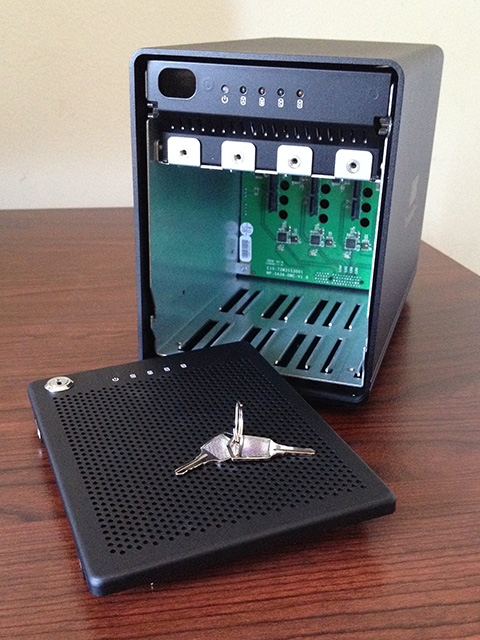
The front of the unit is a locked grill, with two matching keys supplied to unlock it. This is not designed for high-security, rather this prevents curious fingers from screwing up your data by accidentally disconnecting a drive.
To be truthful, the front grill feels a little flimsy and the front hinge is OK, but not great. On the other hand, once the drives are in and the grill back in place, no one cares.
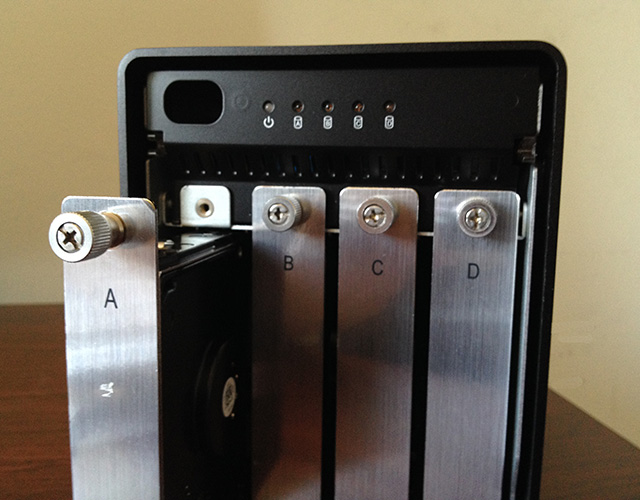
OWC shipped this unit with four 3 TB Toshiba drives. The drives were already in their sleds and the sleds were labeled A, B, C, and D. It is essential that you put the drives into the unit in the same order from left to right. Doing so means that the drive will power up and run as soon as you turn it on, with no additional configuration. Drives attach easily and stay put using nice big thumbscrews.
NOTE: This system works out of the box provided you are running OS X 10.9.x. Earlier versions of the OS require re-configuration and the OWC documentation explains what to do; though it would be nice if it provided a bit more detail on how to use Disk Utility to configure a RAID.
UPDATE – June 27, 2014
After this review was published, OWC sent me the following update:
Because the ThunderBay system uses a software RAID controller, it doesn’t matter what order you connect the drives… plug them in whatever order you want now, change it later, no worries… This is UNLIKE typical hardware RAIDs in that if you do not install the drives in exact order, you lose your data.
With our SoftRAID software technology – not only is this a benefit… but you can even take the drives from a SoftRAID set – put them in 4 individual enclosures – drop them into an older Mac Pro with the 3.5″ bays, etc – and the RAID is still good to go. It is NOT enclosure specific on any level – as long as the enclosure supports direct JBOD/independent drive access (if is multi-bay) or is single direct or you are connecting directly to internal SATA – you can access your data.
We are not holding your data hostage to only our hardware as it’s your data and it’s important to have flexibility to access it in a variety of methods.
– – –
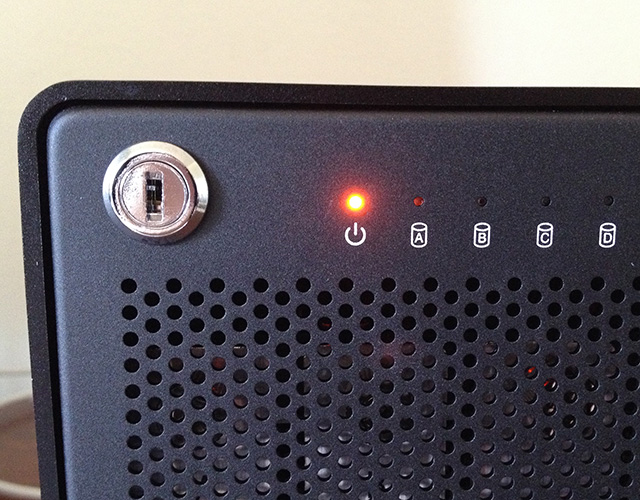
In order for the unit to work, three conditions need to be met:
If the computer is asleep, the power light on the ThunderBay glows yellow.
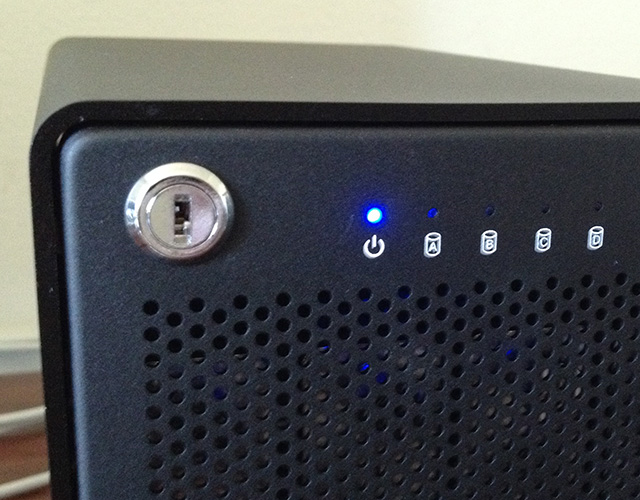
As soon as the computer wakes up and sends signals down the Thunderbolt cable, the power light glows blue and the four drive lights quickly blink green indicating everything is working and ready.
The OWC shows up on the desktop.
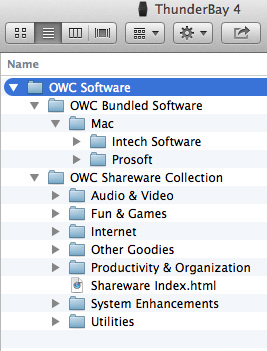
The system also includes a software bundle of more than 2 GB of free and shareware programs. I didn’t test any of these for this review. (I’m always of two minds about these bundles. I understand they are a benefit when marketing a drive, but most of the time, the software included never seems very useful.) But, this bundle might be the exception; I didn’t look at it.
INSTALLING SOFTRAID
The OWC ThunderBay uses a software RAID controller from SoftRAID. Normally, software RAID controllers are more flexible than hardware RAID controllers, but they are also slower. In a minute, we’ll see if our testing confirms this.
BIG NOTE: As you’ll see in a bit, it is ESSENTIAL that you install SoftRAID to get the maximum performance out of the ThunderBay. Don’t skip this step.
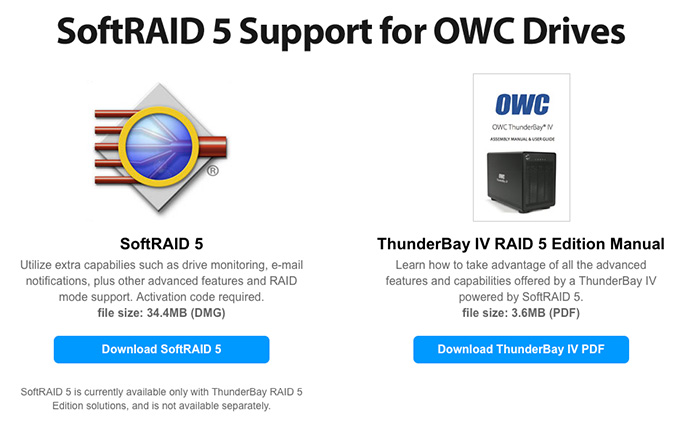
OWC has a dedicated page on their website to providing the SoftRAID software. (This screen shot was made before the ThunderBay 4 was released, so this screen will probably look different.)
Downloading the software was one-click simple.
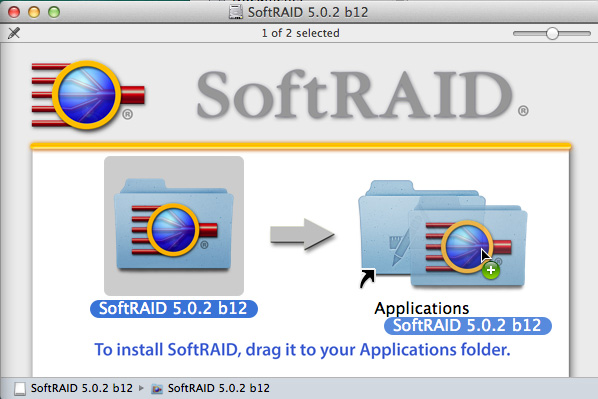
Installation was equally easy; drag the SoftRAID icon into the Applications folder icon.
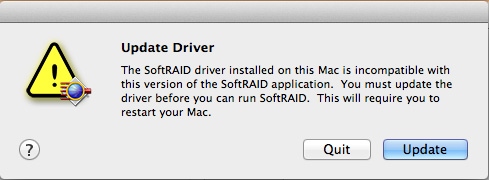
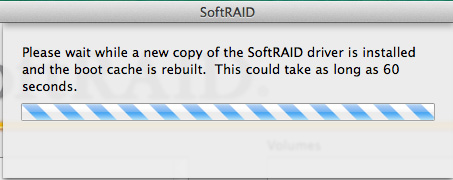
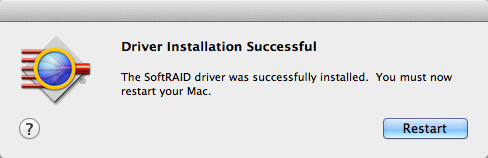
Running SoftRAID required a driver update, which took a few extra minutes, but wasn’t hard. (However, it took three tries for the update to complete properly. Not a big deal, but the driver update dialog was a bit confusing.)
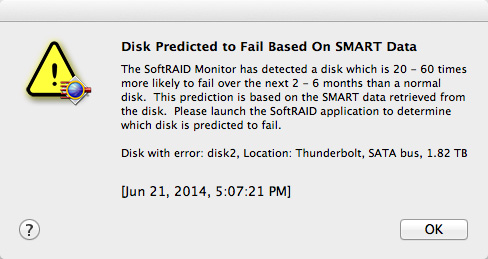
Also, very interesting, SoftRAID spotted a problem with one of my hard drives.
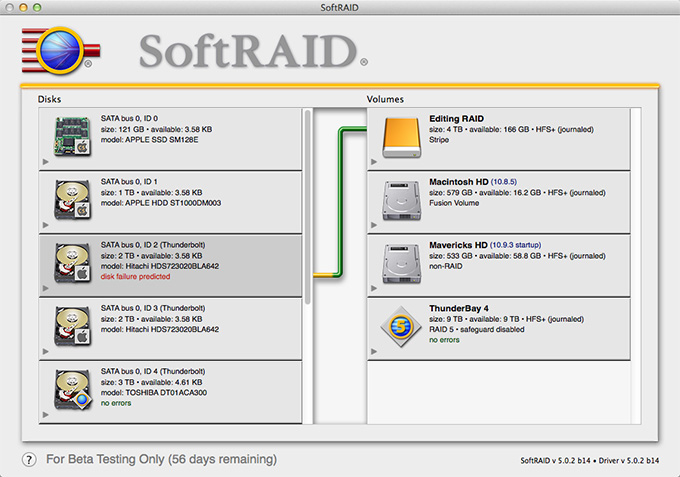
Once the updated driver was installed, the SoftRAID interface showed that the problem was with one of my external drives. Looks like I’ll need to get that fixed pronto.
NOTE: I should point out the bad drive was NOT associated with the OWC ThunderBay unit!
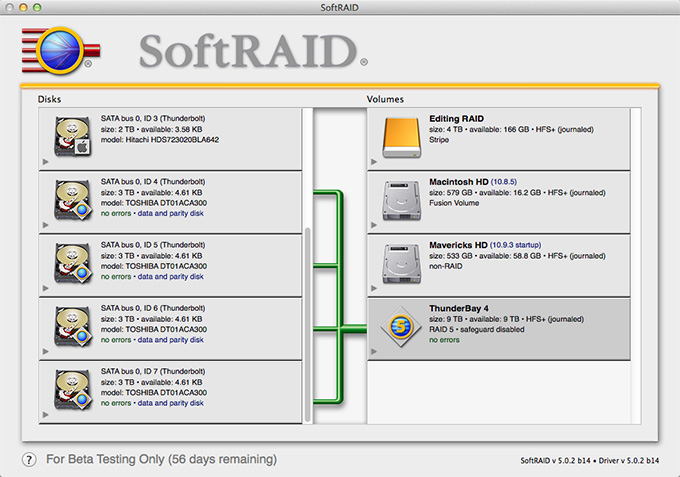
Here’s what SoftRAID shows about the ThunderBay device.
NOTE: One of the options in SoftRAID is that you can use it to verify a drive and, um, blink its light. I like blinking lights. A five minute digression ensued….
TIME FOR THE GOOD STUFF
There are three reasons to buy a RAID:
RAID 5 systems provide all three – speed, capacity, and data redundancy.
KEEP YOUR DATA SAFE
What a RAID 5 drive does is reserve the equivalent capacity of one drive to store “parity data.” This is data about your data so that if a single drive dies, all your data can be rebuilt without losing any of it. In the meantime, even with one dead drive, the RAID 5 will still work and all your data is accessible.
A RAID 6 creates parity data such that if two drives die at the same time, your data is still safe. Given the same number of drives, RAID 6 units are slower and hold less than a RAID 5 system. Again, if two drives die, the RAID 6 will still work and all your data is accessible.
A RAID 0 system provides both speed and capacity, but no data redundancy. If you lose a drive in a RAID 0, which SoftRAID was warning me was about to happen in one of my other RAIDs, you will lose all the data in the entire unit; not just that one drive.
A RAID 5 is a good balance between maximizing performance while still assuring your data is safe in the event of drive failure.
NOTE: Some storage experts warn that RAID 6 is preferable to RAID 5 and, all things being equal, they are correct. However, in my 30 years of working with hard drives, I’ve never had two drives die on the same day, while the performance benefits of RAID 5 compared to RAID 6 in systems containing less than eight drives is significant.
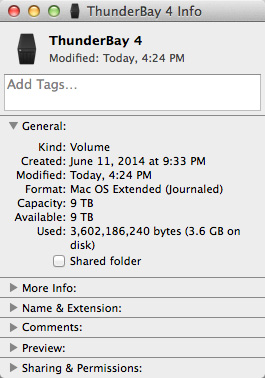
The trade off for RAID 5 is that you lose the speed and capacity of one drive. Remember, earlier I wrote that OWC sent me four 3 TB drives. However, after the RAID 5 is formatted, I only have 9 TB of storage. This is caused by the RAID 5 requiring the storage capacity of one drive (3 TB) to implement parity data.
SPEED
Which gets us to the fun stuff: how fast is this puppy?
The first thing you need to understand is that speed is a combination of how a drive is connected – Thunderbolt – and the number of drives it contains. For spinning media, a single hard drive transfers data around 100 – 120 MB/second. Even if a single drive is connected via Thunderbolt 2, the speed of data moving between the computer and the hard drive will be limited by the speed of the drive itself.
So, let’s take a look at the numbers.
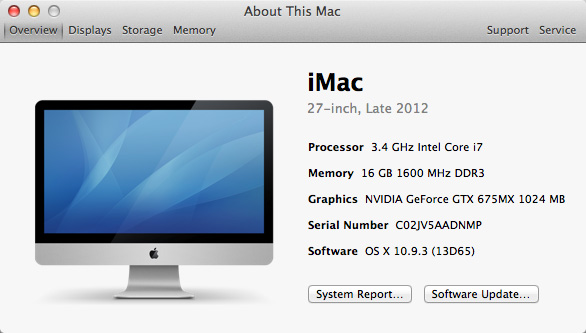
I’m running this test on a 2013 27″ iMac with a 1 TB Fusion drive and 16 GB of RAM. A Fusion drive is a combination of SSD and spinning media.
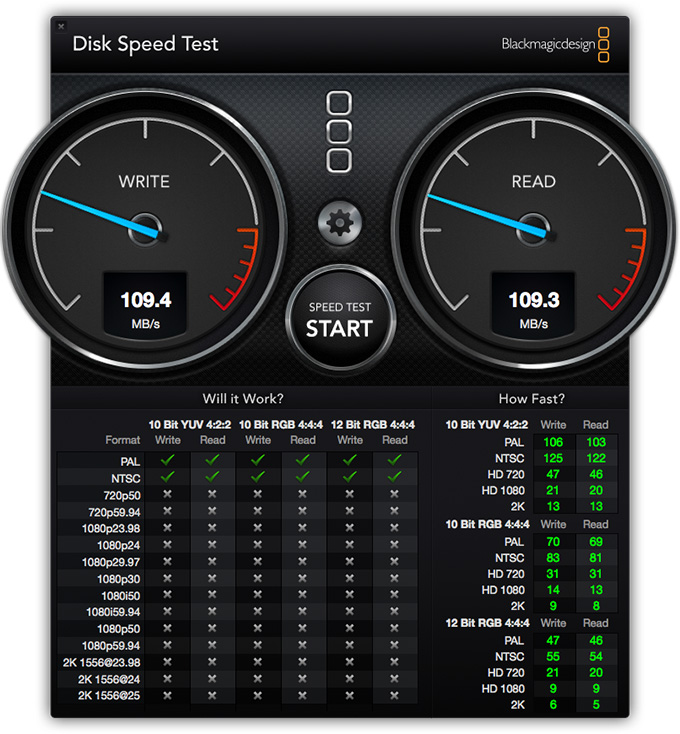
Using the Blackmagic Design Disk Speed Test, the iMac internal delivers these results. About the speed I would expect from a single drive.
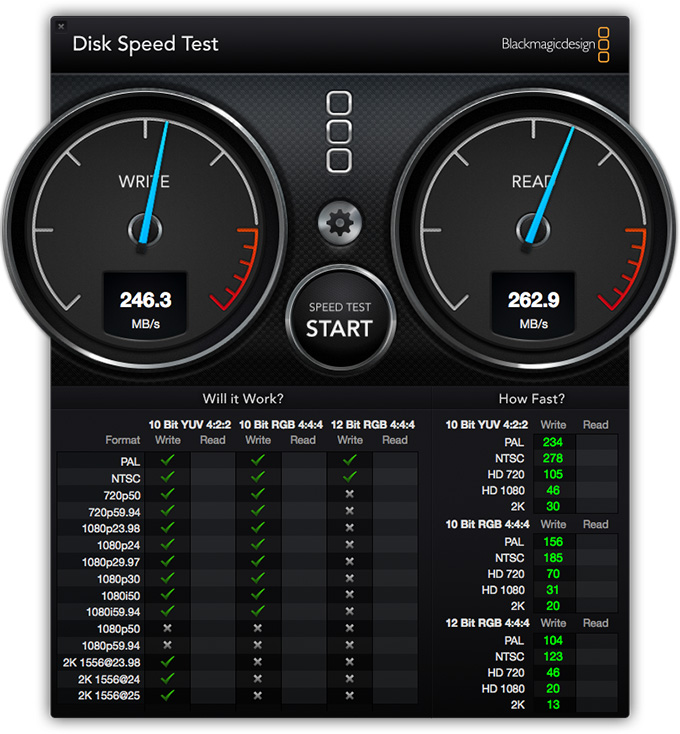
When testing a 2-drive RAID 0, from a manufacturer other than OWC, we get much better performance than the single-drive Fusion drive.
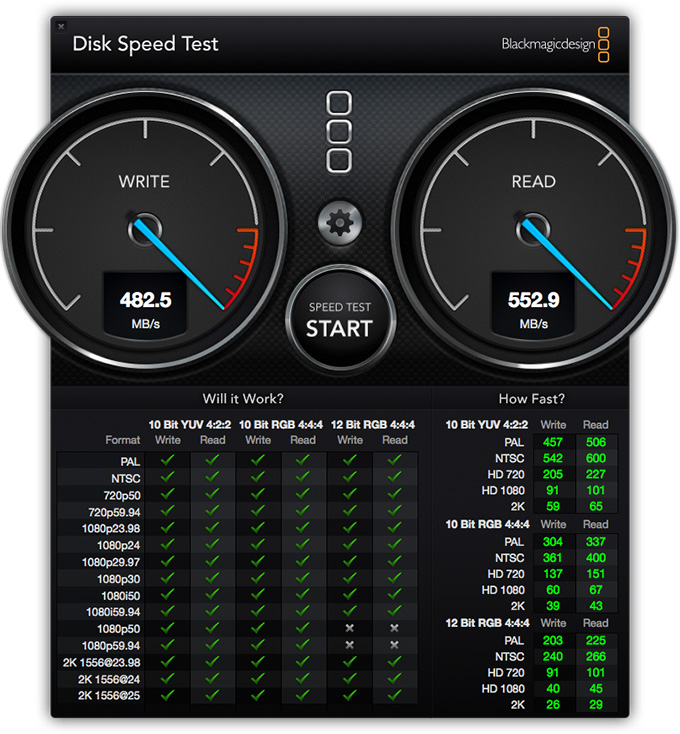
When the ThunderBay 4 RAID is tested, we get the best numbers yet. For a four-drive RAID, these are excellent results!
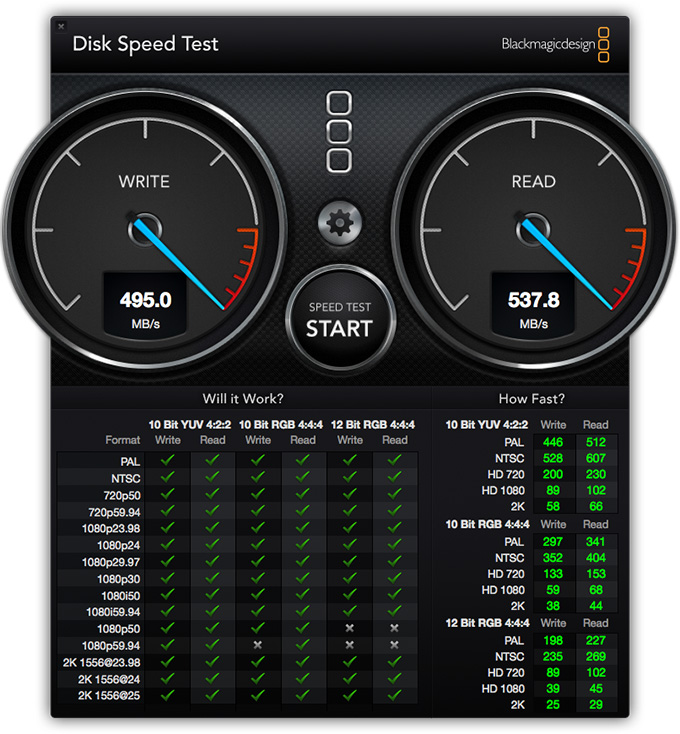
Just out of curiosity, I tested the drive by connecting it directly to the computer, rather than looping thru an existing Thunderbolt 1 device. The results were, essentially, the same whether the drive was connected directly or looped.
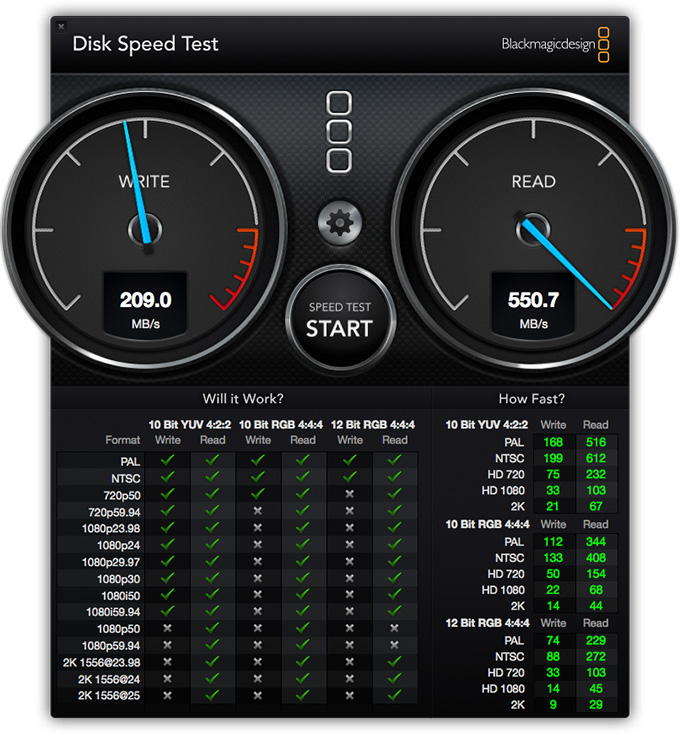
Next, I decided to test the system on a MacBook Pro which contains a Thunderbolt 2 port. These initial results were very surprising, until I realized that SoftRAID was not installed on the laptop.
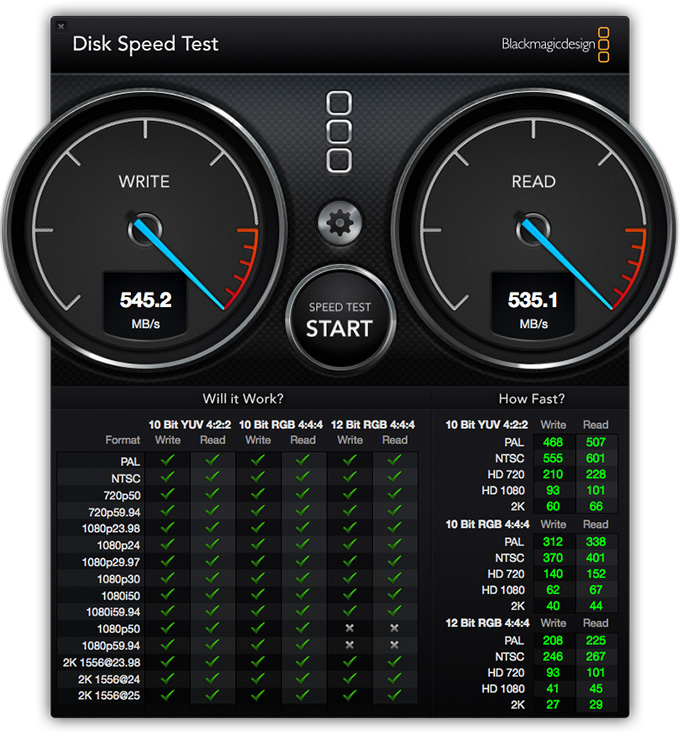
Once the SoftRAID drivers were installed, the Write speeds improved significantly. In fact, the MacBook Pro delivered better write results than the iMac. This emphasizes a really important point: to get the best performance out of this unit, it is essential that you install the SoftRAID software.
NOTE: While I don’t have a new MacPro to test this unit with, based on my initial work with a MacPro, I would expect RAID performance to be essentially the same as the MacBook Pro.
MORE PERFORMANCE STUFF
Duplicating 4.4 GB of media stored on the RAID took about 18 seconds — copying it about 250 MB/sec.
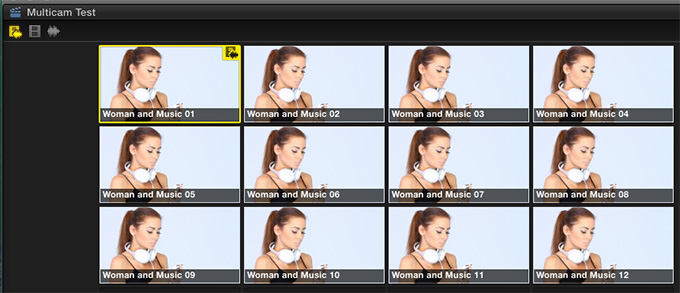
Finally, I decided to test this with some multicam editing in Final Cut Pro X (v10.1.1), again, using the iMac.
I created twelve ProRes 422 copies of the same 20 second clip. (Yes, I know, its only 20 seconds, but the numbers will still work.) ProRes 422 has a data rate of about 18 MB/second per stream, depending upon frame size and frame rate.

On an iMac all twelve streams played, cutting as quickly as I could, with a maximum data rate of around 280 MB/second — easily within the performance specs of this system.
NOTE: Multicam performance is always improved by editing using proxy files. So, I tried editing the same twelve clips as proxy files, but the files were so small that all twelve clips loaded into RAM and the hard disk wasn’t needed at all. Sigh… Blindingly fast, though.
While bigger and faster are always “better,” this unit is more than adequate for virtually all “normal” editing projects; with the exception of 4K or higher resolution media; or media using RAW codecs with high bit-rates. I would not hesitate to recommend this for multicam editing of up to 10 cameras.
UPDATE: WHEN THINGS GO WRONG (June 29, 2014)
Tim, in the comments section, asked some really good questions about performance when things go wrong. So, I did some more tests. First, I pulled a drive (the “B” drive) when both the drive and computer were on, simulating a drive failure, then measured performance:
These speeds are essentially the same as when all drives are functioning normally. While I did not lose performance, I did lose data redundancy because one drive was missing. If I lost a second drive before the missing drive was replaced and rebuilt, I would lose all my data.
Next, I copied a file from my single Fusion drive iMac to the RAID, where one drive was still missing. The file copied between 170 – 190 MB/second due, I suspect, to the slower speed of the single drive in the iMac.
I then added a new drive back into the ThunderBay. Within seconds, the SoftRAID interface detected the new drive and went into “rebuild” mode. This process copies data from the existing drives to the new drive to restore data redundancy. Again, I measured performance during the rebuild:
Rebuilding the drive “cost” about 25% in performance. However, these speeds are still fast enough for almost all editing, with the exception of 4K and multicam. What I found even more interesting was that the SoftRAID interface said that the rebuild would take less than 12 minutes! Far faster than I am used to. Obviously, SoftRAIDs software RAID controller has been optimized for efficiency.
WHAT ABOUT SSD DRIVES?
SSD (Solid State Drives) will yield much better performance, but at a trade-off of higher costs and far less storage capacity. (There’s no such thing as a free lunch.)
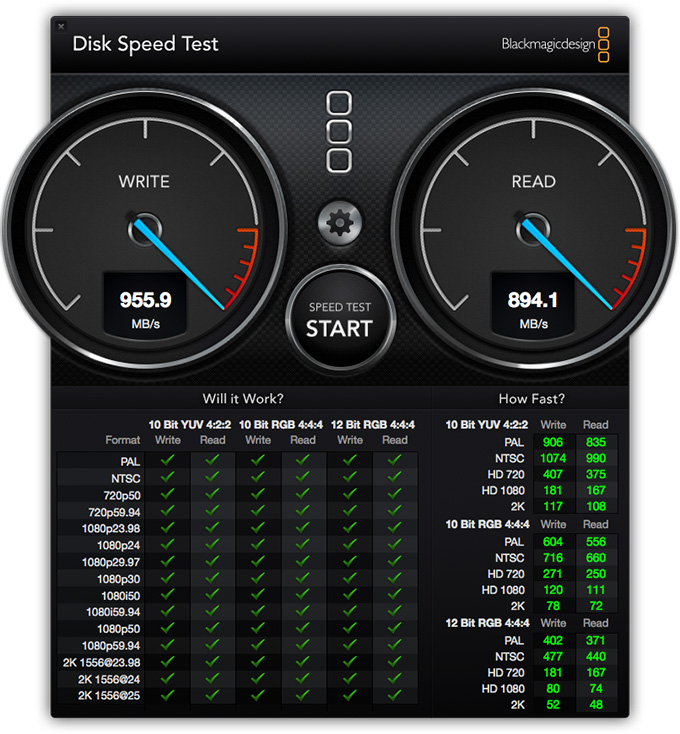
For example, here’s an example of the SSD drives in a MacBook Pro.
While I don’t have any SSD drives to test this unit with, I would expect performance to range between 700 – 900 MB/second when configuring four SSD drives in a RAID 5 configuration. Whether the additional performance is worth the cost is dependent upon the size of your checkbook and the needs of your project.
NOTE: OWC says this unit is capable of more than 1300 MB/second. This would require four high-performance SSD drives to achieve, which I did not have available to use for testing, so I can’t verify this statement.
WHAT ARE THE BEST USES FOR THIS DRIVE?
I REALLY like RAID 5 units, and they continue to increase in capacity, increase in speed, and decrease in price.
The OWC ThunderBay 4 provides high-performance in a small package at a very reasonable price. It is an excellent choice for providing storage that is directly attached to your computer for normal or multicam editing, using either ProRes or camera native video formats. This is also a good for video files up to 2K in size. Be sure to get the SoftRAID software when you purchase the RAID.
If you plan on editing 4K video natively, check with OWC about replacing the Toshiba drives with SSD drives. Or, consider a different RAID that holds more drives. With high-resolution formats, faster data transfer rates between storage and computer becomes essential.
SUMMARY
I’ve been waiting a long time for RAID 5 Thunderbolt units to appear. While this system does not hold enough spinning media drives to even fill a Thunderbolt 1 pipe, using a Thunderbolt 2 connection guarantees that this unit will be compatible with computers yet-to-be shipped which wills standardize on Thunderbolt 2 connections.
If spinning media isn’t fast enough, you can always replace these drives with SSD drives, though with reduced storage capacity and higher cost. Plus, it is important to spend the extra money and get the SoftRAID controller option.
I remember when I spent $20,000 to buy 20 GB of storage. Now, we can get far more storage, with far better performance, for about $100 per terabyte. The ThunderBay 4. I like what I see. Congratulations, OWC.

2,000 Video Training Titles
Edit smarter with Larry Jordan. Available in our store.
Access over 2,000 on-demand video editing courses. Become a member of our Video Training Library today!
Subscribe to Larry's FREE weekly newsletter and
save 10%
on your first purchase.

46 Responses to Product Review: OWC ThunderBay 4 RAID [u]
← Older Comments Newer Comments →-
 Timothy says:
June 30, 2014 at 2:49 pm
-
 Timothy says:
June 30, 2014 at 3:05 pm
-
 OWC Larry says:
June 30, 2014 at 4:05 pm
-
 OWC Larry says:
June 30, 2014 at 4:07 pm
-
 Timothy says:
June 30, 2014 at 4:53 pm
-
 LarryJ says:
June 30, 2014 at 9:51 pm
-
 Timothy says:
June 30, 2014 at 10:45 pm
-
 jon pais says:
July 2, 2014 at 6:09 am
-
 LarryJ says:
July 2, 2014 at 6:37 am
-
 jon pais says:
July 2, 2014 at 6:51 am
← Older Comments Newer Comments →Thanks again Larry.
T
Thanks Larry.
Although I love the idea of RAID solutions my experience with them as been they create more problems than they solve.
What I experienced with my Intel RAID 1 system was constant rebuilds due to things such as computer freezes/non-standard shut downs. Then the RAID would want to rebuild over 24hrs with huge degradation in computer performance (ie working in Photoshop was impossible).
What this meant was as a pro photographer I felt I was much better off just creating multiple backups to mitigate data loss due to to hard drive failure & then using multiple SSDs to get very high performance. To me these are the primary reasons for using a RAID5 system such as this new device.
It looks great on paper but unless it has a high tolerance to rebuilds from personal experience I just see RAID as a solution that provides more problems than it solves.
Would be interested to hear your comments but from the update it sounds that computer performance on this new device will also be significantly compromised during a rebuild if using the drives & without some serious testing or answers as to it’s stability to maintain the Raid then I couldn’t see myself going down the path again.
I love the idea of this device however I just have too many doubts.
Cheers, T
You are very welcome! This is the space we live in and love. 🙂
Comparisons vs. a HW RAID will vary depending on the what that Hardware RAID is built on. That being said – this Software RAID implementation is exceptionally robust, highly recoverable, and has performance benefits in raw throughput and I/O compared to hardware RAID solutions costing even 2-3X as much.
Larry what happens if I pull the power/power off whist accessing the drive.
Do I need to rebuild the RAID?
Timothy:
Pulling the power on a RAID is no different than pulling the power on your computer or hard disk — bad things happen. RAIDs are fast and redundant, but not indestructible.
This is why I use APC battery-backup UPS gear on all essential hard drives, RAIDs, servers and computers in the office. Power fluctuates and goes out at the worst possible time. You don’t want it to take your data with it.
Larry
Yep I think that’s my biggest problem with RAID.
Power goes down in our superb every so often.
Computer never seems to to have any major issues on restart.
Having to wait 24 hours (or even 4 hours) for a rebuild, for my workflow as a pro photographer doesn’t make sense. More efficient & secure for me to have multiple location backup system running mulitple SSDs.
RAID might be multi drives but it’s still one device & doesn’t mitigate the need for a separate backup system.
But I can see the benefits for 4K video work where the priorities/needs are different to mine as a photographer.
Still an awesome maching & the speeds running multi SSDs are mind boggling for this price point.
T
Thank you for the review Larry, but the results are kind of confusing, since we don’t know which configuration you’re using for each of the tests: RAID 0, RAID 5, …? And whichever they are, I’d like to see the results of both RAID configurations (best and worst case scenarios). I’m also confused when you post results with the Black Magic Speed Test, showing an iMac fusion drive only achieving results of 109 MB/s. The 1TB Fusion Drive should have at least 300 MB/s write and 700 MB/s read speeds… If all this is clear, and I’m just retarded tonight, my apologies.
Jon:
Thanks for writing. I really wasn’t interested in testing RAID 0 configurations. There are a LOT of RAID 0 units on the market and the format itself doesn’t provide data redundancy. OWC would probably object, but if I needed RAID 0, I would have purchased something else by now. RAID 5, though, which provides data redundancy, is MUCH rarer and what interested me in this unit.
An iMac Fusion drive can only attain these speeds when it is accessing existing material cached into the SSD portion of the drive. New material – both read and write – is always slower because it is not loaded into cache. The Fusion drive on the MacPro and MabBook Pro acts differently, as the tests above illustrate.
Larry
Larry: Thanks for the lightning-quick response. Yes, I just wanted to confirm that those were indeed RAID 5 results – pretty impressive! I’ve only got a Seagate Backup Plus Fast 4TB drive and some Buffalo portables at the moment, but I’m planning on getting some fast storage soon. And the OWC Thunderbay 4 is one (the soon-to-be released LaCie 5Big Thunderbolt 2 is the other) of the storage devices I’m seriously considering for actual ‘storage’.. As for editing, I’m pretty set on the LaCie Little Big Disk Thunderbolt 2 1TB for my projects. I think in tandem with the OWC, it would be a perfect combination for someone who does short, non-professional projects.