
 [Disclosure: I purchased this program for my own use.]
[Updated 12/15/2019, with a comment from the publisher. Updated 12/30/2020 to include significant updates to the software and my experience using it for a year.]
Keeping track of still images is always a bit of a challenge, whether you are editing a video or, in my case, getting ready to write a book.
NOTE: Image Chest, while designed for stills, easily catalogs, finds and displays video clips.
I have never liked using Photos for professional work. It’s fine for friends and family, but for a video project, I need to keep all stills separate, with the ability to add captions and track sources.
As I browsed through the Mac App Store, there were lots of different photo apps, most of which did retouching, or wanted to work with your Photos database.
What I needed was a simple cataloger that would track my images, allow me to organize them as I wanted and find the ones I needed when I needed them.
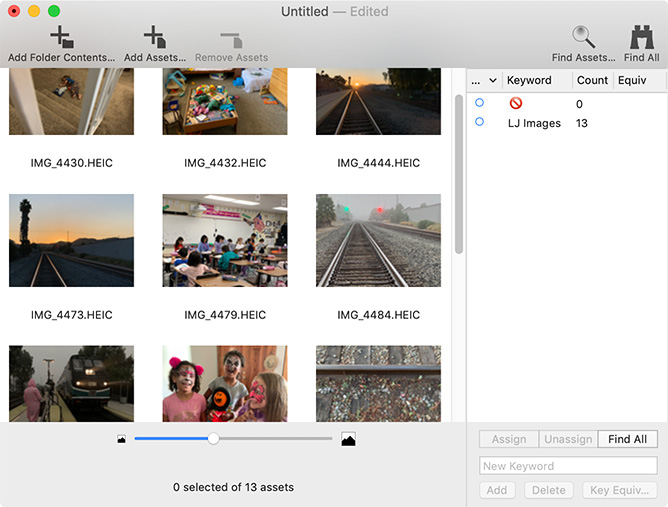
Recently, I discovered Image Chest. Published by Steve Mills and his company Armpit Studios, here’s how Steve describes his utility:
If you love to collect images or movies, but hate to organize them, Image Chest might be the answer. Tagging images with keywords is the key to good organization, and Image Chest makes that task easy and quick using the Set Keywords dialog. Adding new ones or assigning existing keywords is as simple as typing and hitting return.
After you’ve built up a nice set of keywords for a catalog, assign them to new images can be even faster by assigning key equivalents to your keywords. “Summer” could be control-s. “Halloween” could be F10. “Pumpkin” could be shift-F10. As long as the key equivalent is not already used by Image Chest of the OS, you can assign it to a keyword.
Image Chest also offers multiple view modes and sorting options, so you can concentrate on finding the right file. Powerful searches are also handled with ease, from simple file name searches to complex boolean expressions involving names, dates, sizes, types, keywords, notes, and whether or not a file is missing. And those complex search patterns can be saved in each document so you don’t waste time building them each time.
Files can also be moved, copied, aliased, renamed, trashed, and QuickLooked right from within Image Chest, so you can spend your time using one application instead of many.
USING THE PROGRAM
The secret to Image Chest is its extensive keywording. You can store images anywhere on your hard disk. Simply drag them into the program – or use the icons in the tool bar at the top of the window – and Image Chest will track them wherever they are stored.
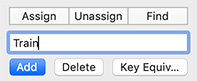
You can create as many keywords as you want using the Manage Keywords panel in the lower right of the interface.
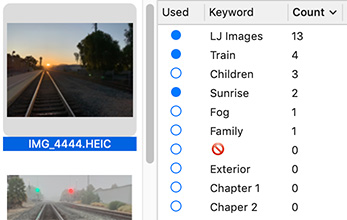
Here, for example, I created eight keywords, with one more (“LJ Images”) auto-generated when I dropped a folder containing images into the program. The number on the right indicates the number of images assigned that keyword.
To apply a keyword to one or more images, select the image(s) then double-click the keyword you want to apply from the list on the right. (Or, select the image and the keyword, then click Assign in the lower right.
The filled blue dots, in the screen shot above, show the keywords applied to the selected clip(s)
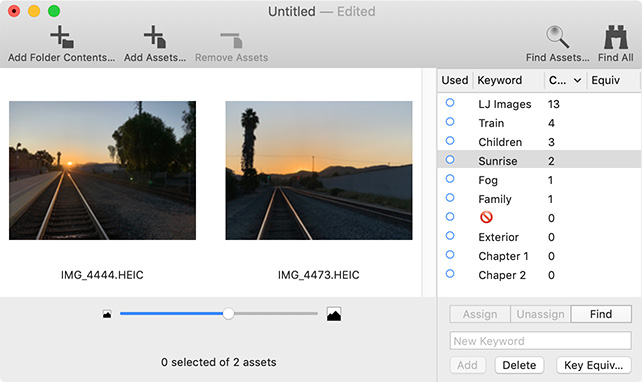
By dragging the slider at the bottom of the thumbnail screen, you can adjust the size of the thumbnails. Press Spacebar and the full image is displayed, exactly like QuickLook in the Finder. Use the arrow keys, or mouse, to move between images, even in QuickLook view.
NOTE: Double-click any image to open it in Preview.
There are two ways to find images: simple and complex.
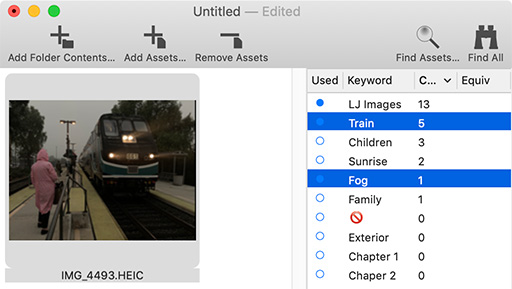
The simple way to find clips by keyword is to select the keyword, then click Find in the lower right. All clips that contain that keyword are displayed on the left. Or, to find using multiple keywords, select them on the right, click Find and only those clips that contain all selected keywords are displayed. (This is the equivalent of a Boolean AND).
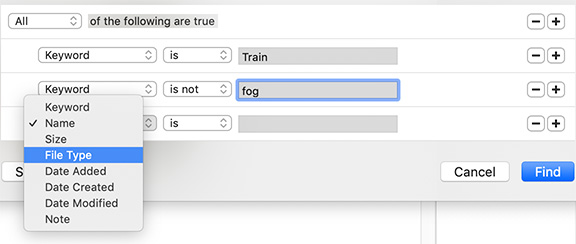
If you need more powerful searches, chose Find > Find (shortcut Cmd + F) and enter as many different criteria as you need. For example, here, I’m looking for all train shots that don’t include the keyword “fog”.
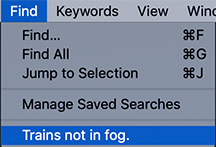
Searches can be saved for future reuse, for example, this is the saved search from my example above.
NOTE: All text in Notes is searchable.
UPDATE – 12/15/2019
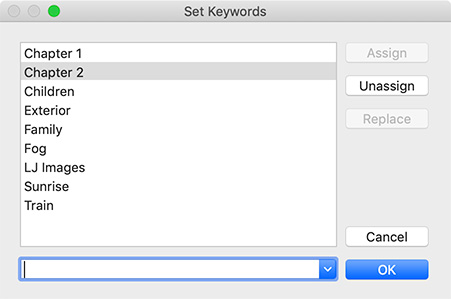
After I published this review, Steve Mills, the author, sent me the following comment:
After reading your explanation of using keywords, in case you aren’t using the Catalog->Set Keywords window, it can make entering keywords (new or old) even quicker, if you prefer a keyboard UI over a mouse UI.
It autocompletes as you start typing, so you can type “lts” to add “LJ Images”, “Train”, and “Sunrise” (given the list of keywords shown in the screenshots). It also supports tabbing between the combo box and list. The list supports arrow keys, and the buttons on the right have key equivalents; Assign – return/enter, Unassign – delete, Replace – Cmd-R. So the entire Set Keywords window can be used mouseless – even the combo box list can be accessed with arrow keys.
UPDATE – Dec. 30, 2020
After using this program for more than a year, and continual updates from the developer, Image Chest has evolved into a very stable, highly-useful image and video catalog program.
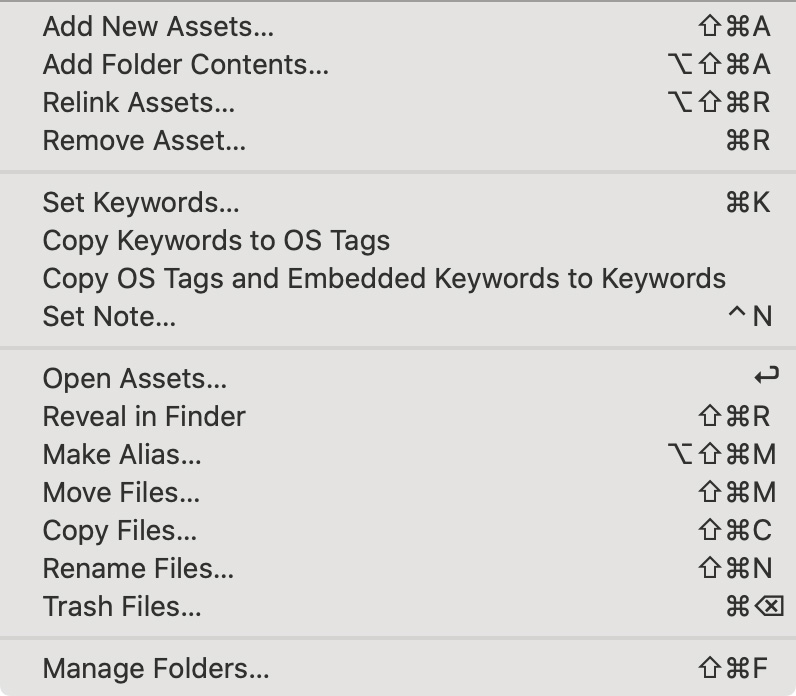
Using either the Catalog menu or keyboard shortcuts, select one or more images in Thumbnail view then:
Since this review was first written, the program has also added:
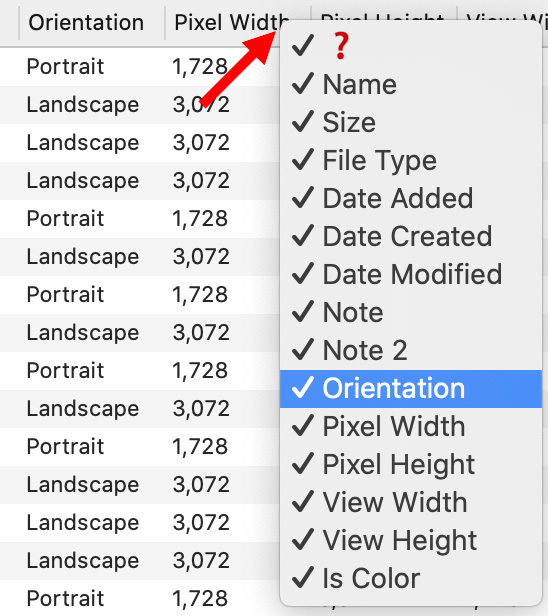
All for the same price.
OTHER STUFF
Image Chest does not modify, move or store your existing images. All keywords are stored in the program. Catalogs can be duplicated, renamed or moved. Images can be stored locally or on a server.
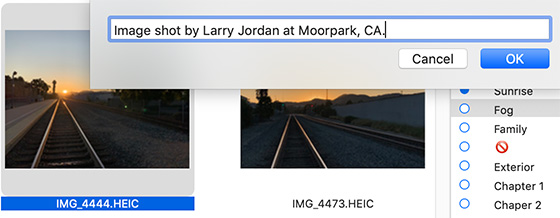
The key feature, though, that made me buy the program is that I can attach a note to each image; for example, to describe the source of the photo.
UPDATE – Dec. 30, 2020
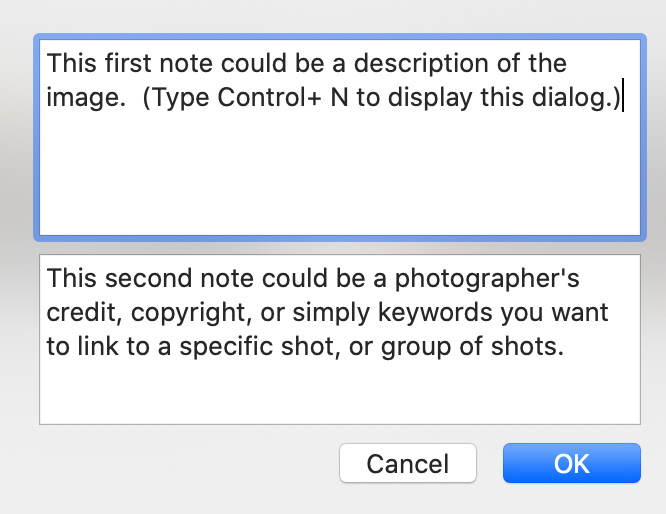
When I first purchased this program, each image only supported one note; an unlimited text window. Over this last year, Steve added two notes fields per image. Both can be exported, which is what I needed when creating a list of images, with captions and image credits for my latest book.
NOTE: To add the same note to multiple images, select the images, then type CMD + Option + Shift + N.
VIEWING NOTES
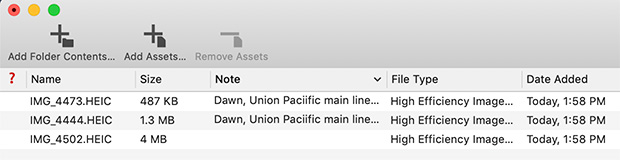
Then, switch to the Detail view to see all the notes, as well as other data associated with the program. All this image detail can be exported into a text file.
NOTE: My favorite and hidden keyboard shortcut was not documented until a recent update: Option + Cmd + F. When a keyword is selected in the Keyword panel, this instantly – and I mean FAST – displays all images assigned to that keyword. You can do the same thing with the mouse, but the speed of this shortcut is amazing.
THINGS I’D STILL LIKE TO SEE
I like this program. I’ve reached out to Steve Mills on several occasions and found him responsive and interested in fixing problems. The software has gone through multiple updates during the last year.
Image Chest was good a year ago, it is even better now; without losing sight of its initial goal: make cataloging and finding image files fast and simple.
Here are a few more things I’d like see:
UPDATE – Dec. 31, 2020
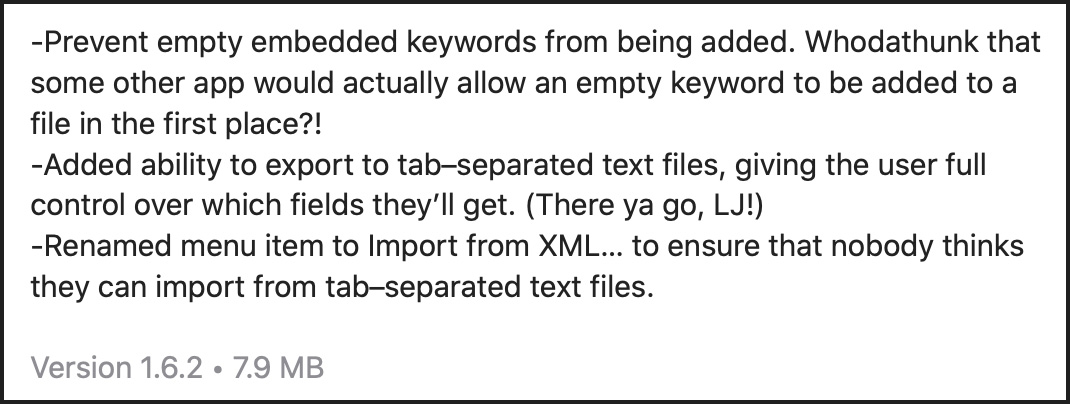
The 1.6.2 update to Image Chest added the ability to export all metadata fields as a tab-delimited text file. You can use Excel or Numbers to review, analyze or modify this data.
SUMMARY
This utility is focused on doing one job really well – cataloging and finding still or video images. Overall, this is a worthwhile addition to my toolset, I find myself using it often – even for simple tasks like reviewing the contents of a folder.
It is REALLY fast, allows viewing any image simply by pressing the space bar and has a very clean implementation of keywords to locate specific images in a variety of ways.
If you are looking for a fast, easy to use and flexible way to track and review images and video, Image Chest is worth a good long look.
EXTRA CREDIT

2,000 Video Training Titles
Edit smarter with Larry Jordan. Available in our store.
Access over 2,000 on-demand video editing courses. Become a member of our Video Training Library today!
Subscribe to Larry's FREE weekly newsletter and
save 10%
on your first purchase.

15 Responses to Product Review: Image Chest, by Armpit Studios [u]
← Older Comments-
 Larry Jordan says:
November 13, 2024 at 12:01 pm
-
 Steve Mills says:
November 13, 2024 at 2:46 pm
-
 Larry Jordan says:
November 13, 2024 at 4:16 pm
-
 Steve Mills says:
November 13, 2024 at 6:19 pm
-
 Steve Mills says:
November 20, 2024 at 3:42 pm
← Older CommentsSteve:
Image Chest is SUCH a cool program, I encourage everyone to try it.
From my perspective, this would be an ideal feature – but only as a preference on a “chest-by-chest” basis. Most of the time, I don’t need it, but there are times where it would be extremely useful.
Also, as long as I am wishing, it would be great to have the ability – once a chest is created – to either add previews to the chest, or, if they are there, to remove them.
This flexibility would add a lot of value.
Larry
I know what you mean. However, I’m afraid that would push it more into the “complex” camp, since the user would have to make the decision for every .chest, and possibly wonder why some assets no longer show thumbnails when the files are missing or offline, as well as needing to understand when and why they might use some commands to force thumbnails for *all* assets to be created, or to purge them.
I’m still deciding if this is worthwhile. It does slow it down quite a bit when scrolling through assets that have not yet built and stored thumbnails. And of course, the same will happen when changing the zoom size and such. I might try shoving such things off to a background task so the UI is still responsive.
Steve:
An interesting conundrum. I look forward to seeing what you decide to do.
Larry
I got the speed up, flowing very smoothly. With the zoom set so that the thumbs are about 100×100 pixels, a .chest of 3200 assets is using 70M. The shipping version uses 10M for the same 3200 assets. I feel that’s not a lot of space being used.
Since the original version way back stored thumbnails (and the app it was based on did too, MultiAd Search), it’s always bugged me that I didn’t do that when I rewrote it, although at that point I wasn’t using any removable media, so having “missing” assets wasn’t really a problem for me. I’m seeing this as a win.
Update is available. Since I’m the only tester, it wouldn’t be a horrible idea for everyone to keep a backup of your catalogs before opening them in 1.9. And let me know if anything’s goofy. I did quite a bit of testing, and the only odd thing is that CoreData ends up dirtying the doc after saving sometimes, requiring a 2nd save.