
 I’ve written about how to move:
* An FCP 7 project to Premiere Pro
* An FCP 7 project to FCP X
* An FCP X project to Audition
* An FCP X Project to Premiere Pro CC
So, in this article, I want to show you how to move a Premiere Pro CC project to Final Cut Pro X.
We do this in three steps:
However, there are some cautions in this process: Not everything transfers perfectly. I’ll talk more about this at the end.
INSIDE PREMIERE
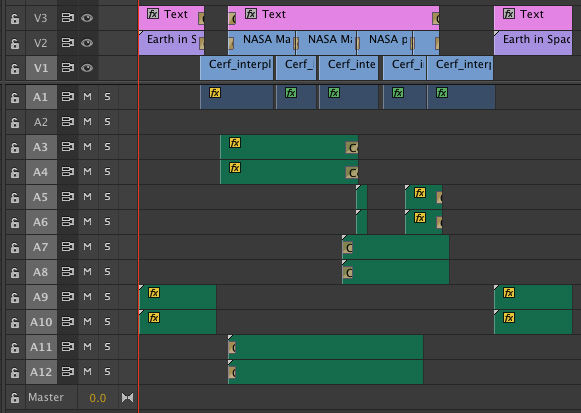
Here’s a typical project inside Premiere. There are several things to note here:
Notice that all stereo audio starts on an odd-numbered track. This is important. Most software assumes that stereo pair audio will be on two separate tracks and further assumes that the left channel starts on an odd track. I have found that I get the most reliable transfers when working with multi-track stereo audio when the left channel is placed on an odd-numbered track. (Premiere does not care if there are gaps between audio clips, nor if an entire audio track is left blank.)
NOTE: This project is based on an older Premiere project, where stereo audio spanned two tracks. In the current version of Premiere, stereo audio can appear as a single clip in a single track. When moving projects between Premiere and FCP X, whether stereo audio is on one or two tracks does not make a difference; as long as when audio spans multiple tracks, the left channel is placed on an odd-track.
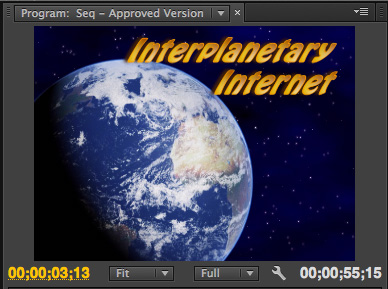
Thinking about text, notice the text color and formatting in this opening title…
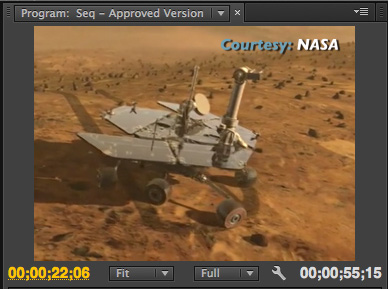
…and the formatting of this locator text.
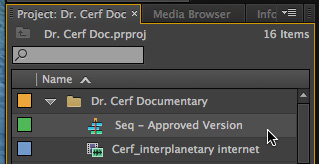
To transfer a project from Premiere, select the project in the Project panel. Then, choose File > Export > Final Cut Pro XML.
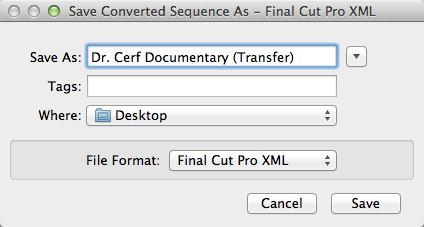
Give the XML file a name and storage location. Here, I’m calling it “Dr. Cerf Documentary (Transfer)” and storing it to the Desktop.
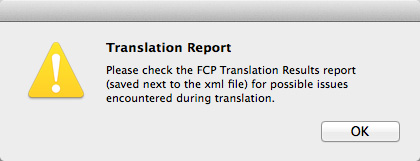
A warning message appears, indicating if Premiere had any problems with the transfer.
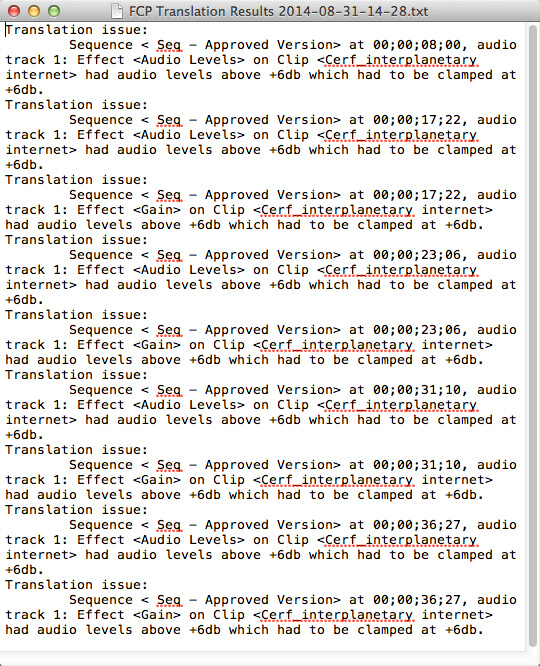
In this case, all problems relate to audio levels. (This is the Translation Results report from this export. Different projects will generate different reports.)
After a few seconds, the XML file appears on the Desktop.
NOTE: XML files are very small – generally, just a few hundred KB. They are only needed to transfer information from one program to another. Once the data has been transferred, the XML file can be deleted. For this reason, I tend to store them to the Desktop to make them easy to find and delete when this process is complete.
CONVERTING FOR FINAL CUT PRO X

FCP X and Premiere use different versions of XML, so we need to convert the XML file so that Final Cut can read it. This requires a utility from Intelligent Assistance called: “7toX” — it’s available in the Mac App Store for $9.99. Here’s the link.
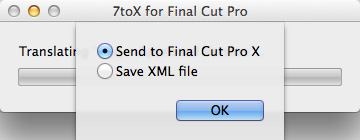
Either start the application and select the XML file, or, much easier, simply drag the XML file on top of the application icon. This dialog asks what you want to do with the converted XML file.
While sending the file to FCP X is the fastest, when it comes to transferring files, I tend to be a “belt-and-suspenders” kind of guy. I prefer to do this in two steps:
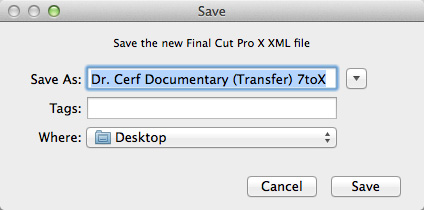
So, I chose the “Save XML File” option, gave it a name and storage location and clicked Save. The translation process starts and only takes a few seconds.
IMPORT INTO FINAL CUT PRO X
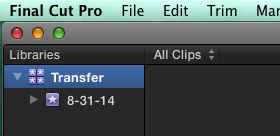
Start Final Cut and create a new Library.
NOTE: Creating a new Library is optional, as you’ll see in a minute, but I prefer to transfer projects to their own library.
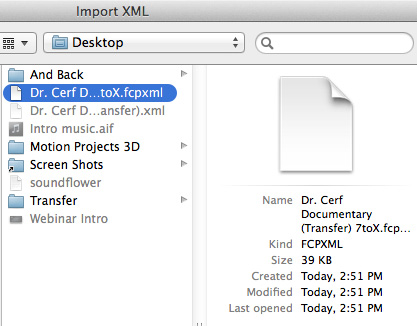
Choose File > Import > XML. Select the converted XML file and click Import.
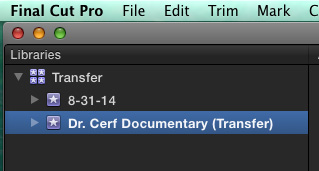
The transferred project is imported as its own event, with the sequence and media inside. (This is why creating a new library is optional.)
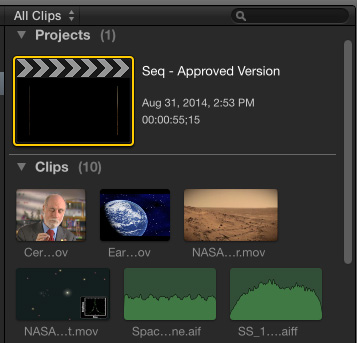
As you would expect, the project and all media are displayed in the Browser.
THINGS CHANGE
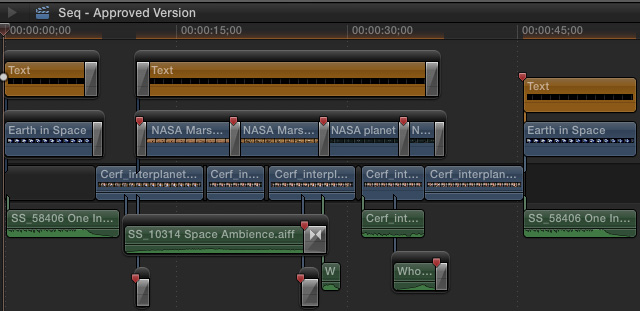
Here’s what the transferred project looks like, inside FCP X.
NOTE: In discussing this article with the folks at Intelligent Assistance I was told they have encountered issues where Premiere can play media that isn’t recognized by FCP X because it wasn’t ingested and rewrapped as MOV. This just points up that it is important to transfer files ahead of your deadline so you have time to fix problems if they occur.
SUMMARY
If I were doing this for real, rather than writing an article about the process, transferring files is very fast. Assuming all software is installed, moving large projects from Premiere to FCP X would generally take a couple of minutes, at the most.
In today’s interconnected world, moving edits from one application to another is fast and easy. The trick is knowing what transfers and what doesn’t. Media and edits are ALWAYS safely transferred. The issues all relate to effects.
EXTRA CREDIT
As we’ve just seen, because of the differences between Premiere and Final Cut Pro X, not everything transfers successfully. We have similar problems when sending files between different versions of Final Cut, Avid and Premiere.
While all edits and most media transfer successfully between applications, most wipes, effects and color grading do not. This is because each application handles these differently which means that the best time to transfer files is when the edit is complete but effects are not yet started. Here’s a white paper from Intelligent Assistance providing more details on what transfers and what doesn’t.
Also, the following suggestions on media are taken from the 7toX help files:
Carefully consider the media format of your video clips. For example, Final Cut Pro X can support R3D clips directly, whereas Final Cut Pro 7 needs RED QuickTime Wrapper versions of the clips. Black video usually means that your NLE is missing a plug-in. If you’ve installed a Final Cut Pro X plug-in to support your camera’s format, then you’ll need to download and install a version for Final Cut Pro 7 or Premiere Pro. (Import a clip directly into Final Cut Pro 7 or Premiere Pro to see if the camera format is supported.) The most reliable way to get media that works in Final Cut Pro 7, Premiere Pro and Final Cut Pro X is to transcode to your favorite flavor of ProRes.

2,000 Video Training Titles
Edit smarter with Larry Jordan. Available in our store.
Access over 2,000 on-demand video editing courses. Become a member of our Video Training Library today!
Subscribe to Larry's FREE weekly newsletter and
save 10%
on your first purchase.

47 Responses to Premiere Pro CC: Transfer Projects to Final Cut Pro X
Newer Comments →-
 Chris Martin says:
October 7, 2015 at 1:19 pm
-
 Larry says:
October 7, 2015 at 1:39 pm
-
 andrew says:
December 2, 2015 at 4:00 am
-
 Larry says:
December 2, 2015 at 11:30 am
-
 Chloe says:
December 21, 2015 at 4:13 am
-
 Chloe says:
December 21, 2015 at 4:20 am
-
 Larry says:
December 21, 2015 at 9:14 am
-
 Larry says:
December 21, 2015 at 9:15 am
-
 Tiffany says:
January 21, 2016 at 11:33 am
-
 Tiffany says:
January 21, 2016 at 11:35 am
Newer Comments →So, what if I don’t have Premiere? Is there a conversion tool anywhere to get that project file to XML short of sending it to someone who has it and asking them to export it for me?
Thanks
Chris:
None that I know of. XML is not native to Premiere, which means only Premiere can create an XML file from a Premiere project.
Larry
Hi Larry great article as ever. I have an editor who works with premier pro and want him to send me the xml file so I can finish the project on my fxpx. Can I do this? Obviously the media will be offline as the link will not be the same. Do I just relink media as normal? Thanks for your time
Andrew:
Yes. Just convert the Premiere XML to FCP XML using the “7toX” utility in the Mac App Store. This article explains how.
https://larryjordan.com/articles/premiere-pro-cc-transfer-projects-to-final-cut-pro-x/
Larry
Hi there Andrew & Larry, I’m doing exactly the same thing but I’ve found that once I set up a new library and imported the XML, I can’t re-link the missing proxy. Final Cut locates all the files and seems to re-link them fine, but then nothing actually changes – still says ‘Missing Proxy’ and all the clips remain red. Did you encounter this problem?
Hi Larry, thanks for this article, it was really useful.
Everything worked great until I imported the converted XML and found that all the files had Missing Proxies. Final Cut located them all and seemed happy enough re-linking them, but then once this had completed, nothing changed – all the clips still said ‘Missing Proxy’. Is this because my editor should have exported the project file from Premier Pro with original media, not proxies? Or is there a way of re-linking things through FCPX?
Thanks for your time!
Chloe:
FCP X and Premiere handle proxies totally differently. My recommendation is to export the camera native files from Premiere and import those into FCP X. Then, let FCP X create the proxy files. Otherwise, they won’t link properly.
Larry
Chloe:
Correct, you can’t import proxies, FCP has no way of assigning imported media as a proxy file. Instead, import the camera native, or optimized, files then let FCP X create the proxy files for you.
Larry
Well, I downloaded the software and tried importing the project, but I’m having two issues…
1. Not all of the files are linking…they’re only showing as green and when I try to relink, they’re still green.
2. The original project is not coming up in the project pane, so none of the editing I’ve done is showing up. 🙁 Can you help??? It’s a bit of an emergency and while I’m patient, kind of having a difficult time…so grateful for your resource!!!
Thanks, Larry. You’re a Godsend!
I’ve also tried re-linking with .MOV instead of .MP4 and it’s not allowing that, either.