
 Recently, I taught a class of editors who were converting from Final Cut Pro 7 how to use Adobe Premiere Pro CC. One of the different features in Premiere’s audio, when compared to FCP 7, is that a stereo clip fits into a single track in the Timeline.
In fact, when you import any 2-channel audio clip, Premiere treats it as a stereo clip. Which is great, except many interview clips are recorded with the interviewer on channel 1 and the guest on channel 2. This type of 2-channel clip is called “Dual-Channel Mono,” meaning that it may look like a stereo clip, but it isn’t. Both channels need to be panned center and located on two different tracks in the Timeline.
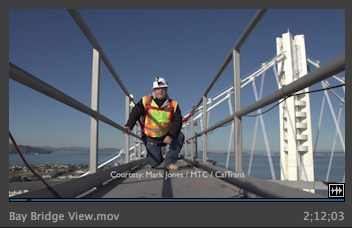
Here for example, is Mark Jones doing a stand-up (kneel-up?) at the top of the old Bay Bridge in Oakland, CA. (Thanks, Mark and CalTrans for permission to use this clip!)
Mark recorded this clip using 2-channel audio. Let’s assume, for the purpose of this example, that Mark’s audio is on channel 1, while natural sound is on channel 2.
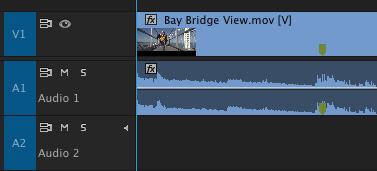
When this clip is edited as it was imported into the sequence, notice that both channels are edited into a single track. This makes it impossible to separate Mark’s audio from the background noise.
What I would prefer is to have Mark’s audio on one track, and the background sound on a second track. That way, during the mix, I can balance the two tracks for the best results.
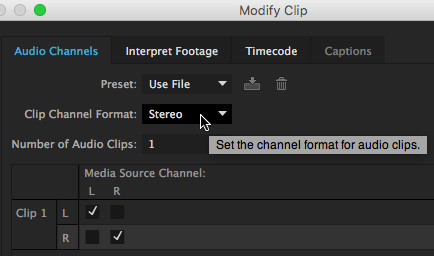
Here, the Stereo setting indicates this is a stereo clip. To convert a stereo clip to dual-channel mono, select the clip in the Project panel or the Source Monitor, but not in the Timeline, and choose Clip > Modify > Audio Channels.
NOTE: You can also right-click the clip and choose Modify > Audio Channels.
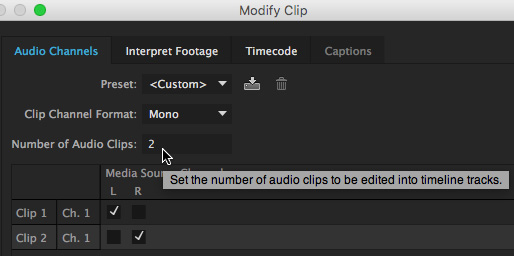
Change the Clip Channel Format from Stereo to Mono.
Then, change the number of audio clips (which tells Premiere how many audio tracks to use when editing the clip into the Timeline) to 2.
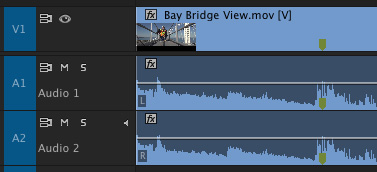
Now, when you edit the clip into the Timeline, Channel 1 audio is on track 1, while Channel 2 audio is on Track 2.
NOTE: In this example, the same audio is on both channels. We are pretending the two channels contain different audio.
EXTRA CREDIT
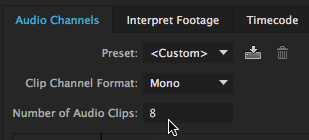
You can use this same technique if your camera records more than two channels of audio, just set Clip Channel Format to Mono and indicate the number of audio channels that your camera recorded to create the same number of tracks when you edit the clip into the sequence.
As another example, you can use this dialog to create a mix of stereo and mono clips. For example, a recent client records eight tracks of audio for each clip; the first two are stereo and the last six are mono. This dialog allows you to properly configure the audio for editing.
EXTRA, EXTRA CREDIT
You can also use this method to convert dual-channel mono back to stereo. Change the Clip Channel Format to Stereo and the number of clips to 1.
SUMMARY
You can change multiple clips at the same time by selecting all the clips you want to change in the Project panel, then accessing the Audio Channels dialog.
This flexibility in Premiere allows stereo audio to take much less space, while at the same time allowing us the exiting flexibility that dual-channel mono clips provide.

2,000 Video Training Titles
Edit smarter with Larry Jordan. Available in our store.
Access over 2,000 on-demand video editing courses. Become a member of our Video Training Library today!
Subscribe to Larry's FREE weekly newsletter and
save 10%
on your first purchase.

12 Responses to Premiere Pro CC: Convert Stereo to Dual-Channel Mono Audio
← Older Comments-
 Bobby says:
January 25, 2020 at 2:54 am
-
 Larry says:
January 25, 2020 at 9:10 am
← Older CommentsI’ve a problem that after splitting stereo clip into 2 mono channels and putting that mono channels on separate mono audio tracks, each of them still plays/previews as playing in both my computer speakers. Even the label meters show both left and right channels getting same output. Shouldn’t only left audio meter show the output signal (and play only in left speaker) when I’ve put into one left audio track?
Bobby:
This is normal. By default, all mono channels are panned center. All you need to do is pan the left channel to the left using the audio settings in Effect Controls; then pan the right channel right.
Larry