
 [ Updated July 28, 2014, to better explain how partitions improve speed.]
During the last couple of months, I’ve been testing a lot of different storage from companies like Promise Technology, G-Technology and OWC, among others. Single drives, multiple drives and RAIDs.
I’ve known for a long time that hard drive speed varies as the drive fills up. Drives are at their fastest when they are empty. As they get closer and closer to full, they slow down. What I recently realized was that RAIDs behave the same way: empty RAIDs are really fast, while full RAIDs are much slower.
This is because hard drives, which are the essential storage component of a RAID, store data to the inner (faster) tracks first, then, as the drives fill up, data is stored to the outer tracks, which are slower.
THE “SECRET SAUCE”
We can take advantage of this fact to improve the overall speed of our RAIDs by partitioning them. (We can partition individual hard drives, too, but the performance benefits are much less significant. I no longer recommend partitioning single hard drives.)
What a partition does is divide the physical storage capacity of a RAID into separate logical “chunks.” Think of this as increasing the number of drawers in a filing cabinet. The overall cabinet does not increase in size, but by increasing the number of drawers it makes it easier to access files stored in the drawers.
WHAT ARE WE ACTUALLY IMPROVING?
Whether a RAID has one or more partitions, the fastest bandwidth it will ever have is when it is empty. When a RAID has only one partition, as the drives fill up, the RAID slows down. What partitioning does is minimize the amount of slow-down when using the first (fastest) partition.
The reason this improves performance in a RAID is because the first partition always includes the fastest portions of the RAID. While additional partitions only include slower portions of the drive. While the actual method you use to create partitions varies by RAID and manufacturer, the results are easy to illustrate.
NOTE: We can create multiple partitions on the same RAID. But, in general, you only need two: one for fastest performance and one for everything else.
AN EXAMPLE
Recently, I took an OWC ThunderBay RAID and divided it into two partitions using the SoftRAID utility. (Again, remember that each drive vendor will have its own partitioning utility. Contact the support department of your RAID’s manufacturer for instructions.)
In this example, the RAID had 12 TB of total storage. I put 8 TB in the first (fastest) partition and 4 TB in the second, slower, partition. (There isn’t any big advantage to creating more than two partitions.) Then, I measured the speed of the RAID.
NOTE: I would not make the first partition smaller than 50% of the total RAID capacity, nor larger than 75%.
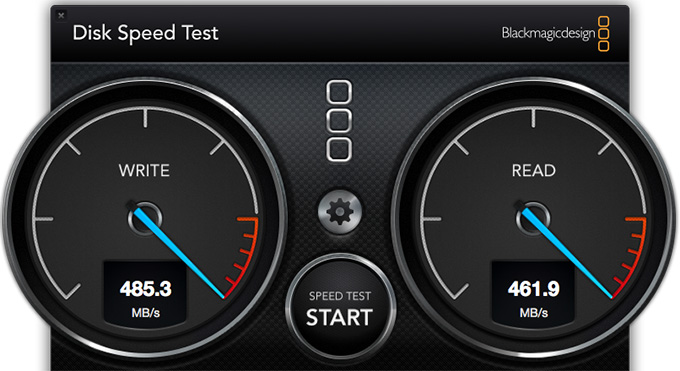
Here are the results of the first (fastest) partition: close to 500 MB/second for both Read and Write.
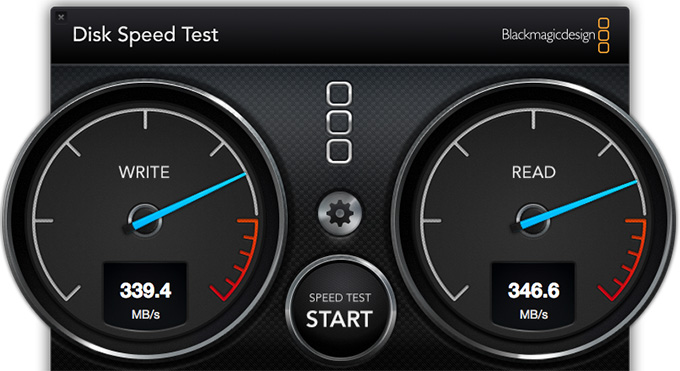
And here are the results of the second (slower) partition. There is more than 110 MB/second in speed difference between the two partitions. THAT is a lot!
BIG NOTE: You can only partition a RAID or a drive when it is empty, because partitioning erases all data currently stored on the system. Consequently, this technique is best used when configuring a new system for editing, or after copying all existing data off the RAID and temporarily storing it somewhere else.
SUMMARY
Dividing the RAID into two partitions, guarantees that the performance of the first (fastest) partition doesn’t drop as the RAID fills up, because while the partition is getting full, the drives themselves, which determine the actual speed of the system, are not.
Not all the files stored on a RAID need high-performance access. By creating two partitions, I can put files that need fast access on the first partition and files that are not speed-dependent (think compressed media files, word processing, spreadsheets, PDFs and so on) on the second partition.
I’ve currently implemented this technique on the two RAIDs in my edit suite. I’ll let you know how it works, but, so far, this works really, really well.

2,000 Video Training Titles
Edit smarter with Larry Jordan. Available in our store.
Access over 2,000 on-demand video editing courses. Become a member of our Video Training Library today!
Subscribe to Larry's FREE weekly newsletter and
save 10%
on your first purchase.

14 Responses to Improve RAID Speed with Partitions
← Older Comments-
 Larry says:
June 6, 2018 at 9:49 pm
-
 Jody C says:
June 26, 2018 at 5:20 pm
-
 Larry says:
June 26, 2018 at 7:39 pm
-
 Jody C says:
June 27, 2018 at 6:27 am
← Older CommentsLee:
Thanks for asking – I haven’t looked at this article for a while.
First, partitions don’t make sense if you have an SSD or Fusion drive.
Second, all spinning media slows down as it fills with data; so there is no magic percentage. Currently, I recommend 205, but there’s nothing particularly wrong with Apple recommending 15%. Just don’t try to squeeze every last MB out of your RAID, performance will suffer as it gets close to full.
Third, APFS is about to change the equation. For right now, even though Apple is working to put APFS on spinning media, I STRONGLY recommend against it. At the moment, APFS is optimized for SSDs and will severely degrade performance on spinning media. It is my hope this will change in the future, but for now, I urge caution – even on systems used for beta testing.
Larry
Hi Larry,
So, I asked about partitioning a thumb drive and raiding them together back in April. So I Raided two 32 GB Thumb Drives which both had write speeds avg. 45 MB/s and Reads at 155 MB/s. After raiding, I got write speeds avg. 25 MB/s and reads up to 200 MB/s. So, I tried a little experiment. I broke the RAIDed thumb drives and I created 6 – 5 GB disk images on both drives. The drives are not raided together. I RAID 0’d all 12 disk images(6 from drive 1 and 6 from drive 2) together and created a new drive running off both thumb drives. I got write speeds of 65 MB/s and Reads of 220 MB/s. These are USB 3.0 SanDisk Drives. Pretty interesting. I wonder if larger images, say 2 – 15 GB on each drive striped together will improve the performance. Or raiding more images over 4 drives vs. two, etc.
Jody:
The problem you are running into is not the RAID, per se, but the speed of a USB 3.0 bus. Your write speeds are about at the limit of what that version of USB supports.
In general, an SSD drive will be limited by bus speed more than the speed of the device itself.
Larry
Well, I made 2 – 15 GB disk images for 1- 32 GB dirive and 2 for the other 32 GB drive and raided the images together. As compared to the 5 GB images raided together which gave me 65 Writes MB/s and 220 MB/s reads, the 4 raided 15GBs images raided across two drives . gave me 75 MB/s writes and 240 MB/s reads. So now I am going to try the full 30 GB images on both drives. Also, I was looking at external SSD’s yesterday and came across several that gave and average of 500 MB/s read and writes using the USB 3.0. USB 3.0 can theoretically top out at 640 MB/s. So if the SSD can truly give those speeds using 3.0 bus, then I think the read/writes of thumb drives are maxed out by their internal hardware. For example, my 124 GB thumb drive read/writes 70/165 at normal whereas both 32GB thumb drives read/writes 45/155 normal. I would say that the 4- 15 GB images raided across the two 32 GB drives which gave 75/240 is a big improvement over the 45/155 and the 25/200 when the actual drives were raided together in 0. Speed test were done using Black Magic.
Jody