

In maxOS Mojave (10.14.x), Apple made a big change to how software processes audio. If you don’t pay attention, you won’t be able to record audio in your applications.
If you are running Mojave, the first time you start an application that uses audio – for example, Final Cut Pro X or Premiere Pro – you’ll see a message that asks if you will allow the application to access your microphone.
If you, like me, are the suspicious sort, you click: “No.”
At this point, you’ve disabled all audio recording in that software, regardless of whether you use a microphone or some other audio source connected via USB.
Yes, this message is both stupid and unclear. Here’s how to fix it.
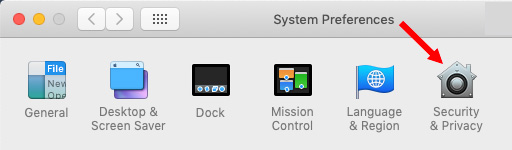
Go to System Preferences > Security & Privacy.
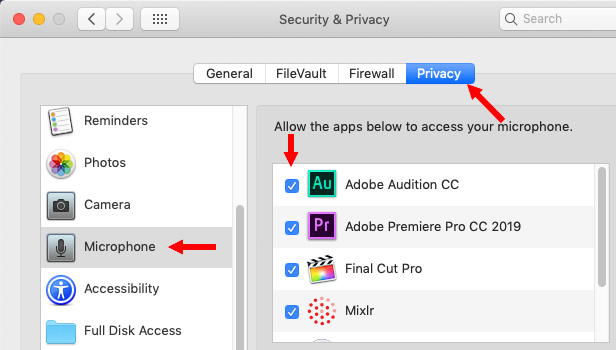
Click the Privacy tab at the top.
Select Microphone on the left.
Then check every application that you want to allow to record audio.
Once this is done, your applications will work like they did in High Sierra.
This cost me a couple of hours today, so I wanted to let you know.

2,000 Video Training Titles
Edit smarter with Larry Jordan. Available in our store.
Access over 2,000 on-demand video editing courses. Become a member of our Video Training Library today!
Subscribe to Larry's FREE weekly newsletter and
save 10%
on your first purchase.

11 Responses to IMPORTANT! How To Record Audio in Apple Mojave
← Older Comments-
 Larry says:
November 21, 2019 at 3:34 pm
← Older CommentsMarvin:
Yay! Happy to help.
Larry