
 [ These tips first appeared in my book: Final Cut Pro X: Making The Transition. ]
There are a ton of cool tips that aren’t complex enough to require an entire article, yet so helpful that they can’t be ignored. I’ve gathered some interesting ones into this article. (By the way, if you have a favorite secret or shortcut, add it to the comments at the end of this article.)
These tips are in no particular order.
OPTION PROVIDES OPTIONS
KEYBOARD SHORTCUTS CHANGED
Since it’s initial release, Apple changed several keyboard shortcuts as it updated the software. For example, when editing:
For Scopes
ORANGE MARKS THE SPOT
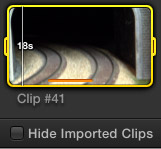
Ever wonder what the orange stripe means on a clip in the Import from Camera window? It means you’ve already imported that portion of the shot. If you want to hide all the media you’ve already imported, check the “Hide Imported Clips” checkbox at the bottom of the window.
WHAT’S WITH ALL THESE STRIPES?
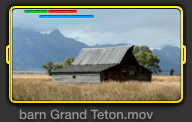
Wondering what all the stripes mean at the top of clips in the Event Browser? Wonder no longer:
FASTER KEYWORDS
A fast way to rename a keyword is to select it in the Event Library and enter the new name.
A fast way to apply an existing keyword to multiple clips is to select all the clips you want to apply the keyword to and drag them on top of the keyword in the Event Library. This also adds those clips to that Keyword Collection.
SET AN OUT FASTER

You are creating a musical montage and want to create clip durations to match the beat of the music. Piece of cake. Set the In for a clip in the Event Browser, or simply select a clip in the Timeline.
Type Control+D. This turns the timecode display in the toolbar into a duration calculator. Enter the duration you want – you don’t need to use punctuation – and press Enter. The Out of the selected clip is automatically adjusted to match the duration you just entered.
COOL YET UNKNOWN WAYS TO EDIT
You know the standard keyboard shortcuts:
But there are several more you may not know about:
REPLACE WITH A GAP
If you select a Timeline clip and press Shift+Delete, or press the DEL key, the selected clip will be replaced with a gap with the same duration as the clip you selected. This is principally used for clips in the Primary Storyline.
REPLACING CLIPS
In Final Cut Pro X, clips are replaced from either the start or the end of a clip.
MOVING CONNECTIONS
By default, the connection for a clip is placed at the beginning. However, if the connected clip actually relates to a different clip, moving the connection is a good idea.
Hold Option+Command and click the connected clip, or the dark-gray bar of a connected storyline, to reposition the connection at the point where you click.
AUDITION WORKAROUND
By default, Auditions contain whole clips. They don’t recognize the Start or End of a clip. However, there’s a workaround.
In the Event Browser, select the region you want to use in the Audition for each clip and mark it as a Favorite. Then, display only Favorites in the All Clips menu. When you build the Audition, only the Favorite sections will be displayed.
SUMMARY
These are just a sampling of the cool shortcuts inside Final Cut Pro X. Share your favorites in the comments section below.

2,000 Video Training Titles
Edit smarter with Larry Jordan. Available in our store.
Access over 2,000 on-demand video editing courses. Become a member of our Video Training Library today!
Subscribe to Larry's FREE weekly newsletter and
save 10%
on your first purchase.

16 Responses to FCP X: Secrets and Tips
← Older Comments-
 Troy says:
December 5, 2013 at 8:46 pm
-
 Larry Jordan says:
December 5, 2013 at 8:52 pm
-
 Romaro says:
May 11, 2014 at 2:52 am
-
 Romaro says:
May 11, 2014 at 4:37 am
-
 sethjake says:
June 18, 2015 at 9:52 am
-
 Larry Jordan says:
June 18, 2015 at 10:37 am
← Older CommentsI have multiple timeline layered on top of each other. How can I turn off individual timeline video (prevent them from being seen) so I can work on the effects of an underlying video clip and turn it back on?
Troy:
Select the clips you want to hide and type “V” – without the quotes. That makes them invisible.
Type “V” again to make them visible.
Larry
“Orange marks the spot”
After importing a couple of clips and testing, i deleted the event and project.
However FCP does seem to remember these previous imports.
Is there a way to clear or reset the previously imported clips? How?
Every time i select these clips now in the import window, the line appears
(i ended up editing / removing the key/dict from libray/preferences/fcp-prefs for imported clips)
Question: I’m trying to figure out how to move my fcpx plugins from one system to another. Is there a way to do this?
Seth
Seth:
This varies depending upon the plug-in. My best advice is to contact the developer of your plug-ins (or developers) and ask their advice.
Larry