
I got an interesting series of questions from Caroline this morning that all revolved around importing and organization that was the spark for this article. She was asking when to use Import > From Camera and when to use Import > Files, and how to organize files before importing.
First, to define a couple of terms:
- Ingest. I generally use this to mean bringing files in from a camera, or from a copy of the camera card copied to your hard disk. Generally, these files can not be played in their native format using QuickTime.
- Import. I generally use this to mean bringing files in that are already playable in QuickTime and stored on your hard disk.
Apple, however, has standardized the term “import” to mean any method of bringing files into Final Cut Pro X.
WORKING TAPELESS
As a general rule, when shooting tapeless, you copy each camera card to its own folder on your hard disk. The cautious will then make a copy of that folder. The realist will make TWO copies.
NOTE: Here’s a great audio interview that I did last week with Jacob Rosenberg, of Bandito Brothers, on how they handled the tapeless workflow for editing Act of Valor. Click to play Jacob Rosenberg interview (TRT: 16:40 – opens in separate window, courtesy of DigitalProductionBuzz.com)
Then, since that card is going back into production, current advice is to reformat the card, not simply erase it. You can reformat using Disk Utility.
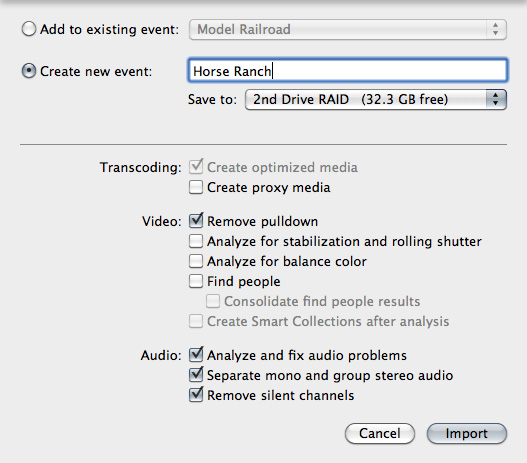
For instance, in this screen shot, I want to import media files that are still stored on the camera card (or, more specifically, from a camera card that was copied to a folder on my hard disk). You use File > Import > From Camera to bring these camera files in. FCP will use the file names created by the camera when you import these file. You can change the file names in the Event Browser after import. However, changing file names in the Event Browser does not change the file names on your hard disk.
As the screen shot above illustrates, you can either create a new Event, or add the clips to an existing Event. In this example, I am creating a new Event entitled “Horse Ranch.”
You only need to create proxy media if you need small files for editing. Generally, for most formats and most editing, proxy files are not needed. Here’s an article that discusses proxy files in more detail
EVENT FOLDERS
Contrary to how FCP 7 worked, adding folders to an Event does not help in storing media. All media is stored at the same level in the Event Browser, and inside the Event folder on your hard disk. Folders in the Event Library are used only for storing keyword collections and Smart Collections (which are, essentially, saved searches of keywords)
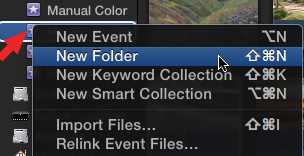
To create an Event folder, select an Event and do one of the following:
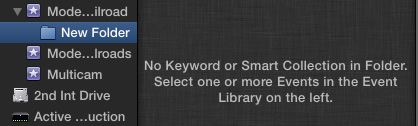
As you see here, the folder is empty because it doesn’t contain any keywords or Smart Collections. Folders never contain media.
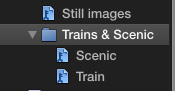
Here’s a new folder that I created, then dragged in two keyword collections (you’ll see how those were created in a few paragraphs). If you click the “Train” keyword collection, you’ll see all the media that has “train” applied as a keyword.. If you click the “Scenic” keyword collection, you’ll see media with “scenic” applied. If you click the “Trains & Scenics” folder, you’ll see all the media that has either ‘Train” or “Scenic” applied as a keyword.
ORGANIZING FILES
In the past, we spent a lot of time organizing files in folders in the Finder and giving them names. That time spent organizing isn’t wasted, but it may not be necessary.
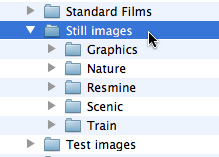
For instance, here I have a folder of still images that I want to import. Inside the Still Images folder are five subfolders, each named. Inside each of those folder are my stills.
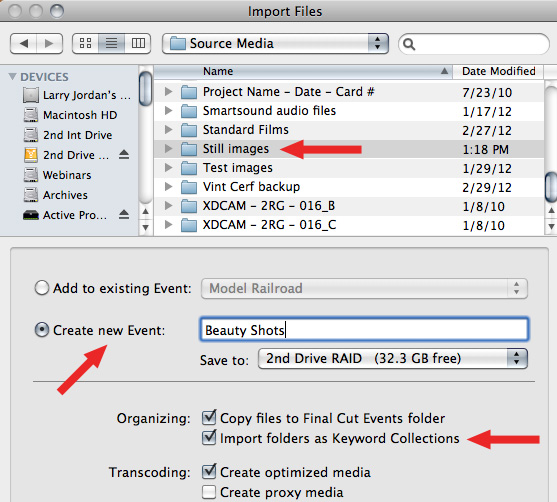
To import files which can be displayed by the computer, select File > Import > Files (or type Shift+Command+I). In the Import files dialog, determine whether you want to add this to an existing Event, the top popup menu, or create a new Event. In this case, I am creating a new Event, named “Beauty Shots.”
Here’s the key step. After you determine what Event you want these stored in, make SURE to check “Import folders as Keyword Collections.” What this does is create a keyword named after each subfolder, and apply that keyword to all the clips inside that folder.
CREATING KEYWORDS AUTOMATICALLY
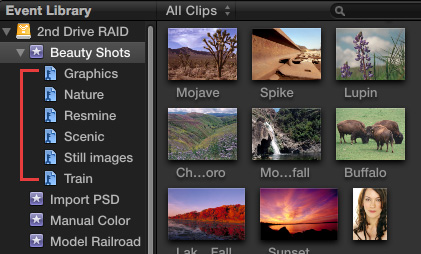
While we can create keywords manually, using a folder system for organizing your clips makes it easier to create keywords automatically during import. (Here’s an article that explains how to create keywords manually.)
For instance, look what happens in the Event Library when you import folders inside folders. It creates a keyword for each folder, so you can quickly see all the images that were stored in a particular folder, while, at the same time, loading all images into the Event Browser.
This way, if you want to see all the media for an Event, click on the Event name. If you want to see just the media you stored in a particular folder, click the keyword.
Remember, at the beginning of this section, I said that this organization might not be necessary? Well, rather than grouping all your files into folders, you can simply import them into Final Cut, then assign keywords to them later. This yields the same results, without having to spend time in the Finder grouping files.
For this reason, I tend to encourage new editors to always copy files into their Event folder and apply keywords later. This minimizes the risk of losing files, or breaking links by renaming files or moving folders accidentally. Plus, it simplifies the workflow prior to loading files into Final Cut Pro.
Also, any files that you rename in the Event Browser are NOT renamed in the Finder. Those names are just for FCP to use and don’t get saved to the source file on your hard disk. File names created in the Finder, however, ARE imported properly into FCP X.
FCP is designed to organize files using keywords, which makes searching for files a lot easier. The better you understand this, the easier it is to organize, search for, and find exactly the files you need.

2,000 Video Training Titles
Edit smarter with Larry Jordan. Available in our store.
Access over 2,000 on-demand video editing courses. Become a member of our Video Training Library today!
Subscribe to Larry's FREE weekly newsletter and
save 10%
on your first purchase.

28 Responses to FCP X: Import and Organize
← Older Comments-
 Tourism Media says:
January 15, 2013 at 6:07 pm
-
 Larry Jordan says:
January 15, 2013 at 6:10 pm
-
 Tourism Media says:
January 15, 2013 at 6:18 pm
-
 Derek Cadzow says:
February 8, 2013 at 10:18 pm
-
 Larry Jordan says:
February 8, 2013 at 10:24 pm
-
 James Billett says:
March 4, 2013 at 10:26 pm
-
 Frank N says:
June 14, 2014 at 4:45 am
-
 Larry Jordan says:
June 14, 2014 at 5:09 am
← Older CommentsHi Larry, thanks for the prompt reply!
I just tried this then, unfortunately it didn’t seem to work… I don’t think FCP records the top level folder as a key word.
(V. 10.0.7)
Is this the case, or is it just my system?
Cheers,
Jack
Jack:
It has in the past, though I have not tested this with V. 10.0.7. Are you also checking the import option to include folder names as keywords?
Larry
Yep, it records the lower level folder name fine. It might be a 0.7 thing. Just re-importing my libraries for a travel video job now, I have a lot of “beach” tags and I was hoping there would be a way of sorting them buy locale. Hmm… it seems I would save a lot of time with this if I went back to 0.6!
Trying to import (ingest) from a camera. It’s old footage from about 2001 and I am using the original camera. The issue is that the first half of the footage will import fine and then, even though the “Importing” label still shows in the media import window, it stops ingesting… the media stops showing up in the event browser.
I tried using the same camera to import the same footage to iMovie and it works fine. Then I imported from the iMovie media to FC and that works too, but the date metadata doesn’t come with it.
Besides, I’d rather import it directly into FC. It stops at the same place every time and refuses to budge from there. Any ideas?
Thanks
Derek:
Sounds like bad timecode on the tape. Frankly, with footage that old, I’d import with iMovie. Pick the software that works the best for the footage then bring it into FCP. You can always add the date/time metadata with Clip > Change Clip Creation Date (or something like that).
Larry
You state in article: ” FCP will use the file names created by the camera when you import these file.” This is how it has worked for me every time for the past year until tonight. Now all of a sudden it changes the clip name in FCPX and in the copied file in the finder (event–original files) to the date and time (plus it adds “id” to the date and time file name in the finder). I can’t figure out why or how to make FCPX go back to using the original file name on import. Any ideas would be much appreciated.
Hi Larry,
Is there a way to change a name already during import?
Thanks in advance.
Frank:
File, project and event names can be changed at any time. However, changing the file name in FCP does not change the name of the file in the Finder.
Select the name you want to change in the Browser – or Library Browser – then press “Return” and it will open for editing.
Larry