
 Earlier this week, I got an email asking how to create a countdown clock in Final Cut Pro X. “Simple,” I thought. Except it isn’t.
THE OBSTACLES
Final Cut has a neat numbers generator, but for some strange reason, it doesn’t create a digital clock; nor, even, emulate a timecode display.
NOTE: The Numbers generator works fine for general counting, provided you need to count down from a number smaller than 60 and it doesn’t need to look like a clock.
FCP also has a timecode generator, but it won’t count down and it requires displaying either frames or fractions of a second. It doesn’t allow you to set a starting or ending time. And, worse, it mimics the timecode of the Timeline.
I then turned to Motion, which also has two generators: Numbers and Timecode. Numbers is identical to the Generator in FCP X. And the Timecode generator in Motion seems totally flakey; I could not get it work the same way twice and never accurately.
HOW ABOUT THE WEB?
I went to the web to see if there was a countdown clock I could download. Whoa! Frightening… I was taken to any number of web sites promising a countdown clock for Final Cut Pro X – except they all required the Windows operating system.
A bit of a disconnect there.
So, here’s how to create one manually in Final Cut Pro X. This isn’t for the faint of heart, but it works. Mostly.
NOTE: You could use this same technique in Motion 5. But doing this in FCP X saves a few steps.
EXECUTIVE SUMMARY
We will build a compound clip, with a duration of one minute, that we can replicate as many times as we need minutes to count down.
NOTE: For this tutorial, I created a new Event with nothing in it because it makes explaining this process easier. However, you can do this in any existing Event or Project.
CREATE A SECONDS COUNTER
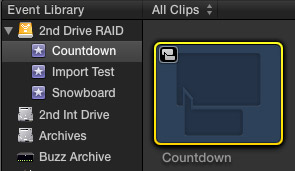
Select the Event Browser and create a new Compound Clip. (File > New Compound Clip, or type Option+G)
NOTE: Creating the Compound clip in the Event Browser allows us to reuse this in multiple projects.
Double-click the Compound clip to load it into the Timeline.
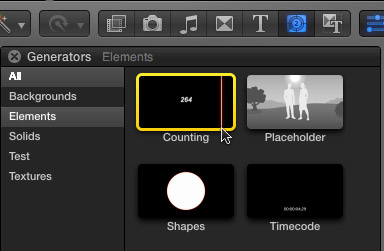
Open the Generators Browser and drag the Counting generator into the Timeline.

Select the Counting clip in the Timeline and type Control+D. This switches the Timecode display in the Toolbar to Duration mode.
Type 10000 ( -or- 1.. -or- 1.00.00 ) and press Enter.
This sets the duration of the Counting clip to one minute.
NOTE: The speed of the countdown is based on the duration of the clip. Because we want to create a one minute countdown, we need to create a one-minute clip.
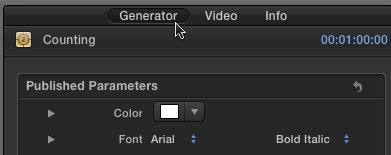
Make sure the Counting clip is still selected, open the Inspector (Command+4), and click the Generator text button at the top.
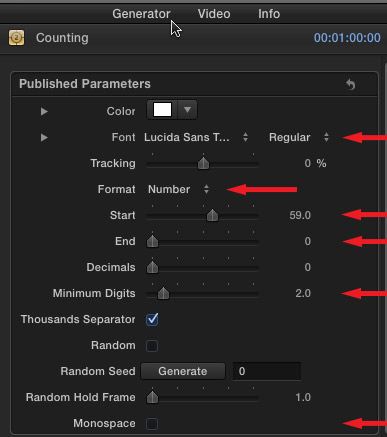
In the Inspector, make the following changes:
NOTE: When Start is larger than End, the Counting generator counts down.
THE GOOD NEWS
When you play the clip, you get a nice countdown from 59 to 0. Test this by watching timecode; every time the Timeline timecode goes up by one second, the counter should go down one second; if it doesn’t, make sure the clip duration is exactly one minute.
THE BAD NEWS
There’s no way to get this to display hours or minutes. The fix for this is the reason we created the Compound clip.
ADDING THE MINUTES
We are going to add minutes as a text title because it is far easier to change a text file than create a countdown clock that changes once per minute.
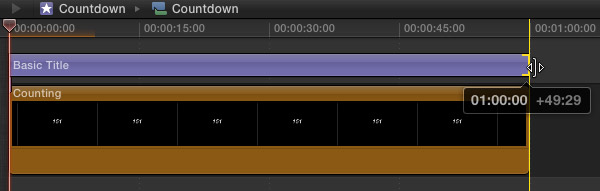
Open the Title Browser and drag the Basic Title above the Counting clip.
Stretch the Out of the Title so it is exactly the same duration as the Counting clip.
Select the Text clip, open the Inspector, and click the Text button at the top.
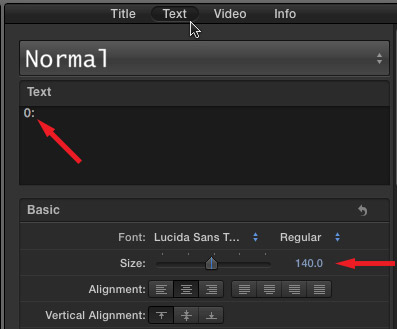
With the Basic Title clip selected make the following changes:
NOTE: 140 points matches the font size of the Counting clip. At this time, FCP X doesn’t allow changing the point size of the font used in the Counting clip.
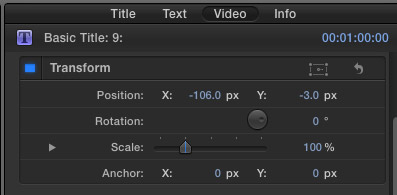
Then, click the Video text button at the top. Scroll down to Transform, and make the following changes:
NOTE: Your X and Y values may be slightly different.
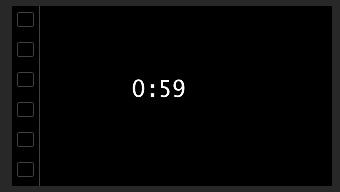
Ta-DAH! A countdown clock!
ADDING THE COUNTDOWN TO A SEQUENCE
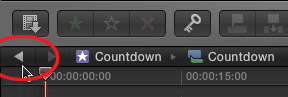
To exit the Compound clip and get back to your project, click the Go Back arrow in the top left corner of the Timeline.
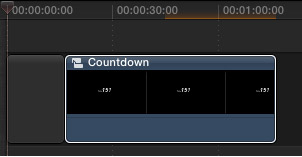
Edit the Countdown Compound clip from the Event Browser into the Timeline. You can either edit it over black, as I’ve done here, or key it as a title into any clip in the Primary Storyline.
To adjust the on-screen position of the clock, select the Compound clip in the Timeline, and modify the Transform settings in the Inspector.
CREATING COUNTDOWNS LONGER THAN ONE MINUTE
With the 10.0.6 release of Final Cut Pro X, Apple changed the behavior of Compound clips. Now, if we change the contents of one Compound clips, all other Compound clips derived from it change in exactly the same way.
Most of the time, that’s great. In our case, it would make all countdown clocks identical.

To create a three-minute countdown, for example, copy and paste the Compound clip to create two more iterations.
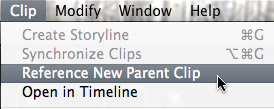
Then, and very important, choose Clip > Reference New Parent Clip for each of the two new clips. This creates a Compound clip which is independent of the original clip.
Double-click each compound clip and change the text so that the first clip reads: “02:“, the second is: “01:“, and the third is: “00:”
NOTE: The last clip always counts down just the seconds, so the minute indicator needs to be zero.
EXTRA CREDIT
If you want to get really fancy, and you plan to use this countdown a lot, you have two options:
The QuickTime movie provides the fastest performance. The double-nested Compound clip allows us to make changes.
Whew. It would be really nice if Apple created a countdown clock for us. In the meantime, this will work.
MORE NOTES
What if you need a really long countdown clock? I’d recommend creating a project devoted just to the countdown, then export it as a QuickTime movie.
What if you need tens or hundredths of a second? Turn on decimals in the Counting clip and adjust to suit.
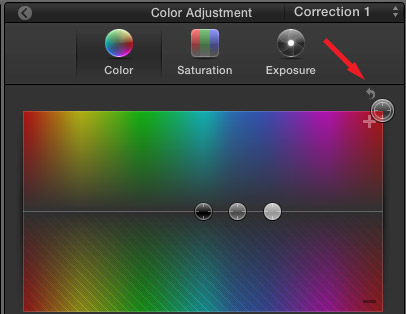
What if you need it to be red/green/blue/chartreuse? Select the compound clip, open the Color Board (Command+6), and change the global color slider to the color you want?
What if you want the Counting font to be bigger? You can’t.
What if you want it to tick? Great question. That’s audio and deserves its own tutorial. Remind me to write it sometime….

2,000 Video Training Titles
Edit smarter with Larry Jordan. Available in our store.
Access over 2,000 on-demand video editing courses. Become a member of our Video Training Library today!
Subscribe to Larry's FREE weekly newsletter and
save 10%
on your first purchase.

13 Responses to FCP X: Create A Countdown Clock
← Older Comments-
 Tom says:
August 30, 2017 at 2:51 pm
-
 Larry says:
August 30, 2017 at 8:12 pm
-
 asissted living says:
January 17, 2019 at 10:07 pm
← Older CommentsHow about a clock for soccer?
First half is fine, 45 mins etc, but second half would be 45 mins to 90 mins (plus stoppage time)
Larry as the FCPX guru could you do a tutorial on how to do this?
Tom:
This is an interesting idea. BUT, if the countdown value changes depending upon game play, then this would be more than a simple video playback. Instead, you’d need to program a countdown which could then be turned into video.
Or… isolate a camera on the scoreboard clock.
Larry
Great article.