
 Apple has continued to refine the process of moving Final Cut Libraries, Events and Projects. And, based on my email, a lot of folks find this process confusing. So, let me explain.
NOTE: For these techniques to work, you must be running FCP X version 10.1.2 or later.
BEFORE YOU START
There are three articles that are related to this subject that you may find useful:
MOVE A LIBRARY
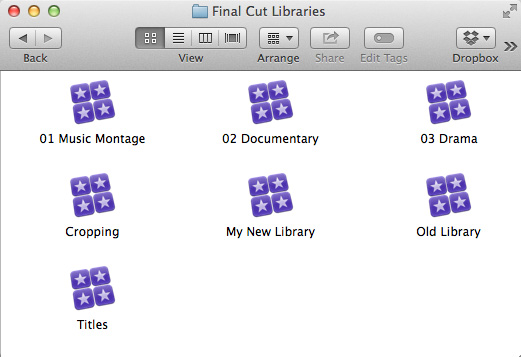
The easiest way to move a library is using the Finder.
First, and most important, quit Final Cut. Never move a library with Final Cut Pro X running.
Then, drag the library from wherever it is to wherever you want it to be.
At this point, one of two things will happen:
NOTE: I generally store all media that I use for my projects outside the library. Also, in general, when moving libraries, my links don’t break.
MOVE AN EVENT TO A DIFFERENT EXISTING LIBRARY
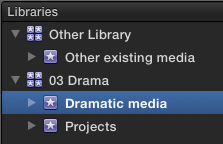
An Event is a “folder” that stores stuff inside Final Cut. An event can store media, projects or both. You can have as many events in a library as you want.
BIG NOTE! Unlike earlier versions of FCP X, do NOT move Events into or out of a library using the Finder. Things will break, media will become unlinked and chaos will rain havoc on your hard disks. This is a bad idea, don’t do it. (Well, maybe not havoc, but, gosh, it won’t be good.)
While you can only move one event at a time, the process is easy:
Open both libraries in Final Cut Pro X
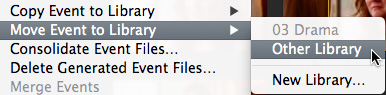
Select the event you want to move and choose File > Move Event to Library > [ Name of other library ]. Only those libraries that are currently open in Final Cut are displayed in this menu.
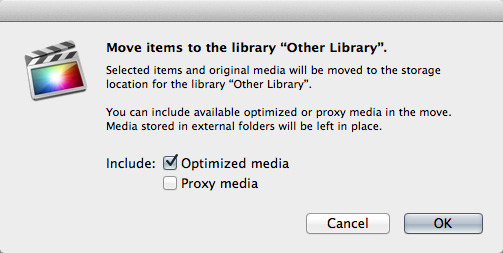
Final Cut then asks what media you want to move: native media, optimized media, or proxy media. If nothing is checked in this dialog, only the camera native media will be moved.
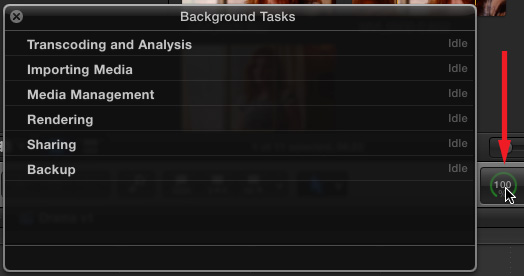
Click OK and Final Cut starts moving media. You can track the progress of the move using the Background Tasks window. To display this, either click the small clock face in the Toolbar next to the Timecode display, or type Cmd+9.
NOTE: You can achieve these same results by dragging the event you want to move on top of the name of the library where you want to move it in the Library List, while at the same time pressing the Command key.
COPY AN EVENT TO A DIFFERENT EXISTING LIBRARY
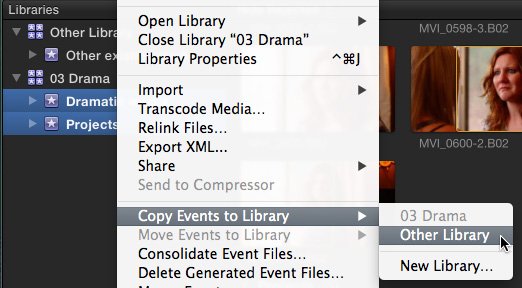
The process of copying an event to a different library is exactly the same as moving a library, with one change and one big benefit.
The benefit is that you can copy more than one event at once (as illustrated here by selecting two different events in this screen shot). However, you can only select multiple events contained in the same library.
The menu change is that you need to choose File > Copy Event to Library > [ Name of other library ].
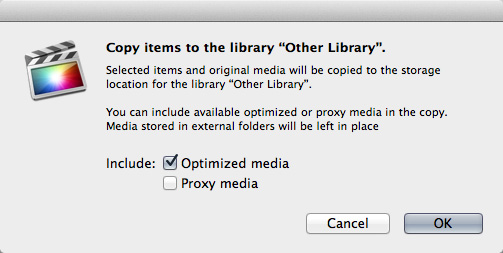
As before, Final Cut asks what media you want to copy. (Again, if nothing is checked, only camera native media is copied.) If you look closely at this dialog versus the earlier one, the only change is the word “Copy” in the title.
As before, you monitor the copy using the Background Tasks window.
NOTE: You can achieve these same results by dragging the event(s) you want to move on top of the name of the library where you want to copy it in the Library List, without pressing any keys.
MOVE OR COPY EVENTS TO A NEW LIBRARY
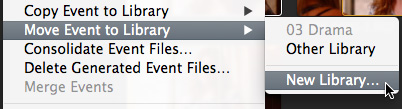
You can also move or copy one event at a time to a new library. In this case, open the library containing the event you want to copy or move.
Select the event.
In the next dialog, give the new library a name and location and click SAVE.
FCP immediately creates a new library and transfers the media.
COPY OR MOVE A CLIP TO A DIFFERENT LIBRARY
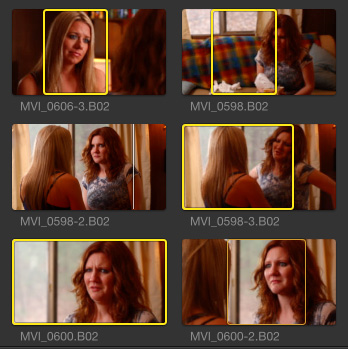
We can also move selected clips from one library to another. (Footage courtesy John Putch – www.route30too.com.)
NOTE: To move selected clips between events in the same library simply drag them from the Browser in FCP X to the name of the new event as displayed in the Library list.
To copy or move clips to a different Library, open both libraries in Final Cut Pro X.
Select the clips you want to move in the Browser (you only only select clips in one event at a time).
NOTE: You can also copy clips from one library to another by dragging them from the Browser to the name of the new event in the Library list. (You need to drag to the event name, not the library name.)
You can move clips from one library to another by dragging them from the Browser to the name of the new event in the Library List while pressing the Command key.
COPY OR MOVE A PROJECT TO A DIFFERENT LIBRARY
By now, you probably suspect how this process is going to work.
NOTE: You can also copy a project from one library to another by dragging it from the Browser to the name of the new event in the Library list. However, you can not move projects by dragging them, nor can you copy a project by dragging it to the name of the library.
SUMMARY
The key point you need to keep in mind is that whenever you are moving something that is stored inside a Library, always move it using tools supplied inside Final Cut Pro X. Don’t move library elements using the Finder.
Because of how FCP utilizes Unix, the actual copy and move process is extremely fast, even for large files.

2,000 Video Training Titles
Edit smarter with Larry Jordan. Available in our store.
Access over 2,000 on-demand video editing courses. Become a member of our Video Training Library today!
Subscribe to Larry's FREE weekly newsletter and
save 10%
on your first purchase.

42 Responses to FCP X: Move Libraries, Events and Projects
← Older Comments Newer Comments →-
 Larry says:
December 10, 2016 at 7:08 pm
-
 Marshall says:
December 11, 2016 at 12:46 am
-
 Larry says:
December 11, 2016 at 9:57 am
-
 Jean Spreksel says:
January 6, 2017 at 2:24 am
-
 Larry says:
January 6, 2017 at 6:41 am
-
Adobexit: Premiere vs Final Cut Pro X // Video Production Manchester says:
January 20, 2017 at 7:50 am
-
 Kelli says:
July 6, 2018 at 1:20 pm
-
 Larry says:
July 6, 2018 at 2:01 pm
-
 Dr Ray Percival says:
October 22, 2018 at 2:28 am
-
 Larry says:
October 22, 2018 at 6:06 am
← Older Comments Newer Comments →Sam:
When FCP X 10.0 was released, Events were stored in the Final Cut Events folder and Projects were stored in the Final Cut Projects folder.
With the release of FCP X 10.1, Apple replaced that folder system with Libraries – which are MUCH better. However, you now needed to convert those folders into Libraries. You can do that using FCP X 10.1 OR FCP X 10.2 but NOT FCP X 10.3.
Here’s a video that explains the conversion process for 10.1 or 10.2. Remember, you need to use one of these earlier versions to convert your Events and Projects folders, because FCP X 10.3 won’t.
https://larryjordan.com/articles/fcpx-101-updating-events/
Larry
After moving 2 events containing a total of 21GB to a library in an external drive, my internal drive only has 4GB freed up. Any idea why all 21GB of my space didn’t get free?
The events are taking up the full 21GB on the new drive. I did move, not copy. The events no longer show up in the original library. My trash is empty. Is there some intermediate location where the files go that may not have gotten fully emptied? Thanks!
Marshall:
My guess is that most of this space is taken up with generated media – render files, optimized files, analysis files and so on.
Inside FCP X, select the old library and choose File > Delete Generated Media. Check all the check boxes you can – if you delete too much, FCP X will simply rebuild it.
See if that reduces your storage the amount you expect.
Larry
Hello Larry,
I did not read your Article in time….
I moved an Event including Project with Finder and FCP-X still running…to another HardDrive. I moved the main Folder, so all sub-folders included (Original Media, Render Files, Shared Items, Transcoded Media, Analysts Files,
CurrentVersion. fcpevent and The Project Name Folder) After doïng this the Event also disappeared in FCP in the Library: Macintosh-HD Projects and Events.
After replacing the Event with Finder in the same Library it didn’t show up in FCP.
How can I solve this Problem?
I hope you cab Help me out here.
Jean:
The answer depends upon which version of FCP you were using. However, the best option is to contact Apple Support and have them work with you on this.
Larry
[…] You learn a new vocabulary: In Premiere Pro you open and ‘Project’, put your footage in a ‘bin’, and edit in a ‘timeline’. However; in Final Cut Pro X you open a ‘Library’, put your footage in an ‘Event’ and edit in a ‘Project’. Nothing’s really any different, but it did take a while for me to remember what meant what in FCPX. Here’s a link to Larry Jordan website where you can find plenty of content to get used to FCPX new paradigm […]
Hi I recently purchased a new iMac i was working on my last iMac with a external lacie 4 t thunderbolt drive that contained my Fc library of 1.8 T
My Apple store consultant recommended i copy my 4 T working library with another new External hard rive to use on the new computer . My old computer was using 10.2.2 and new computer has the latest i believe 10.4 . I used time machine to bring over old computer to new computer stuff , After updating final cut to the current version i attempted to open my copied library from the old fop 10.2.2 and it said i had to up date the library . I selected up date library and after a few sec the props came up and said the library is damaged and can’t be updated . The original library works on my old computer but the copy does not on the new drive . I don’t want to up date my old computer or original library external drive as its my only copy that works . Any suggestions or any know issues with going from 10.2.2 to 10.4 with updating would be helpful the hole reason i bought the new computer was to have a better video card but now i have no ability to work on my 1.8 T library
Thank you for any help and suggestions
Kelli:
Hmmm… This SHOULD work, though I’m somewhat suspicious of Time Machine.
If you can connect your old drive to the new computer with the new drive attached, you would be better off copying directly from one drive to the other. Avoid TimeMachine.
Then, once you copy the files directly, you should be able to update and access the existing project. (If not, contact me directly and we’ll try to figure this out.) WHATEVER you do, DON’T update the old system, don’t update the original file and don’t panic. We can solve this.
Larry
Can one simply copy a whole library to an external hard drive? All the commentary I see on these issue never addresses the obvious, perhaps simple minded, question: how do I “copy” a whole library (containing projects, events… everything) to another drive? The commentary always seems to cover only “moving” entities. I may simply wish to have a total backup.
Dr. Percival:
Absolutely yes. Using the Finder, simply drag the Library file from where it is to where you want it; just like any other file. If you copy all your media into the library, you are done.
If you choose to leave files in place, you’ll also need to copy the media to its new location as well.
Larry