
 This article was suggested by a comment Bill Code made in an email about his problems in exporting multi-channel audio from FCP X. Bill writes:
I often need to export two audio tracks (NATSOT and voice-over). It took me a while to figure out this needs to be done by assigning Roles. The problem is it seems to make using compressor presets impossible. I now have to export a file and then put it into compressor afterwards. Has anyone (Larry?) figured this one out?
Bill, you are correct. All the compression presets assume you are exporting stereo audio from FCP X; they ignore Roles. You are also correct in that we need to create a custom preset in Compressor to compress multi-channel audio.
While there is no way we can export Roles and compress the file at the same time, there is a fairly easy work-around, which I discuss here.
A couple of definitions before we start:
THE SETUP
Apple added Roles to Final Cut Pro X with the 10.0.3 release. What Roles allow you to do is to group files by “tags;” for example, all the dialog clips, or all the music clips. Roles allow you to find, hide, or export files by tag, not just clip or track.
There are five default Roles:
There are LOTS of things you can do with Roles – and this article explains Roles in more detail. (So does this video.) You can add as many custom Roles and subroles as you like.
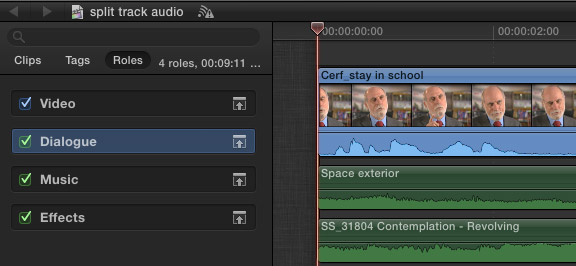
I created a simple project with one video track and three audio tracks. Here, I tagged all the dialog clips with the Dialog Role (Modify > Assign Roles > Dialog, or keyboard shortcut: Control+Option+D).
This allows us the option to consolidate the audio assigned to this Role into a separate output during export.
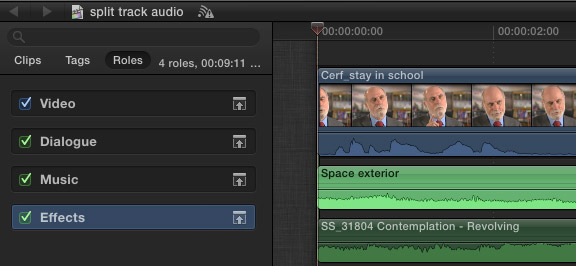
Next, I assigned all the effects clips to the Effects Role (Modify > Assign Roles > Effects, or keyboard shortcut: Control+Option+E).
Each clip can be assigned to one and only one Role. A video clip with sync audio has a single Role assigned to the video clip, and a second Role assigned to the audio clip.
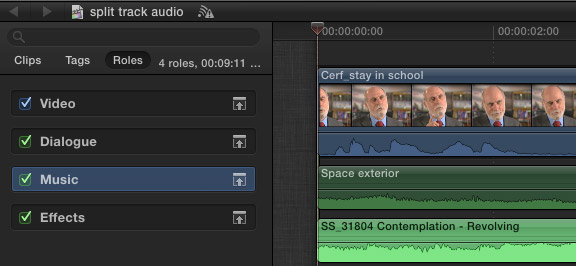
Then, I assigned all the music clips to the Music Role (Modify > Assign Roles > Music, or keyboard shortcut: Control+Option+M). Assigning Roles does not affect levels, mixes, or effects. Roles are simply used for clip organization and output.
For the sake of this example, let’s pretend our mix is complete and ready to export. At this point, we have two options:
At this point, I have not found a way to compress both the video portion of a file and the audio portion, while still retaining separate audio tracks for the stems.
EXPORT HIGH-QUALITY MASTER FILE WITH STEMS
To export a high-quality Master File with individual stems does not require Compressor. In fact, FCP X makes it easy.
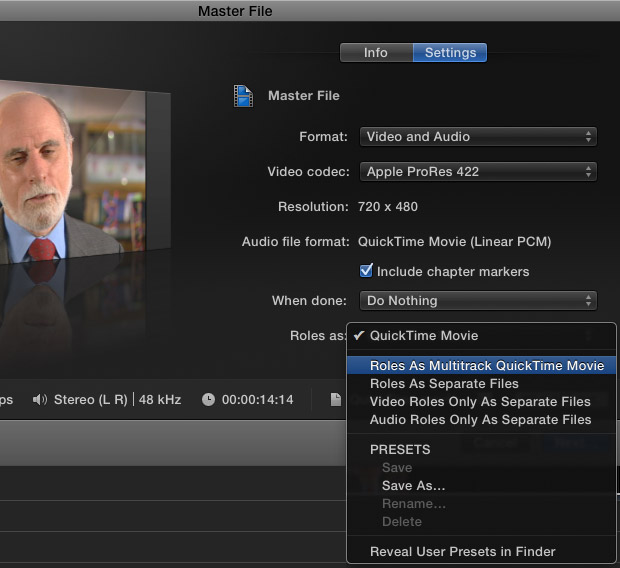
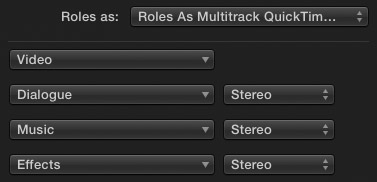
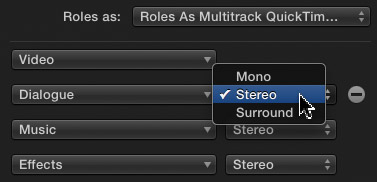
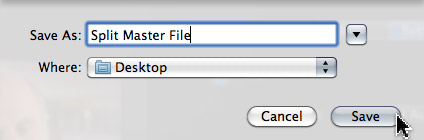
EXAMINE THE RESULTS
At this point, the export is complete; FCP will render and export the file in the background. However, just to show you what happened, let me open the file in QuickTime Player 7 so we can see the tracks. (This is not necessary at all, I’m just doing this for illustration.)
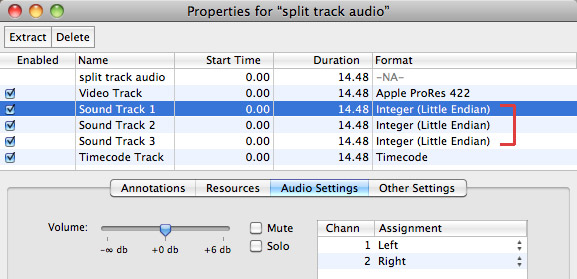
After opening the file in QuickTime Player 7, select Window > Show Movie Properties (or type Command+J). Notice the three separate Sound Tracks. These correspond to the Dialog, Music and Effects Roles. You can enable, disable, or extract whatever stems you need from this file.
Cool.
THE CHALLENGE
But…
When you export files this way, everything is uncompressed — really great quality with REALLY large files. What if you want to reduce the file size?
Well, we can, but it requires a custom Compressor preset and the understanding that you can’t compress audio if you want to retain the stems. So, we are going to create a custom QuickTime compression setting in Compressor that compresses the video and doesn’t touch the audio.
Then, we’ll create a droplet that allows us to quickly convert a Master File into something smaller to send to a client.
Here’s how.
NOTE: If Compressor is new to you, I’ve created in-depth video training that will help you make the most of it. Learn more here.
CREATE A CUSTOM COMPRESSION SETTING
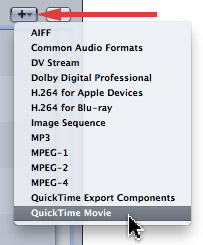
Open Compressor and, in the Settings tab, click the Plus sign to create a new compression setting.
Select QuickTime Movie. (This is important, because QuickTime is the only option I know of that supports video with multiple audio tracks.)
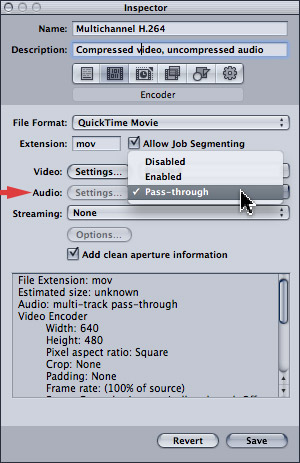
In the Inspector, set the Audio Settings to Pass-through. This means that Compressor will copy the audio as is, from the source file to the compressed file. This is the step that retains all the original audio stems from your output. Pass-through is another way of saying “untouched.”
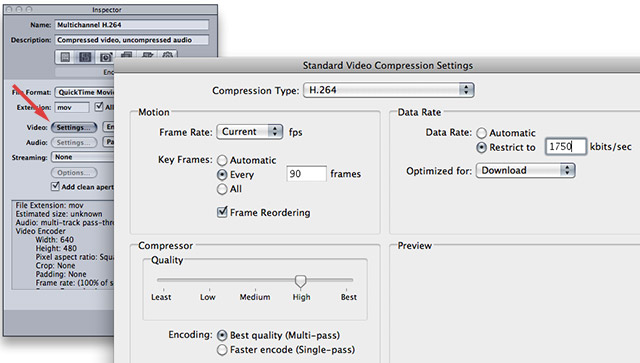
Click the Video Settings button to access video compression settings. This can be set to whatever you need. Here are my typical compression settings for 720p video. Then, configure the rest of the settings as necessary.
When you are done click Save.
CREATE A DROPLET
At this point, you have two options:
1. Compress the file directly in Compressor. This works fine, but requires you to open Compressor and import the file whenever you need to compress a file.
2. Create a droplet to automate compression. This is what I would do in most instances, as I always like something that is fast and easy.
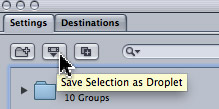
Creating a droplet is simple.
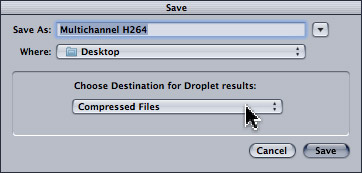

Then, to compress a multichannel Master File, simply drag it on top of the droplet in the Finder.
Poof! Done.
SUMMARY
While it would be helpful if Final Cut allowed us to export Roles into a Compressor setting, this technique provides a fast and high-quality work-around.
For my work, I always export a Master File using Roles, view it to make sure everything exported OK, then drop the file on a droplet to do the compression as a second step.
I’ve learned it is far faster to fix a problem file before you spend time compressing it, then after you’ve delivered it to the client. Also, in my unofficial tests, compressing using Compressor is faster than compressing using Final Cut Pro; especially when you are running multiple instances of Compressor.
Whenever I can combine speed, with quality and flexibility, I’m a happy camper.
Visit our website to see Final Cut Pro Training & more!

2,000 Video Training Titles
Edit smarter with Larry Jordan. Available in our store.
Access over 2,000 on-demand video editing courses. Become a member of our Video Training Library today!
Subscribe to Larry's FREE weekly newsletter and
save 10%
on your first purchase.

52 Responses to FCP X: Export Multi-channel Audio
← Older Comments Newer Comments →-
 Aljoscha says:
July 29, 2017 at 12:08 pm
-
 Timon says:
August 9, 2017 at 7:31 am
-
 Richard Hall says:
December 14, 2017 at 6:09 am
-
 Larry says:
December 14, 2017 at 6:19 am
-
 Richard Hall says:
December 14, 2017 at 6:31 am
-
 Richard Hall says:
December 14, 2017 at 7:06 am
-
 Julia says:
December 18, 2019 at 5:57 am
-
 Larry says:
December 18, 2019 at 8:47 am
-
 Margie says:
May 21, 2022 at 9:00 am
-
 Larry says:
May 21, 2022 at 10:10 am
← Older Comments Newer Comments →Hi Larry
I think we missunderstood each other. I’m Not looking for a software which allows me to creat subtitles, I’m looking for the “joining” software which joins the audio tracks from multiple languages and the video file into one file. So you can select in the player the audible language. MovieCaptioner hasn’t this ability, has it?
Thanks for this Article I found it very helpful.
But I would like to compress this file into an .m4v with a language menu.
(You know this little menu to the right in iTunes, which looks like a speech bubble. )
I suppose you need a separate software which links the separate AUDIO TRACKS to this menu because exporting and compressing it like you said didn’t give me the option in iTunes (both on iOS and macOS).
I don’t want to add close captions to the video.
Thanks for your help.
Hi Larry,
I’m struggling to export a simple two channel audio (stereo) in MXF from FCPX for our broadcast client Sky.
Until recently I achieved this easily with the MXF4Mac plug in in one of the compressor presets I had set in the share command but since high sierra that has disappeared!
I always use roles and have Dialogue, Effects, Music and VO.
Now every time I share via Master File/MXF the export (even when setting my roles above to stereo) gives me multiple audio channels. I have tried creating compound clip to export from but the same happens when you check the inspector on quicktime 7 player.
I can workaround this by exporting the timeline as a stereo quicktime, then re exporting to MXF with the roles set to left and right, but this is a very time consuming process.
So as mentioned I would like to export MXF but with only two channels in stereo from the timeline – can you help? Many thanks in advance Richard
Richard:
I suspect this is a High Sierra issue with your MXF plug-in. I’d contact the plug-in developer to see if they have an update.
Also, FCP X was updated this morning to 10.4. That might be worth looking into as well. But check with the plug-in developer first – High Sierra caused a LOT of issues.
Larry
Hi Larry,
Thanks for such a speedy response, sadly the plugin is very old and is no longer supported, i’m now updating FCPX/Compressor and also note pro video formats has an update too, so will let you know how we get on!
Richard
Just a quick update for anyone else that had this issue. It’s all fixed now with the new software update 10.4 released today. Oddly the old MXF4Mac plugin is working again which is a result as it was a great piece of software.
Many thanks Larry for your time and input!
Thank you for all the good information about roles it’s been very helpful. However, I need some clarification about sync’d audio. As I understand it now, when you export sync’d audio FCP X will only export 2 channels of audio with the video. The only fix I can think of is to un-sync the audio from the video. Is there another option?
Julia:
Yes, and it involves Roles. Here’s an article that explains how.
https://larryjordan.com/articles/fcp-x-export-multichannel-audio-using-roles/
Larry
How do I create my multi audio languages in Final Cut Pro so that Quick time recognizes the languages instead of showing unknown language.
Margie:
I’m not sure what you are asking. You want to create a QuickTime movie that contains multiple audio tracks, one for each language, then allow QuickTime Player to play the audio track you want?
Give me more details.
Thanks,
Larry