
 THE BASICS
Most of the emails I get each day revolve around trouble-shooting. When Final Cut Pro X starts acting up, the two best things to do are:
In most cases, one of these two will fix whatever’s wrong and get you back on your way.
NOTE: Here’s an article that describes how to do both of these.
ON A HUNT FOR ANSWERS
However, sometimes we need to dig deeper to figure out what’s wrong. And that’s what this article is about. I went back through my emails and started cataloging problems that readers have reported, and rephrased them into questions. Then, I went rooting around into the dark corners of Apple Support to find the answers.
In a Question and Answer format, here’s what I learned.
= = =
Q: Periodically, my Final Cut Pro X system slows down. What could be causing this?
If your system has always been slow, it is generally because you don’t have enough RAM, or your computer is too old to keep up with the latest video formats.
Assuming your system was working fine, but now is slower, trash preference files and do a Safe Boot. If trashing preferences and a Safe Boot didn’t fix things, life gets murky because most of the time the problem is specific to a particular clip, render file, or system component.
If this is the case, here are some ideas to consider:
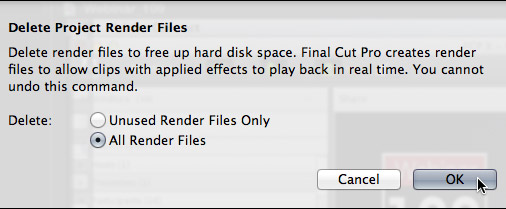
NOTE: Deleting render files won’t make your system go faster, but it will clear out space on the drive and, if the drive was getting too full, then by opening up more free space you will get better drive performance. Also, if you are getting an error message about bad media, deleting render files may often fix it.
= = =
Q. Does Final Cut slow down when it is doing something the background?
Final Cut has full control over all its background processes. So, if you start editing, FCP X pauses everything running in the background. This means you always have full access to your entire system when editing. But it also means that jobs running in the background take longer.
But, FCP X can’t control background processes running from other applications. In which case, either canceling that process, or waiting for it to finish will improve editing performance.
Your computer has a finite amount of power. The more software that is tapping into that power at the same time means that each individual software package has less of it to use.
= = =
Q. My computer slowly slows down over time. Why?
You may have a RAM leak. This is where an application is not properly managing memory and RAM that’s supposed to be available to other applications is locked up.
The easiest way to fix this is to restart your computer to reset all RAM. Then, only run the applications you need for editing. You can isolate the problem by watching to see if one particular app causes the slow-down, then contact the developer to see if they have an update.
= = =
Q. What parts of Final Cut operation are RAM dependent?
Well, actually, all of them. Final Cut thinks of RAM as a super-fast hard drive. It will load everything it can into RAM to speed things up.
NOTE: You and I think of hard drives as being very fast. To the CPU, the hard drive is like running in molasses, in January, um, wearing snow shoes. The CPU wants to avoid the hard disk as much as possible.
Large projects require more memory – not surprisingly – in order to store thumbnails, waveforms, metadata, clip information and so on. Also, projects with larger image sizes or frame rates take more memory.
When there isn’t enough memory, the operating system does “page swaps,” where it saves sections of RAM to the hard disk when it isn’t needed, then “swaps” it back from the disk into RAM when it is. The smaller your RAM, the more frequent the page swaps and the slower the overall operation of the system.
= = =
Q. Is there anything I can do with my storage to speed things up?
Yes, lots.
= = =
Q. Does the version of the operating system impact performance?
Yes and no.
Final Cut Pro X runs fine on OS X 10.6.8 and above. However, Apple is always improving performance with each iteration of the operating system. In general, Apple recommends upgrading to the latest version of the operating system.
Personally, I have three edit bays in my office. One is running 10.6.8 and the other two are running 10.8.5, as of the date of this writing.
= = =
Q. If a project database becomes corrupted, how can you tell Final Cut Pro X to open a backup?
Final Cut should open the backup automatically.
If it doesn’t, you can replace the current project with a backup version manually.
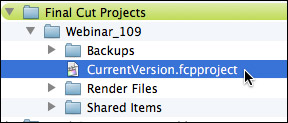
NOTE: All FCP X projects are stored in a database named “CurrentVersion.fcpproject” There is one database for each project and the database is stored in the Project folder. It is critical that you open the appropriate Project folder to prevent deleting the wrong Project database.
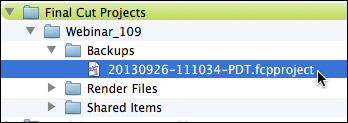
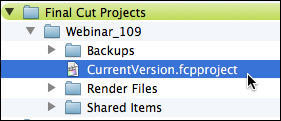
Keep in mind that the backup may not contain your most recent edits. So you may need to redo a few of them. Also, if the new Project fails to open, the backup itself may be corrupted, so repeat this process using an older backup file.
Also keep in mind that if a project file is frequently becoming corrupted, that’s a good indicator that there is something else wrong with your system; such as a failing hard disk or a hard disk that’s too full. If you are getting lots of corrupted projects, its time to visit Apple for a hardware checkup.
= = =
Q. Can you put too many clips into an Event?
Yes, but the number of clips supported by an Event is in the thousands. Still, it is good practice to keep the number of clips in an Event to a reasonable number in the hundreds. If you have lots and lots of clips to manage, spread them across multiple Events instead of one big Event.
= = =
Q. I want to trash a 3rd-party effect/filter/transition/generator. Where do I look?
All effects in Final Cut Pro X are actually Motion templates. And all Motion templates are stored in one place:
Within the Motion Templates folder there’s a folder for each Effects category. Open the category folder containing the effect you want to delete and delete the entire folder named for the the effect you want to remove.
= = =
Q. But, when I delete an effect, it keeps coming back.
Certain effects, and the ones by FX Factory come instantly to mind, have their own installer/loader. When FCP X starts, it asks the loader to check over all the effects to make sure everything is installed correctly. If the loader discovers that an effect that had been previously installed is missing, it reinstalls it.
Which kinda isn’t what you want to have happen.
Where the developer supplies a loader, open the loader application – such as FXFactory stored in the Applications folder – and delete or disable the effect from there.
= = =
Q. If two drives are cloned so that they have the same media and folder structure, then given to two different editors, can I share projects by simply copying the project database between drives?
Yes – provided the Project database is stored in a folder named after your Project and the database itself is called “CurrentVersion.fcpproject”
Keep in mind that two editors can not work on the same project at the same time and reconcile changes. Only one editor can make changes to a project at a time. Also, if one editor adds effects that require rendering, the other editor will also need to render the Project.
= = =
Q. When I capture a file from my camera, I keep getting a “file unlinked” message every time I reopen the project. What’s happening?
There are several reasons why a file can become unlinked, but it starts by not copying the file into the Event. Files which are not copied into the Event folder are called “Reference files.” It is easy for a reference file to become unlinked:
NOTE: Final Cut Pro X handles renamed files a lot better than FCP 7. If you rename a file in the Finder, but don’t change its location, it will go offline. However, when you quit Final Cut and restart it, FCP X will automatically find the renamed file. This is because FCP X tags each file with an invisible file ID, which FCP X uses to reconnect to files that have changed names.
However, there’s also a sneakier reason a file goes off-line: If you are capturing a file directly from the camera – which I don’t recommend – and the file is large, FCP X processes that file in the background. Specifically, it transfers it from the camera to the Event folder, calculates thumbnails and waveforms and, if you request it, optimizes it. For large files this can take a long time.
So long, in fact, that you forget that FCP X is processing files in the background.
Thus, when you quit FCP X, the file is not fully transferred from the camera to the hard disk. And a partial file shows up as unlinked.
My STRONG recommendation is to always transfer files from the camera to the hard disk before doing any work with it in FCP X. Then, import all files once they’ve been transferred to the hard disk.
Here’s an article that explains this in more detail.
= = =
Q. Aside from saving time, is there any advantage to compressing files in FCP X, rather than using Compressor?
First, FCP X uses the same compression engine as Compressor. So, given the same settings you will get the same results. However, you have much more control over compression using Compressor.
If you choose File > Share > Master File and your Project uses ProRes, exporting a project bypasses compressor totally. This is the fastest way to get a project exported from Final Cut Pro X.
If you choose File > Share > Master File and your Project uses a combination of ProRes and other formats, the other formats will be exported through compressor and converted to ProRes 422 during the export.
= = =
Q. Is there a video format that works better for monitoring on a video monitor than another?
In general, I-frame-based video formats are better than Long-GOP-based formats. These two terms describe how media is compressed. I-frame formats, generally, have higher quality, while Long-GOP formats, generally, have smaller files.
Here are some selected formats and how they are compressed:
I-FRAME
LONG-GOP
My general recommendation is to optimize all Long-GOP formats when you import them, even though this will create much larger file sizes.
= = =
I hope these tips help you keep your system running at peak efficiency. And, if you discover other ideas that solve problems for you, please add them to the comments below.

2,000 Video Training Titles
Edit smarter with Larry Jordan. Available in our store.
Access over 2,000 on-demand video editing courses. Become a member of our Video Training Library today!
Subscribe to Larry's FREE weekly newsletter and
save 10%
on your first purchase.

33 Responses to FCP X: Advanced Trouble-Shooting
← Older Comments Newer Comments →-
 Agostino Pacciani says:
May 3, 2015 at 11:46 pm
-
 Agostino Pacciani says:
May 3, 2015 at 11:54 pm
-
 Ellie Rose Boswell says:
June 22, 2015 at 2:34 am
-
 Larry says:
June 22, 2015 at 9:09 am
-
 Connor Sweeney says:
August 8, 2015 at 10:05 am
-
 Larry says:
August 8, 2015 at 10:21 am
-
 Edward says:
August 15, 2015 at 1:01 pm
-
 Larry says:
August 17, 2015 at 11:59 am
-
 Darren says:
September 23, 2015 at 4:49 pm
-
 Larry says:
September 24, 2015 at 8:12 am
← Older Comments Newer Comments →MerciLarry,
I trashed the preference, (2 of them , I can’t find com.apple.FinalCut.UserDestinations.plist )
But nothing the problem is there, I found some other people having the same problem bur not answer.
So I made a clone of hard disk, , then I reinstall the system Mountain Lion, I import in the new system all the old data ( also the programs, and the problem is there!) If I work with a extern HD on FCP er montain Lion everything is OK with the same project that make problem with the internal HD.
Maybe I do not have to copy all my data in the new installation system???
Thanks Ago
Also, I have also a Mac Book Pro with the same system Mountain Lion and the same FCP X.0.9 and there no problem!!!!
Plese Help me!
Hi Larry,
First, thank you so much for your work, help and this website. I started editing two years ago and have self-taught alongside using your wisdom on here.
I haven’t revisited for a year or so now; the website looks grand!
Unfortunately, I’m struggling to find an answer to my question, or indeed, my exact query online. I’ve been trying to export a 45 minute video via my FCPX 10.8. I’ve exported snippets of this video, via different projects, perfectly well, using large file sizes, but no more than 6 minutes of video at a time. Now that I’m trying to export this longer version, FCP takes so long to get to 45 % shared and then doesn’t seem to get any further. I’ve tried it a few times, leaving it overnight, into the next day and knowing this was taking far too long; that something must be wrong.
A google search gave me a troubleshoot to export the video a section at a time, so this is what I’ve been doing, in order to locate a possible corrupt file. However, FCP seems to still take just as long exporting, so I’ve made the file sizer smaller, to export faster. It’s still taking an unusually long time, and other similar sized projects can export as normal. (I’ve also deleted a hefty number of files and folders from my mac to free up more space in case this was causing the problem.) Does this mean the whole video is corrupt? I’m not sure what to do next!
Thanks,
Ellie.
Ellie:
Thanks for the kind words. You could have a corrupted project, or a problem with your computer system. See if the tips in this article help:
http://larryjordan.com/five-step-trouble-shoot/
Larry
Hi Larry
I hope you can help. I’m storing all my files on a passport for Mac, using a 2015 Macbook Air 256Gb. When I create an event, I import the source files leaving files in place.
One event that I recently created contains 31 clips totalling 28.47Gb. The storage device is a 1TB device with only 100 Gb used, so there is plenty of room.
The problem that I have is that the event is taking up 283.6Gb. I have tried deleting generated event files, but it makes only minimal difference. Any ideas?
Connor
Connor:
Some files can’t be left in place, but must be transcoded. Many flavors of AVCHD are in this category. So, I suspect that what you are seeing in the Library file size are the optimized files created from the camera native media.
Larry
Hi Larry,
I’m working on some project in FCP X. However, while I was editing, I got notification that my computer is out of storage, thus I should stop and quit FCP X (without having the chance of 100% rendering finished). I did that, deleted some files to free up some spaces.
When I’m opening back my FCP X, it’s always been closed by itself no longer after we entered it. I did some checking by one maintenance tool. It said that there’s “effects rendering” problem. I knew exactly which Project caused it, yet I can’t do anything since it’s always been Quit before I got the chance to open the project.
Can you help me on this? This is so frustrating because I’ve been working for days for that “error” project. Looking forward to your assistance.
Many Thanks,
Edward
Edward:
As I wrote about in my newsletter today, maintaining sufficient free space on your hard drive can prevent corrupted libraries. The fact that FCP X did not finish rendering is not a big deal at all. The fact that it may not of properly written the library files due to a lack of free space is a huge deal.
See if this article helps. If not, you’ll need to contact Apple support:
https://larryjordan.com/articles/fcp-x-avoid-corrupted-libraries/
Larry
Hello Larry.
Thank you, there is some great info in there. I wanted to ask is you have any experience with FCPX crashing at random times? I have a mid 2012 MBP, 2.6 GHZ i7, 16GB Ram, 512GB SSD and 750GB Internal drives
Whenever I run FCPX (latest version) my whole computer will switch off suddenly at random times. I have been doing some crazy work on 4K footage and the fans were spinning like mad….snap! Everything off. Then 1 hour later, skimming some footage, fans just turning SMC indicates a temp of 65 degrees…Snap! Everything off. This happens 3-4 times in a 6 hour session and no 2 times are the same. I have done all the tests to the MBP and everything says 100% OK. I have removed and reinstalled FCPX and I still get the random switch off. My battery is new and it has been over 12 months since I installed the RAM and SSD.
I am working on footage on a 1.5TB USB 3.0 External drive and I also only recently updated to the latest FCPX…..these are the only 2 factors I can think of that are new to my workflow. All my drives have 20% or more free space and I have my original files on the external drive. When I import i copy and optimise footage to my internal 750GB drive. FCPX is in my applications folder on my SSD
Spec wises my MBP should easily handle most things I throw at it.
Any info you might have is greatly appreciated. I haven’t been able to replicate these issues for the Mac techs and every trip to the Genius bar leaves everyone more confused.
Regards
Darren
Darren:
Sudden, unexpected crashes are generally caused by problems with the OS or your hard disk file directories.
https://larryjordan.com/articles/five-step-trouble-shoot/
Read this article and do a Safe Boot – see if that clears up the problem. If not, run Disk Utility to see if your hard disks are OK. If that doesn’t work, you may need to contact Apple Support for more serious attention to your file directories and data errors.
Larry