
Adding timecode to clips or projects is a great way to allow clients to review your projects and relate their comments to a specific time in the project. (This process is also called “timecode burn-in” – or “burning in timecode.”) This technique explains what you need to know.
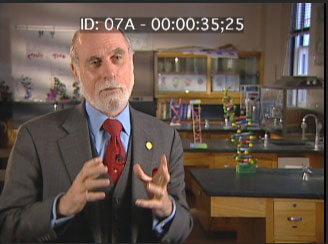
Here’s where we are headed – the project timecode, plus identifier, is placed at the top of the frame with a translucent black background. (Thanks to Dr. Vint Cerf and Alcatel/Lucent for allowing me to use these clips.)
NOTE: The timecode generator in Final Cut Pro X displays project timecode. it does not display the source timecode of the clips in the project. Also, this generator can only be applied to Timeline clips, not clips in the Event Browser.
FCP X simplifies the process of displaying timecode. Here’s how:

1. In this example, I’m using just one clip. However, the process is the same, regardless of how many clips or layers are in your project.
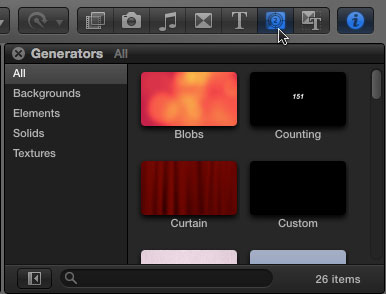
2. The Timecode effect is a generator. So, click the Generator icon in the Toolbar (in this screen shot it is blue and under the cursor). FCP X ships with 26 generators.
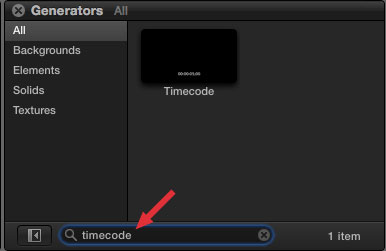
3. While you could navigate to any generator using Categories, I find it easier to find things using the search box at the bottom. Type “timecode” to display the timecode generator. (You don’t really need to type the entire word, just enough to find the effect you are looking for.)
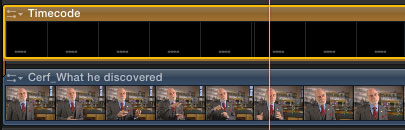
4. Drag the generator so it becomes a connected clip stretching from the beginning to the end of the project, or just a portion of the project, for which you want to display timecode. Be SURE it is on the highest layer.
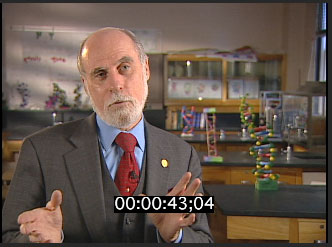
5. This is the default setting of the timecode generator: hours:minutes:seconds:frames centered as a lower-third with a solid black background. You could stop here and export/share your project with your client and the timecode would be burned into the project video.
EXTRA CREDIT
However, let’s see how we can modify this effect further.
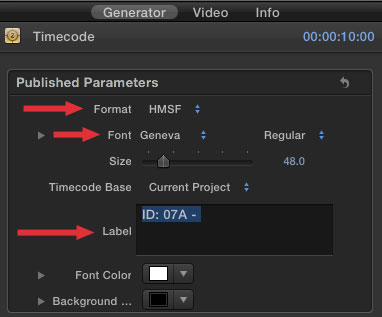
6. To add an identifier – say a project ID, or version number – open the Inspector (Command+4) and click the Generator tab at the top. Here you can format the text, or, in the Label text entry box, add a prefix to serve as a label for this project.
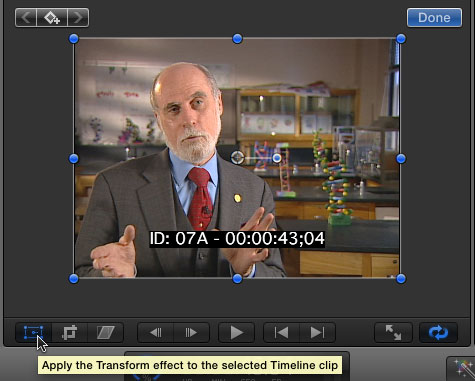
7. To change the position of the timecode, you need to use the Transform controls. The easiest way to do this is to make sure the Timecode clip is still selected, then click the Transform button in the lower-left corner of the Viewer.
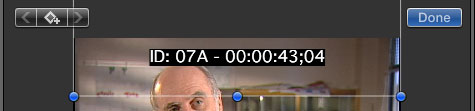
8. Drag the timecode image where you want the numbers to appear in the frame. When you are happy with the location, click Done.
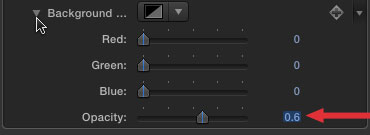
9. To change the opacity of the black background, click the Generator tab, again, and twirl down Background and adjust the Opacity slider. For backgrounds like this, I tend to prefer around 60% opacity.
REMOVING TIMECODE
Because this effect is a separate clip, you can remove the timecode burn-in easily in one of two ways:
1. Delete the generator clip in the Timeline. This permanently removes the effect.
2. Select the generator clip in the Timeline and type V. This makes the clip invisible, but allows you to type V again to redisplay it. This option is a good choice when you want to hide the timecode temporarily – for example, to edit the project – then redisplay the timecode – for example, to export another review version of the project.
When you have clients that need to review projects in progress, this is a great technique to keep everyone in sync.

2,000 Video Training Titles
Edit smarter with Larry Jordan. Available in our store.
Access over 2,000 on-demand video editing courses. Become a member of our Video Training Library today!
Subscribe to Larry's FREE weekly newsletter and
save 10%
on your first purchase.

30 Responses to FCP X: Adding Timecode to Clips
← Older Comments-
 david Berman says:
January 24, 2014 at 3:48 am
-
 Larry Jordan says:
January 24, 2014 at 10:55 am
-
 david Berman says:
January 24, 2014 at 11:13 am
-
 Steve Sweitzer says:
March 17, 2014 at 8:42 am
-
 Larry Jordan says:
March 17, 2014 at 12:13 pm
-
 Steve Sweitzer says:
September 26, 2014 at 2:29 pm
-
 Carmon Freeland says:
April 21, 2014 at 12:57 pm
-
 Michael Vicki says:
September 26, 2014 at 12:02 pm
-
 Steve Sweitzer says:
September 26, 2014 at 2:34 pm
-
 Jason says:
November 5, 2015 at 12:03 pm
-
 Larry says:
November 5, 2015 at 8:32 pm
-
 Mila Korvoy says:
April 15, 2022 at 12:04 pm
-
 Larry says:
April 17, 2022 at 10:15 am
← Older CommentsHello Larry et Al. I am trying to put a timecode after titles. For a bit of fun we are doing a 60second challenge and the titles take 3:12 seconds.
Possible to set the timecode generator to 00:00 at 3:12?
thanks in advance
David
David:
There is no built-in effect within FCP X, that creates burned in timecode for a clip in the Timeline that I can find. Unless there’s a 3rd party plug-in, and there may be, the easiest would be to create a clip in Motion containing generic timecode, then edit that into appropriate spots in the FCP X project.
Larry
Thanks Larry. Kind of you to get back to me. Can you have a word with ‘them that do’ at FC next time you are giving feedback. Nice weekend.
David
I’m trying to read the original timecode from a clip within a multicam clip but TC zeros at the beginning of the multicam when I create it.
Longer story. I burn timecode into an interview clip and share it with a client. They pick their bites. Now I combine that clip with other camera angles to make my multicam but I can’t find the bites they picked. Is there a way to see the original TC in clips once they are in a multicam clip?
I suppose I could burn the TC into the multicam clip but I didn’t think of that before sharing clips with client.
Steve:
To the best of my knowledge, you can’t read source clip timecode in a Multicam clip.
Larry
I stumbled upon the answer. Within the Multicam window, under the Settings dropdown, one of the options is Timecode. When you select it, you see the timecode for each clip in the playback window. I couldn’t find this mention anywhere in the documentation but it works just the way you’d expect it to.
What’s up, I log on to your new stuff daily. Your humoristic style is awesome, keep it
up!
Hello everyone. Found a work around to burn in time code from source video. In the inspector under generator you can manually offset the time code. Find out from your Library source video the time code that the video starts and replace the 00:00:00;00 with that number. Just make sure your Generator overlay starts at the beginning of the corresponding video on your timeline.
Window Dubs with Source Timecode – from digitalCINEMAcafe
This is a good trick if you need to make window dubs of the timecode in your actual clip and not just the timeline timecode.
http://digitalcinemacafe.com/2013/12/23/tutorial-fcpx-10-1-window-dubs-with-source-timecode/
This is how I zero the timecode of clips in FCPX without using the timecode generator or compound clip:
https://youtu.be/0cEHyzAwHsQ
-Jason
Jason:
I see how this removes the timecode track, but you are not zeroing it. Rather it seems to be replacing it with a time of day clock consisting of minutes and seconds. Frames are no longer indicated.
Basically, when FCP X doesn’t find a timecode track, it replaces it with a less precise time of day. While this will work for editing, I would be cautious using this technique for multicam sync and editing.
Larry
This no longer works in FCPX. Timecode displays when you play the project in the app, and in all previews, but the exported video will NOT show the timecode.
Mila:
I just did a quick test and this still works as the article outlines. I suspect your system needs some quick maintenance.
Read this article, then trash your FCP preferences:
https://larryjordan.com/articles/trouble-shoot-your-apple-final-cut-pro-x-system/
Thanks,
Larry