
 [ Update: On March 19, 2019, Apple released updates to both 21.5″ and 27″ iMacs. These new systems feature improved CPU and GPU options, though the display and storage remain the same as earlier versions. I’ve reflected these new options in my recommendations below. ]
At their WWDC, in June, 2017, Apple announced and released new iMac computers, designed to meet the needs of professionals. These new systems sport a variety of very exciting features. However, if you are on a budget, how do you determine where to spend your money?
This article is designed to help you make more informed choices when you don’t have a lot of money to spend.
NOTE: I have not purchased any of these systems. My recommendations are based on past experience, current system specs and talking with informed individuals.
EXECUTIVE SUMMARY
If money is no object, buy the top of the line iMac. It will work great and you’ll have bragging rights over all the other systems.
But, if money IS an object, then you need to make trade-offs, balancing the performance you need with the money you have. However, you don’t need to spend a fortune to get a system today that can meet your editing needs for the next several years.
ALSO: Here are two other configuration articles you may find useful:
YES, BUT WHAT ABOUT THE IMAC PRO?
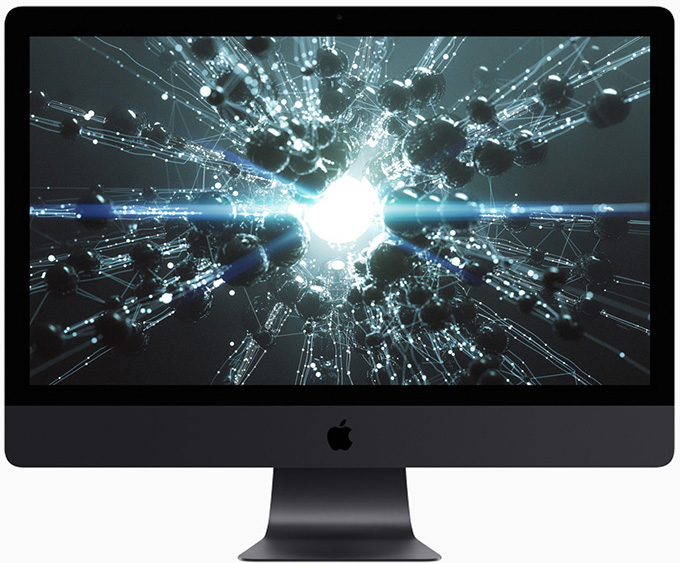
Holy smokes! What a system.
This review covers the iMac. Click here to read about the iMac Pro.
YES, BUT WHAT ABOUT THE MAC PRO?
Given the latest iMac releases, there are very, very few reasons to purchase a Mac Pro right now; especially given its price. Keep in mind, however, that Apple has already announced they are working on a new, top-of-the-line Mac Pro which will ship sometime in 2019.
Given what Apple has announced for the iMac Pro, however, that upcoming Mac Pro will need to be a true screamer to compete. I’m looking forward to seeing what Apple creates – but, as I mentioned earlier, I still need to pay my bills today.
And that leads us directly to the latest updates to the iMac.
WHAT SIZE SCREEN?
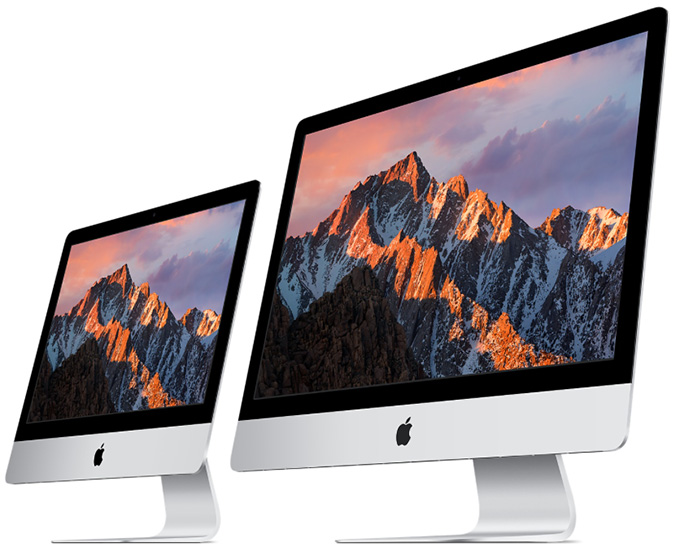
Both Final Cut Pro X and Premiere interfaces work best on larger screens. This is not to say they work poorly on smaller screens, but both of these display a LOT of elements on screen. More screen room is MUCH better.
I recommend a 27″ display. Plus, all the new 27″ iMacs now share the same 5K Retina Display.
NOTE: One of my iMacs is an older 5K iMac. I’ve discovered, that while seeing a 5K image is nice, the on-screen text is often very hard to read. So I’ve lowered the screen resolution using System Preferences to make the text larger. I prefer to easily read the text to seeing every pixel in my image.
However, if the purpose of the new system is video compression, you don’t need the bigger screen size. In which case, you can save money and improve performance with a 21″ system.
NOTE: Both H.264 and the up-coming H.265 video codecs are hardware-accelerated in all the new hardware. While this won’t help when transcoding into ProRes, hardware-acceleration will significantly speed compressing files for the web.
WHAT SPEED CPU?
UPDATE Intel’s latest 8th-gen and 9th-gen Core processors, including up to a 3.2GHz six-core 8th-gen Core i7 with Turbo Boost up to 4.6GHz for the 21.5-inch 4K iMac and up to a 3.6GHz eight-core 9th-gen Core i9 with Turbo Boost up to 5.0GHz for the 27-inch 5K iMac.
While CPU speed is important, it is not critical for video editing; remember, iMacs that were current as recently as last month, were easily able to edit almost all forms of SD, HD, and 4K media.
Any of the processors in any of the new iMacs will be fine for video or audio editing.
UPDATE: The choice in the 21.5″ iMac is between i5 and i7. The i7 is worth the money because of its support for multi-threading. The choice in the 27″ iMac is harder: between i5 and i9, because it’s a $500 differential. Unlike the i5, the i9 supports multithreading. If you are doing multicam, 4K or HDR editing, or lots of video compression, the i9 is worth the money.
HOW MUCH STORAGE?
I really like that Apple has put Fusion drives into all but two of their iMacs. I own two iMacs with Fusion drives and I remain very impressed with these systems. They are an excellent balance between the speed of an SSD with the storage capacity of spinning media.
Keep in mind that the SSD portion of a Fusion drive is only a part of the total storage. For example, the 1 TB Fusion uses a 32 GB SSD, while the 2 and 3 TB Fusion drives use a 128 GB SSD. The OS watches what you do and moves files onto the SSD based upon what you are using most. Which means that a Fusion drive works fastest with files you access over and over.
NOTE: Here is an updated article on storage speeds and media requirements that explains the load your storage system needs to carry.
If you want maximum performance AND you plan to store media on an external drive, get the 512 GB SSD. All the files in macOS will take less than 30 GB, leaving plenty of room for working files and immediate storage.
If you want an excellent balance between performance, price and capacity, stay with the 1 TB Fusion drive. Again, store media externally.
If you don’t plan to purchase external storage – and you will, you just don’t know it yet – get the 3 TB Fusion drive. (An extra TB for $100 makes this a better value than the 2 TB Fusion drive.)
One of my systems has a 3 TB Fusion drive. Currently, I’m using 600 GB of it. The rest is sitting around idle. When using external storage, you really don’t need lots of internal storage.
If you just want maximum performance from your storage, get the 1 TB SSD. It’s pricey, but it’s speed will make you giggle.
Apple notes: “For the best performance, iMac systems with 32GB or more of memory should be configured with a 2TB or larger Fusion Drive or all-SSD storage.”
NOTE: Apple’s marketing materials now define a terabyte as one trillion bytes. This means that when a disk is formatted, its storage capacity will be less than 1 TB because of the differences between how marketing and engineering calculate disk sizes.
WHICH GPU?
Configuring the GPU (Graphics Processing Unit) is now done when you pick the initial iMac, rather than as a build-to-order option within each iMac family. So, much though I would like to pick the mid-range system and add a high-end GPU into it, we no longer have that option.
Which is a shame. Because while we don’t need the high-end CPU system for most video editing, we would significantly benefit from the high-end 580 GPU in any system.
Both Final Cut and Premiere are increasingly using the GPU for most editing tasks, because the GPU is much faster than the CPU at rendering bitmapped images. Therefore, the best choice is the high-end GPU. The high-end GPU also includes 8 GB of video memory (VRAM).
However, the mid-range system with the Radeon Pro 575X is a perfectly adequate choice.
NOTE: The difference between the 575X and 580X is performance. The 575X has a peak performance of about 4.5 Teraflops, while the 580X supports up to 5.5 Tflops. Both will handle video just fine. All of the Radeon chips support OpenCL and Apple’s Metal and up-coming Metal 2 GPU computing API.
Here’s a link to learn more about Radeon’s GPU chips.
NOTE: Again, if you are principally doing video compression, the GPU speed is less important than the CPU speed. So, compressionists don’t need as high-performance a GPU as an editor.
UPDATE: When looking at GPU performance, use the specs for Metal or Metal II. OpenCL will not be supported going forward. Also, while eGPUs are attractive, I don’t see them, yet, as a big enough benefit for iMacs. eGPUs are principally designed for laptops.
HOW MUCH RAM?
Both Final Cut and Premiere will use as much RAM as you can afford.
Based on my tests with the 2016 MacBook Pro, I recommend a minimum of 16 GB of RAM, though, all my systems here have 32 GB. Again, if you have the money, max out the RAM. However, 32 GB of RAM will be sufficient for virtually all projects.
HOW MUCH SHOULD I SPEND?
You are going to be using this computer for four years. Spend what you can afford, but don’t be stingy in areas that matter: GPU and RAM.
All the base systems are fine, But, depending upon your needs, you can tweak the configurations to better match what you want the systems to do. All systems feature wireless mice and keyboards; though, in my office, I prefer my mice and keyboards wired.
NOTE: Apple has not yet delivered the Touch Bar on any stand-alone keyboards.
If it were my money and I was doing video editing on a budget, here’s what I would get:
Total: $2,499 (you’ll still need to spend additional money for 3rd-party RAM)
However, I wish that Apple made the Radeon 580X available on the mid-range unit.
If it were my money and I was doing mostly video compression, I’d get the high-end Mac mini. (This, in fact, is what I did personally.) Here’s an article that explains this in more detail.
As always, I’m interested in your opinions.

2,000 Video Training Titles
Edit smarter with Larry Jordan. Available in our store.
Access over 2,000 on-demand video editing courses. Become a member of our Video Training Library today!
Subscribe to Larry's FREE weekly newsletter and
save 10%
on your first purchase.

346 Responses to Configure a 2019 iMac for Video Editing [u]
← Older Comments Newer Comments →-
 GD says:
August 16, 2019 at 11:57 am
-
 Larry says:
August 16, 2019 at 12:13 pm
-
 GD says:
August 16, 2019 at 3:01 pm
-
 Jorge says:
August 17, 2019 at 4:30 am
-
 Jorge Pérez says:
August 17, 2019 at 4:47 am
-
 Larry says:
August 17, 2019 at 8:07 am
-
 Jorge Pérez Ulecia says:
August 18, 2019 at 3:34 am
-
 Nick Hanson says:
September 4, 2019 at 1:57 am
-
 Larry says:
September 4, 2019 at 11:37 am
-
 Nick Hanson says:
September 5, 2019 at 11:32 am
← Older Comments Newer Comments →Thanks Larry! I feel you saved me a lot of money! 🙂
Just one more aspect of the question (to get a better understanding):
What if I go for iMac 21.5″ with higher specs, like…
3.2 Ghz, 6 core, Core i7, 32 GB Ram and Radeon Pro 560x or Radeon Pro Vega 20 (both with 4GB vram)?
or iMac 27″, 3.1Ghz, 6 core, Core i5, 16 or 32 GB ram, Radeon Pro 575x with 4Gb vram
How would these two compare? In price they are about the same…. Are these capable of editing/color correction 4K BRAW (even slowly) or just proxies with 4K delivery?
The 27″ iMac system looks more appealing to me, especially because the bigger screen thus bigger workspace.
According to your answer, I guess that editing about 12 hours of 4K BRAW natively would make my HDD choices also more expensive then…. So proxy seems a nice way for me.
(I plan to edit from for example a Lacie d2 TB3 drive with proxies, but storing the 12 hours native footage on other HDDs, like normal WD My Book drives…. After editing and color correction when I deliver, do these slower WD drives will cause a problem in final rendering? Will it work that way?)
Thanks a lot!
GD:
I’d go with the 27″. Larger screen AND you can upgrade the memory later. The i7 is tempting, but for proxies the i5 will be fine.
Proxies are always a good idea for 4K – ESPECIALLY Raw files. These are HUGE!
The WD drives are fine for storing media, but they may not be fast enough to support real-time playback. Again, this is a good reason to use proxies. For the final color grade, you may need to rent something faster, as a single hard drive won’t handle this format.
Larry
This 4K BRAW is killing me…
Personally I would be happy with HD or 2K production and delivery, I really feel no need for 4K, 5K etc.. Its about storytelling, editing, lighting, and not the Ks. So, why don’t I make it in HD or 2K? That would make the whole process simplier, the cost of computer and HDDs cheaper and it would be a more problem-free scenario.
case 1: Shoot HD BRAW, edit native?, delivery in HD.
In this case I think, according to your writings, an entry level of iMac can do the job, right? And I can shoot, edit, color grade, finish the whole film safely and problem free on this system, right?
(for example: iMac 21.5, Core i5, 16 GB Ram, Radeon Pro 560X (4GB vram) – about 2200 USD
case 2: Shoot 4K BRAW, edit proxies, delivery in 2K/HD
How would the system requirements would change for this? (I mean the process of downconversion/render from 4K to HD)
iMac 27, Core i5, with Radeon Pro 570x 4GB vram, 32 GB is okay for this, or still needed the Radeon Pro 575x? The previous is about 2550 USD, the later is about 2800 USD in my country.
Hi there! I’m asuming that you finally purchased it? If you did it, could you tell me please if your iMac can handle a 4k sequence at full res in Premiere without using proxys and without dropping frames? What kind of 4k files btw? I allways shot on 4k h265 60fps 4:2:2 so I was wondering if this iMac could handle it properly on Premiere..
Hi there!
Thanks for sharing such a usefull info 😉
I’m considering the iMac 2019 (i9 + 32GB RAM + 580X + 1TB SSD) for video editing. I usually shoot on 4k 60fps 10-bit 4:2:2 (Fujifilm X-T3 H.265) and edit on Premiere Pro CC.
Would you say (or assure if you already tried) that this set up is able to handle a sequence at full res without using proxys and without dropping frames?
Jorge:
The only honest answer is: “It depends.” 4K are huge files, and H.265 (HEVC) is a VERY difficult format to edit due to its severe compression. If all you are doing is cutting clips, this system should be more than adequate. However, adding effects, color grading, picture-in-picture can bog down even the fastest system. Premiere tries to handle everything in real-time, so a high-end GPU will help.
But, can I promise that this system will not bog down? No. Excessive effects could kill it. However, for more general editing this sounds like a fine system.
Larry
Hi Larry, thanks for the fast and honest answer, I really apreciate it.
I do actually short videos (1-4 minutes long max) but with heavy effects (lots of seamless transitions and lumetri), so probably you would recommend me to go at least for the GPU with the HBM2 (Radeon Pro Vega 48 con 8 GB de memoria HBM2), right? There’s a big difference in price but probably it worth it?
The thing is that I don’t really mind to turn down res on Premiere to 1/2 or 1/4 from time to time, but what really would frustrates me would be the fact of being forced to do so even after purchasing a 3500 dollars machine…. :/ And you know, there’s a lot of missinformation all over the Internet, but there are a lot of “video creators” on Youtube claiming that a similar price (or much less) PC would kill the iMac 2019 for good.
What do you think about that? I would really love to know your opinion as you seem very well informed and experience about this matters to me.
Thanks!
Hi Larry,
A great article, which of course has left me having questions.
I don’t really like having to edit videos on my late 2017 MBP, so am looking to upgrade my 2013 21″ iMac to the latest 27″.
I will most likely go for the top spec ‘3.6GHz 8-core 9th-generation Intel Core i9 processor, Turbo Boost up to 5.0GHz’ with 8GB or RAM (and upgrade myself to 40GB), and a 512GB SSD drive.
My main questions is regards the GPU. Would you think that it will most likely be good enough going for the standard 580X GPU, or is there a massive difference upgrading that to the Vega 48?
Does the 580X work well with the i9 or is it better with the i9/Vega 48 combo?
Thanks,
Nick
Nick:
The only difference between the 580X and the Vega 48 is the speed at which they work. The image quality is the same.
If you have the money, get the Vega 48. If budgets are a bit tighter, you’ll be fine with the 580X. Worst case, you can always add an eGPU later, running whatever is the top-end GPU at that time.
Larry
Excellent, thanks very much for taking the time to reply Larry.
Nick