
 Well, this all started with being curious.
Awhile back, I got an email asking how to compress 4K video. The short answer is that compressing 4K video is exactly like compressing other video formats, except that the bit rate is much faster.
Today, though, I had three questions:
And from those questions, this article was born.
GETTING STARTED

(Click to see a larger image.)
Here’s my test clip. It was shot by the folks at Blackmagic Design almost exactly two years ago using a Blackmagic Design 4K Cinema camera. I liked it because there is lots of movement in the frame with people walking and leaves blowing. This will not be easy to compress.
The original shot ran 4 seconds using ProRes 422 HQ. I duplicated it until it ran exactly one minute, then exported three versions, all using ProRes 4444. I use Final Cut Pro X to scale three movies.
| MASTER FILE | ||
|---|---|---|
| Format | Frame Size | Source File Size |
| UHD | 3840 x 2160 | 7.66 GB |
| 1080p | 1920 x 1080 | 2.05 GB |
| 720p | 1280 x 720 | 1.03 GB |
NOTE: Have I mentioned that 4K files are huge? Seven times bigger than 720p and three-and-a-half times bigger than 1080p. Huge. Make a note to buy more storage.
TESTING HARDWARE
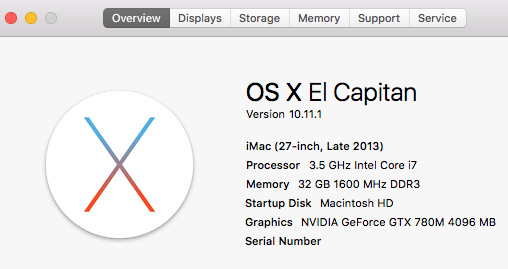
I performed all these tests on a late model iMac using Compressor 4.2.2. Every machine will be a little bit different, especially the new Mac Pro, which does not use hardware acceleration for video compression; unlike the iMac.
However, my general conclusions and suggestions at the end of this article will still be relevant.
NOTE: I also ran a set of these tests using Adobe Media Encoder. See my note at the end.
COMPRESSING 4K
My first question was: What bit rate is necessary to compress the 4K version of this movie without creating compression artifacts? As I’ve written in the past, there are five factors that determine image quality in a compressed video file:
Because every movie is different, there is no one setting that works perfectly for all. Still, because all three test movies are identical in content, though not frame size, we can compare the differences in bit rate between them.
I created a new MPEG-4 H.264 compression setting in Compressor and kept increasing the bit rate until I created a compressed file with no artifacts. (I started with 2,000 kbps which proved to be way, way, WAY too low…!)
NOTE: The moving leaves are really hard to compress. So is blowing hair. Those were the two areas I was looking for compression artifacts.
I finally got good compression of the 4K file with a data rate of 12,500 kbps.
BIG NOTE: If you are compressing 4K video for YouTube, I would change the default bit rate to 25,000 to give YouTube more data to work with for its own compression.
COMPARING DATA RATES
Next, as a test, I compressed the two other versions to see what data rates yielded acceptable results for the same movie.
Again, it is important to stress that compression rates will vary between movies. For example, I can generally compress my training movies using a 2,000 kbps data rate because the background is not moving. In our test movie, there is lots of movement.
Still, the benefit of knowing these numbers is that it gives us a place to start when compressing 4K video.
COMPARING COMPRESSION TIMES
Next I wanted to compare how long it would take to compress one minute in each of these three frame sizes.
| SINGLE PASS | ||||
|---|---|---|---|---|
| Format | Source File | Compressed File | Data Rate | Time to Compress |
| UHD | 7.66 GB | 94.2 MB | 12,500 kbps | 36 seconds |
| 1080p | 2.05 GB | 49.1 MB | 6,500 kbps | 10 seconds |
| 720p | 1.03 GB | 26.4 MB | 3,500 kbps | 5 seconds |
| MULTI-PASS | ||||
| UHD | 7.66 GB | 94.7 MB | 12,500 kbps | 1:10 minutes |
| 1080p | 2.05 GB | 49.2 MB | 6,500 kbps | 20 seconds |
| 720p | 10.03 GB | 26.4 MB | 3,500 kbps | 10 seconds |
It was interesting to me that both the file size and image quality of the multi-pass version was very, very close to the single pass version. In fact, I couldn’t see any significant difference between them.
DOWNSCALING
The final thing I wanted to look at was whether there was any difference in quality if Compressor scaled the image vs scaling in Final Cut, and how much time was added to perform the scale.
So, for this test, I used the 4K source file and scaled it in Compressor to three different sizes.
| SINGLE PASS | ||||
|---|---|---|---|---|
| Format | Source File | Compressed File | Data Rate | Time to Compress |
| UHD | 7.66 GB | 94.2 MB | 12,500 kbps | 36 seconds |
| 1080p | 2.05 GB | 49 MB | 6,500 kbps | 1:32 minutes |
| 720p | 1.03 GB | 26.4 MB | 3,500 kbps | 1:02 minutes |
| MULTI-PASS | ||||
| UHD | 7.66 GB | 94.7 MB | 12,500 kbps | 1:10 minutes |
| 1080p | 2.05 GB | 49.2 MB | 6,500 kbps | 2:37 minutes |
| 720p | 10.03 GB | 26.4 MB | 3,500 kbps | 1:56 minutes |
ADOBE MEDIA ENCODER NOTE
Adobe is about to update all their video files, so I’ll take a look at their ability to compress 4K video when the new versions release.
However, using the current version of Adobe Media Encoder, it took at data rate of 14 mbps to equal the image quality of Compressor. And, because AME does not use hardware acceleration during compression, compression of each of the three master files took about four times longer.
The end results, and relationships are essentially the same.
SUMMARY
Three things struck me about these tests:
My recommendations:
As always, let me know what you think.

2,000 Video Training Titles
Edit smarter with Larry Jordan. Available in our store.
Access over 2,000 on-demand video editing courses. Become a member of our Video Training Library today!
Subscribe to Larry's FREE weekly newsletter and
save 10%
on your first purchase.

11 Responses to Compression Speeds and Settings for 4K Video
← Older Comments-
 rohit aggarwal says:
November 8, 2019 at 11:34 pm
← Older CommentsThanks for the information.