
As I was researching my new Final Cut Pro X book, I discovered this interesting technique that I wanted to share with you.
Many times, editors need to share projects. While Final Cut Pro X does not allow more than one editor to be working in the same project at the same time, there is a way to share the same project between editors. Event References make this possible.
An Event reference is the ability to take a Project and point it to media in a different Event. What you are doing is changing the media that is connected to a Project by changing the Event reference.
A Final Cut Pro X project doesn’t contain media, it just “points” to media, which is stored in your Final Cut Events folder. This media can be stored locally, or on an XSAN server – though not, however, on a standard-issue OS X Server. We can take advantage of this fact when it comes to sharing projects between editors.
For example, let’s say two editors, in two different cities, want to both work on the same project, though not at the same time. To start, the first editor makes a complete copy of both the Project folder (stored in the Final Cut Projects folder) and the Event folder (stored in the Final Cut Events folder).
The first editor sends the second editor both folders, and the second editor starts editing. During this time, the first editor can not be working in the Project. The original Event folder, containing the media, and the Project remain with the first editor, while a copy of the Event folder and Project folder are now also with the second editor. (For those that worry, there is no reduction in image quality when you copy digital image files.)
The second editor can make changes to both the Project and the Event, such as, say, editing clips, adding keywords, changing clip names in the Event Browser, and flagging clips as Favorites using ratings. However, the second editor can not change the media itself, nor add new media.
Then, the second editor sends just the Project folder back to the first editor. (Important note, he needs to send the entire Project folder, not just a single Project file contained inside it.)
If the first editor opens the Project sent by the second editor, all the clips would be offline, because the Project is still linked to the Event folder on the second editor’s system in another city. Instead, the first editor copies the Project folder to her local system in the Final Cut Projects folder. Opening Final Cut Pro X, she selects the Project in the Project Library, without opening it in the Timeline.

With the Project selected, the editor chooses File > Project Properties (or presses Command+J).
Click the wrench icon (just above the Inspector button) to display the Project Properties window.
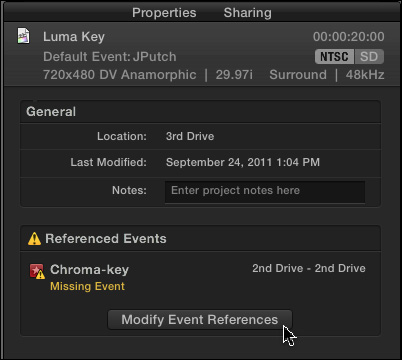
Click the Modify Event Reference button, which opens the Modify Event Reference window.
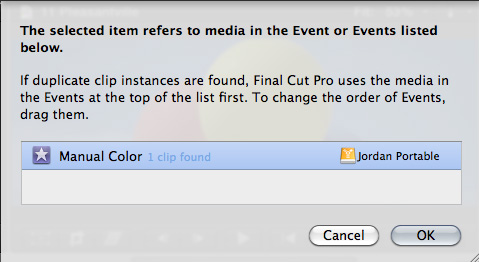
Navigate to the Event folder stored locally on her system and select it. The first editor’s Project now connects to this local media, rather than the media on the second editor’s system.
By changing Event References, both editors can send this Project back and forth for additional work. Keep in mind that once the Project is sent to one editor, the other editor can not work on the Project as there is no way to reconcile the differences between two versions of the same Project.
Both the first and second editor have their copy of the Event folder and media stored locally. Changing Event References allows repointing a Project from one Event folder to another.
This is a very intriguing use of the media management in FCP X because it easily allows changing the Event that is referenced by a Project. It isn’t the same as relinking individual clips, but allows an editor to repoint to all the media in an entire project.

2,000 Video Training Titles
Edit smarter with Larry Jordan. Available in our store.
Access over 2,000 on-demand video editing courses. Become a member of our Video Training Library today!
Subscribe to Larry's FREE weekly newsletter and
save 10%
on your first purchase.

39 Responses to FCP X: Sharing Projects
← Older Comments-
 Larry Jordan says:
February 24, 2013 at 12:29 pm
-
 Oof says:
February 24, 2013 at 12:36 pm
-
 Pravin says:
March 1, 2013 at 9:12 am
-
FCPx Project Sharing « BOOK says:
March 11, 2013 at 6:29 am
-
 Jones sabo as opposed to just with regard to sweden says:
April 14, 2013 at 4:06 am
-
 Ross Campbell says:
April 25, 2013 at 3:54 am
-
 harry says:
October 1, 2013 at 7:23 am
-
 Larry says:
October 1, 2013 at 3:32 pm
-
 harry says:
October 6, 2013 at 9:59 am
← Older CommentsOof and Andre:
I’m not totally sure. The general rule is that if you can mount the server on your desktop FCP X should see it.
If fCP X can see it, then you can import media from it and use it for editing.
Remember, you can have multiple editors playing the same media with no problems, but you can not have more than one editor in the same project at the same time.
Larry
Larry, thank you for your lightning fast reply 🙂
We can mount the network storage server on our desktop, but so far we were not able to have fcp-x see that and use that, but that could simply be a shortcomming of our fcp-x knowledge.
We will try to dig a little further into where to put these settings and will let you know about our findings.
As for your other comment, yes we did realize that we can use the same project, although not at the same time 😉
Thanks, on behalf of Andre and me!
Yes i secont that. We share projects in our studios all the time with a simple XML. FCPX seems have it complicated..
[…] FCPx Project Sharinghttp://www.larryjordan.biz/sharing-projects-in-fcp-x/ […]
Some really wonderful posts on this internet site , thankyou for contribution.
I’ve just discovered something that could be helpful – when you duplicate a project and don’t include the render files it gives you a project folder with just the currentversion.fcpproject file and the shared items folder – 1.5MB worth in total in my case (the render folder was 2.3GB). When you open that project it just needs to render the whole project which automatically recreates your Backups and Render Files folders in the Project folder. That means, as long as both parties have the same events folder, you should be good to go bouncing just those and not the whole render folder as well. This is also good news for storing edits you no longer want in your project library. Just create a Final Cut Projects Disabled folder and move those projects (when FCPX is closed) you no longer want to appear in your library and delete the render folder (if you want to save on space that is) – if you want to reactivate it, just drag it back into your Final Cut Projects folder and when you open the program it’ll be back.
Hi Larry,
I ‘ve been an avid reader of your posts so far, they ‘re so much helpful, thanks for all the tips and advice!
Kind of extending the initial question of this thread, I ‘d like to ask if you think it’s ok to draw from two different Events (in the Event Library in FCPX), down to the same Timeline (or Project, to be more precise).
With one crucial difference here: one Event has its media imported as optimized media (and copied to the events folder), while the other Event has had its media just imported, i think it’s what you call in this article (http://www.larryjordan.biz/media-in-fcp-x/) in the camera native format (in this case H.264 MOV files from a Canon 7D).
Now why would I go and do such a thing, right? 🙂
I know it’s an awkward way to work, but due to lack of free space in my HD, and some inexplicable denial of some files that simply refused to be imported (I would import them normally, the import dialog would go away and then I simply couldn’t find them anywhere in the Event Library in my Event), I thought I ‘d create a new Event with my media in external reference (no optimized media, no proxy, no copies on the HD, all media in an external firewire 800 HD).
Now having already tried that, when I drag media from both Events down to the same project, I am able to work normally. In your experience, is it possible I ‘ll be facing a nuclear holocaust later on, e.g. when it’s time to export my project?
thanks a lot for your time and advice
harry
Harry:
Nope, no holocaust. This is a perfectly reasonable way to work. The only challenge will be if your video is different image sizes or frame rates. FCP X will render them into the same codec, size, and frame rate.
Other than that you are good to go. (REMEMBER, however, that you are only pointing to the media on your hard drive. Don’t move media files, or folders or rename anything in the finder that relates to your project. You can always relink media, but it takes time.
Larry
phew!
thanks for that Larry, you just lifted a burden off of my shoulders. Apparently there won’t be any challenge, since all my material is 1080p 25fps H264 (camera native).
thanks again,
Harry