
 [Updated March 28, 2021, with a new intro.]
For long-term archiving of any media project, I strongly recommend you export an XML version of every project you want to save – regardless of whether you use Adobe Premiere Pro or Apple Final Cut Pro.
Project files are proprietary, XML files are designed for transfer and archiving. Protect yourself.
EXECUTIVE SUMMARY
One of the big, painful, lessons we learned with the demise of Final Cut Pro 7 was that it stored our edits in a proprietary format. Only FCP 7 could open FCP 7 project files. Once FCP 7 stopped working, we lost access to ALL our old edits. Not the media, but the edit.
However, if we had simply exported our FCP 7 projects as XML, we could access them today via Premiere or DaVinci Resolve or today’s Final Cut Pro.
NOTE: As another example, Final Cut Pro X 10.0 projects are no longer readable by today’s Final Cut. But they would be if we had exported them as an XML file.
The key point I’m making is that, regardless of the NLE we use, it is essential that we preserve our media and edits for the future. And that means exporting a finished project as an XML file, as well as saving the original project file.
XML files are designed for transferring files and data between applications. These text files are quite small, and readable by a wide variety of applications. This is because XML files do NOT contain media – they simply contain a “pointer” to your media. This is the path and file name of where your media is stored. So, exporting an XML file does not preserve your media, it only points to it.
If you open an XML file in the same application that created it, virtually all your project data should be safe. If you are moving XML files between applications from different developers, media files, edits and dissolve transitions, for example, safely transfer while most titles and effects do not.
Always archive your projects. The fastest and best way to open a project is to open the native project file. This preserves everything. But, for protection, also archive an XML of the same project.
NOTE: Keep in mind – because it’s important – that because XML does NOT contain media, you will need to archive media files separately.
EXTRA RESOURCES
EXPORT AN XML FILE FROM FINAL CUT PRO
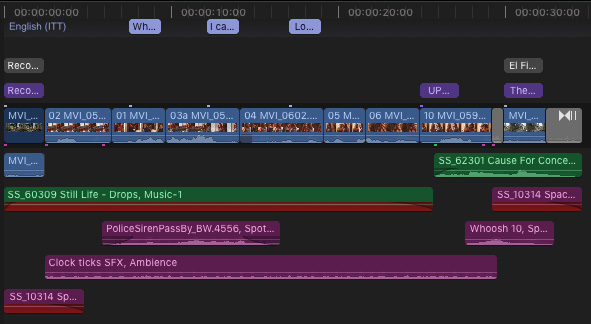
Here’s a typical project in FCP; though short, this can easily illustrate the export process. It contains video and audio clips, transitions, titles and captions.
An XML (eXtensible Markup Language) file contains pointers to all clips, but not the actual media, as well as settings for just about everything in the project file.
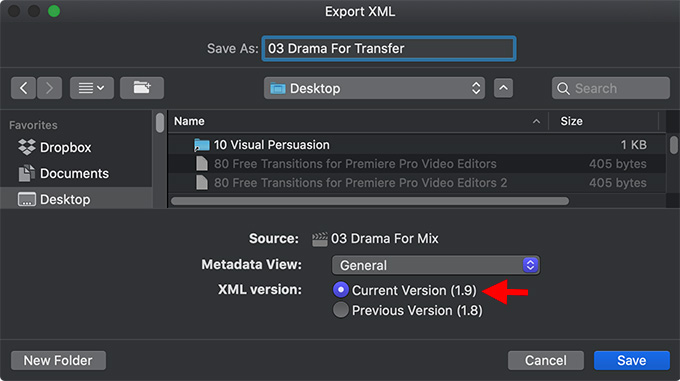
Select the project in either the Timeline or the Browser, then choose File > Export XML. In the resulting dialog, give the XML file a name and storage location. Then, click OK.
NOTE: Be sure to always pick the latest version of XML (Version 1.9 in this screen shot).
In just a few seconds, an XML file is created. XML is a language similar to HTML that you see on many web pages, that explains exactly how the project was created, but doesn’t contain any media. It just contains all the different settings applied to each clip.
NOTE: For long-term archiving, I strongly recommend you save an XML version of every project you want to save. For example, we can convert FCP 7 XML projects easily today, but can’t convert a single FCP 7 project. XML is a long-term archiving format.
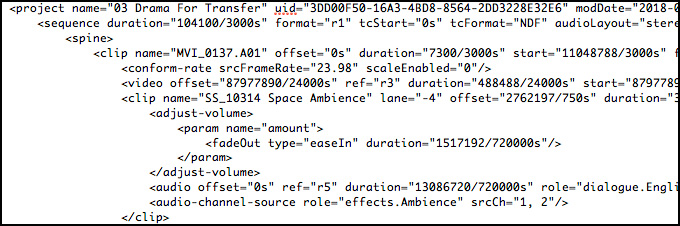
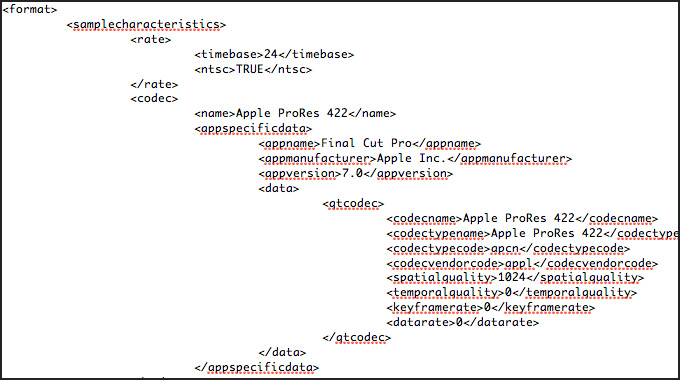
NOTE: XML files are just text files. You can open them with TextEdit and see what’s inside; for example the screen shot above is from my project. The good news is that you don’t need to understand how to read an XML file in order to use it.
At this point, the XML file is complete and ready for archiving.
EXPORT AN XML FILE FROM PREMIERE PRO
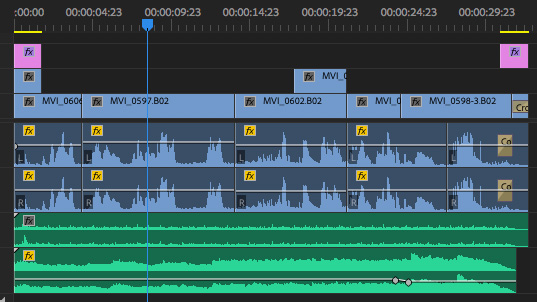
Here’s a typical project in Premiere. Note that it has audio and video clips on multiple tracks, transitions, and titles. While this is a short sequence it will serve to show how the export process works.
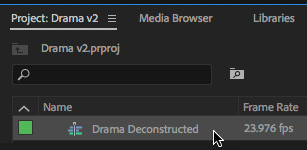
Select the sequence you want to export.
NOTE: You can, if you want, export an XML file of the entire Premiere project. However, I tend to export the specific sequences that I need.
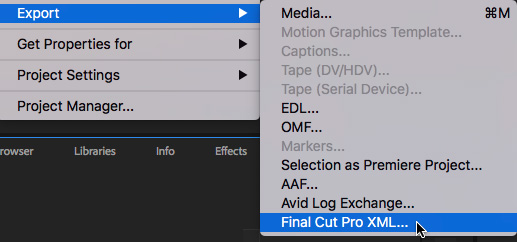
Choose File > Export > Final Cut XML.
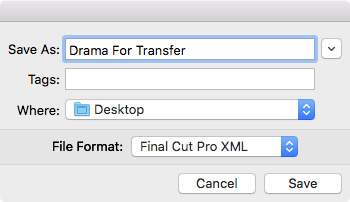
First, Premiere simplifies the XML associated with this sequence, then opens a dialog where you can give the XML file a name and storage location.
NOTE: I tend to store XML files on the desktop while I am working with them, to make them easier to find, then move them into a dedicated location after the export is complete. This isn’t required, it’s just how I work.
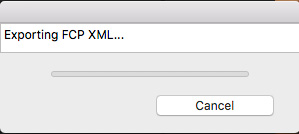
Premiere generates, then exports an XML file to the location you specify.
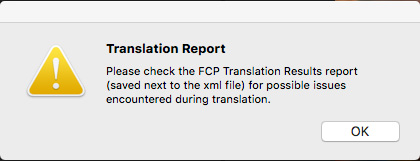
Next, it creates a Translation Report of anything that won’t successfully translate.

Here’s what the Translation Report looks like for this sequence. Your Report will look different, depending on the contents of your sequence.
At this point, you can quit Premiere Pro CC. We are done with it.
The last step is to find a safe home to store your XML files. Oh! And be sure to give them a file name that allows you to find them again in the future.

2,000 Video Training Titles
Edit smarter with Larry Jordan. Available in our store.
Access over 2,000 on-demand video editing courses. Become a member of our Video Training Library today!
Subscribe to Larry's FREE weekly newsletter and
save 10%
on your first purchase.

15 Responses to Future-Proof Media Projects: Export XML Files From Premiere or Final Cut [u]
← Older Comments-
 Larry says:
March 29, 2021 at 10:51 am
-
 Ernesto quintero says:
January 23, 2023 at 11:42 am
-
 Larry Jordan says:
January 23, 2023 at 11:49 am
-
 JasonNou says:
January 22, 2024 at 7:12 pm
-
 Larry says:
January 22, 2024 at 8:40 pm
← Older CommentsRobert:
Happy to help. The problem with moving projects – especially XML – between software is that each NLE uses it’s own title and effects engines. XML simply says: “Apply the Gaussian Blur effect.” But FCP, Avid, and Premiere all use different technology to create the same effect.
For this reason, effects, titles, generators that are in one system but not another, don’t transfer. Still, the bulk of our work in any project is figuring out the best way to tell the story, editing and trimming clips and applying basic transitions. That stuff all transfers.
Cool effects and color grading, don’t.
Larry
Hello Larry,
I’m having trouble relinking my XML.
I’ve done all of the XML exports from Premiere and imported them into Davinci. Somehow Davinci does not want to relink all of the files.
I’ve watched numerous tutorials to no avail.
The weird thing is that I sent the XML to the DP of the content and he was able to open up the XML perfectly fin, so what does that say?
Anyhow, not sure if you can help me figure this out and what the cost would be.
Ernesto:
Hmm… I can’t help here. XML from Premiere to Resolve does not require conversion. It should just flow right in.
I suggest contacting Resolve Help.
Larry
Hi Larry,
I recently had to work with an XML files exported from FCP and imported into Premiere Pro, but Premiere Pro didn’t open them. After doing some searches, I had to use a program called XtoCC. The program costs $50 and doesn’t link all the media. Do you know if there are other ways to import XML files from FCP to Premiere Pro that PP recognizes? Thanks.
Jason:
The only option to move files between FCP and Premiere is X2CC, written by Intelligent Assistance. That’s because the conversion between the two programs is so difficult. However, except for compound clips, which X2CC does not support, all media should transfer and link. If it doesn’t, please contact Intelligent Assistance, their lead developer is a genius – and a good friend. Greg will help you figure out the problem and get it fixed.
Larry