
 During the last two weeks, Christine Steele invited Tony Bari and myself to help her train a major LA-based production company as they converted from Final Cut Pro 7 to Adobe Premiere Pro CC. Because the editors there faced daily delivery deadlines, the goal of our training was to help them “Make it go FASTER!”
NOTE: I’m indebted to Christine for pointing out many of these tips.
Like many Final Cut editors, I long ago got into the habit of importing all media and other project assets using Command + I (File > Import). This works fine for virtually all applications, but, as I discovered as I researched my training, there is a hidden gem in Premiere called the Media Browser that provides far more speed, power and flexibility.
In fact, if you are using Premiere and you’re not using Media Browser, you are missing a key way to “make it go faster!” Let me explain.
GET STARTED

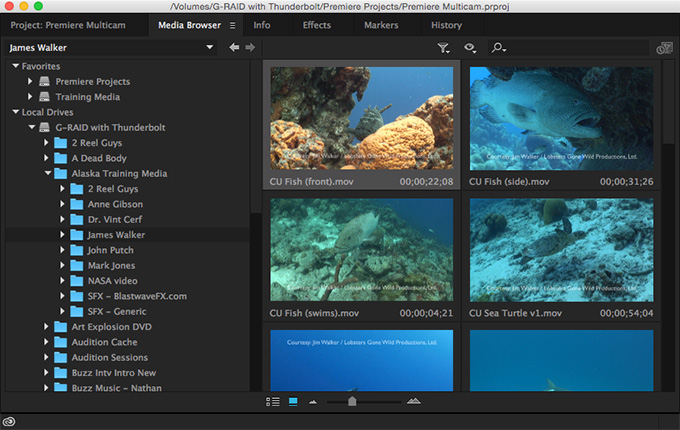
The Media Browser is located immediately to the right of the Project panel and allows you to review media before you import it into a project. Click the name to make it active; represented by a blue box around the panel.
NOTE: Without question, my favorite Premiere keyboard shortcut is Tilde ( ~ ). When you put your cursor in a panel and type that key, the panel enlarges to full-screen. Press Tilde again and the panel shrinks to its normal position. I just LOVE this!
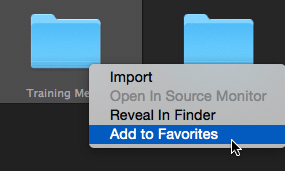
If there’s a folder you access frequently, turn it into a Favorite by right-clicking (Control-click) the folder and select Add to Favorites.
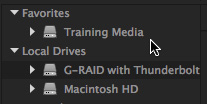
That location, even if is buried multiple levels deep, now appears under the Favorites setting at the top left corner of the Media Browser. There’s no limit to the number of Favorite locations you can create.
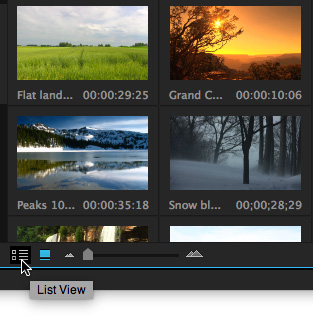
Switch between displaying thumbnails of media and a list view by clicking these two icons at the bottom of the panel (Thumbnail view is highlighted in blue.)
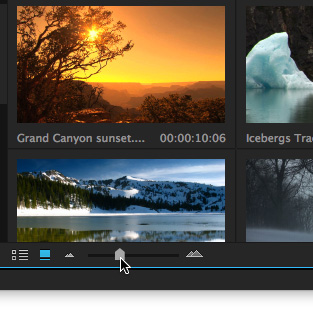
Change the size of thumbnails by dragging this slider left or right.
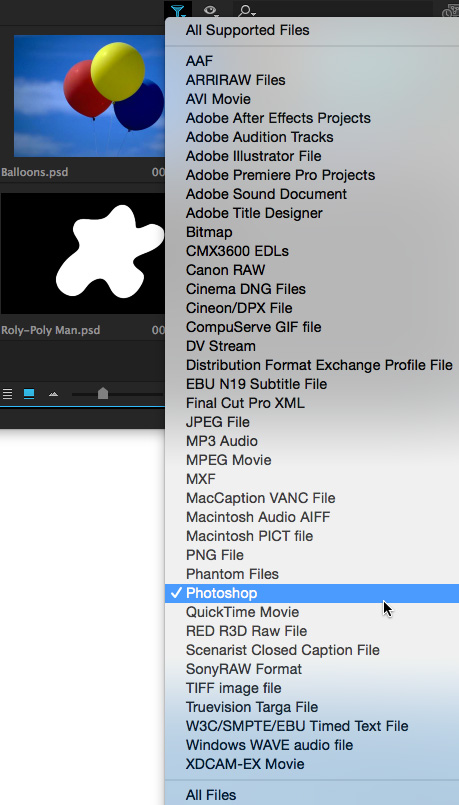
Click the Funnel icon (half-hidden and highlighted in blue) at the top to only display files that match a specific criteria. In this example, I’m only displaying Photoshop images stored in the selected folder.
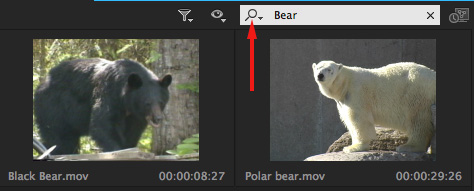
Click the Magnifying Glass icon to add text to search. Here, I’m displaying all files with “Bear” in the file name.
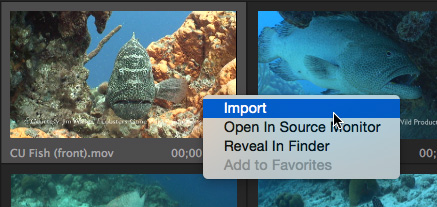
To import a file, or group of files, select them, then right-click and choose Import. Poof! They all show up in the Project panel, ready to edit.
BEYOND THE BASICS
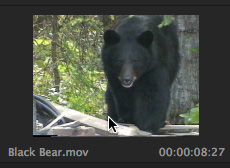
When you display thumbnails in the Media Browser, you can hover scrub (skim) across the clip to quickly review its contents visually.
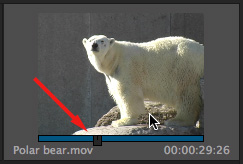
Click a thumbnail and a mini-Timeline appears, allowing you to play the clip; all before you import the clip into Premiere. When you are in mini-Timeline view, the spacebar and J-K-L keys all work, allowing you to play any clip in real-time or fast motion forwards or back.
Other elements that I can’t show, but speed editing include:
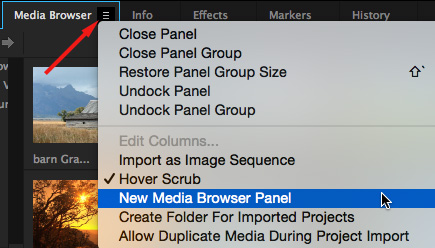
A really cool feature, especially when you have multiple locations in which you store media, is to go to the little Fly-out panel (the three small lines to the right of the Media Browser name) and choose New Media Browser Panel.
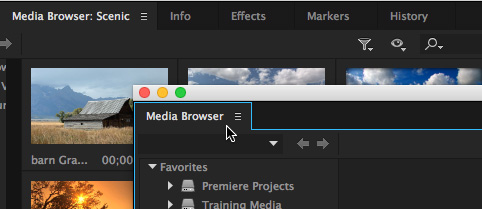
Press the Command key while dragging the name of the duplicated Media Browser and it becomes a free-floating window, each Browser can point to different locations on your hard disk.
WORKING WITH PROJECTS
But what makes the Media Browser ESPECIALLY helpful is that you can use it to review and access Premiere Projects, as well as media. While Premiere only allows one project to be open at a time, this technique allows you to access an unlimited number of projects from inside a single project!
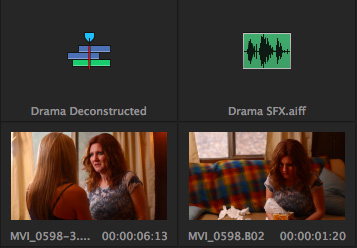
For example, navigate to a Premiere Project file and double-click it. All the sequences, media and other elements contained in that project are displayed in the Media Browser. Right-click any one of them to import it; or select a bunch and right-click one of the selected items.
NOTE: Not only can you import media, you can also import entire sequences, including all transitions and effects!
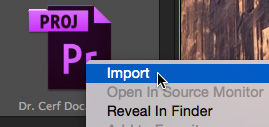
Even better, and this is really helpful, right-click any Project file and select Import.
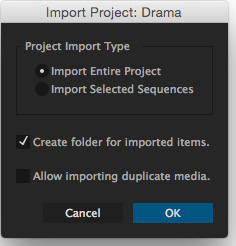
A dialog appears asking if you want to import all sequences, or just selected sequences from inside that project. This allows you to open an entire project in a folder inside another project!
Here, for instance, I’m importing all sequences and storing them in a bin named after that project in the Project Panel. (The other options in this dialog are explained in the Help files.)
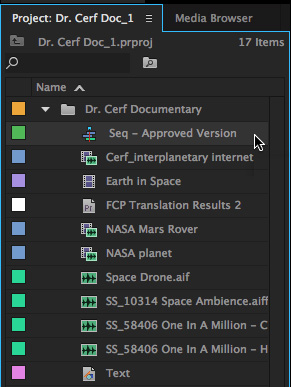
When I open that bin, everything in that project – including all sequences, media, transitions, text and effects – are available to open in the Timeline; as well as all media and other elements contained in the original project.
SUMMARY
The Media Browser easily allows you to find, review and import media or projects so you can find exactly what you want quickly and get back to work.
That’s a big benefit when your goal is to “Make it move Faster!”

2,000 Video Training Titles
Edit smarter with Larry Jordan. Available in our store.
Access over 2,000 on-demand video editing courses. Become a member of our Video Training Library today!
Subscribe to Larry's FREE weekly newsletter and
save 10%
on your first purchase.

17 Responses to Adobe Premiere Pro CC: Media Browser Magic
← Older Comments-
 Larry says:
February 5, 2020 at 7:07 am
-
 Anoop says:
July 7, 2021 at 2:15 am
-
 Larry says:
July 7, 2021 at 7:48 am
-
 emil says:
December 27, 2021 at 7:42 am
-
 Larry says:
December 27, 2021 at 8:25 am
-
 Ava says:
December 1, 2022 at 3:38 am
-
 Larry says:
December 1, 2022 at 7:42 am
← Older CommentsNorman:
I just checked and you can sort the Log Note column in Premiere in both ascending and descending order.
Larry
Is there a way to hover scrub within source media (instead of only in the project panel/media browser by hovering through the thumbnail)? thanks in advance
Anoop:
No. Hover scrubbing can only be done in the Project, Bin, or Media Browser panels.
Larry
hey i wanted to ask is there a way to view just the videos since i am viewing red footage and each video comes in its own file so each time i have to click on the folder to access the video and then i need to go back and click on the next one and so on .
thank you
Emil:
I think you’ll need to use the Media Browser, with the filter set to RED. Here’s an article that can help – the Premiere stuff is about half-way down.
https://blog.frame.io/2018/04/30/red-workflows/
Larry
Thank you for these tips! I think they could be very useful for me in the future, as I fond of editing video. Also, I use video to text converter-https://audext.com/video-to-text/!
Ava:
Thanks for your comment.
Larry