
 [Note: A tip of the hat to Steve Martin, who first pointed this out to me.]
Final Cut Pro X changed how it manages render files compared to FCP 7. In FCP 7, render files either existed, or they didn’t. There wasn’t anything to manage until a project was over and you went into Render Manager to delete any unwanted render files to free up disk space.
Final Cut Pro X adds a few shades of gray to managing render files which you should know about.
Let me illustrate.

Here, I’ve applied a Line Screen effect to a clip; which means the clip needs to render.

As you would expect, the orange render bar appears above the clip in the Timeline.

After a few seconds, the render bar is gone as FCP has rendered the effect. Now, here’s where it gets interesting. The duration of the clip is six seconds. (There’s no magic to this six-second duration, you just need to know what the duration is.)

If I make the clip shorter, no problem. All the render files are retained.

If I return the clip to its original six-second duration, it remains rendered. In other words, FCP X did not delete render files when I trimmed the clip! While you may feel this behavior makes sense, it is not how FCP 7 worked.

However, if I make the clip longer than the original six seconds, a render bar appears only for that part of the clip that has not yet been rendered.
In other words, FCP X is retaining render files, so that if you change the duration of a clip through trimming, you don’t need to re-render that which has already been rendered.
While this is a big time-saver, even if you haven’t noticed it before, this does mean that render files are stored on your hard disk that are not used in your project. And that is new behavior.
REMOVING RENDER FILES
To remove the render files that you are not using, switch out to the Project Library (Cmd+0) and select the project with the render files you want to delete.
With the project name selected, go to File > Delete Project Render Files. (You can only access this menu from the Project Library.)
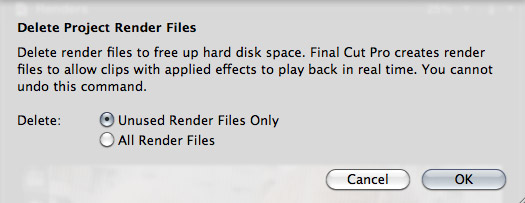
You have two choices:
If you simply want to recover disk space, select “Delete unused render files.”
If you are done with that project and want to regain the maximum disk space, select “Delete all render files.”

When you return to the project, all the render files are gone and you need to render again. The good news is that if you delete render files that you actually need, Final Cut will quickly render them again.
SUMMARY
While it would be nice for FCP X to allow us to see all render files associated with multiple projects at one time, as well as display how much hard disk space is involved, similar to the Render Manager in FCP 7; knowing that we need to manage render files throughout a project can keep us from wasting hard disk space on render files that you will never need again.
Visit our website to see Final Cut Pro Training & more!

2,000 Video Training Titles
Edit smarter with Larry Jordan. Available in our store.
Access over 2,000 on-demand video editing courses. Become a member of our Video Training Library today!
Subscribe to Larry's FREE weekly newsletter and
save 10%
on your first purchase.

35 Responses to FCP X: Delete Render Files
← Older Comments-
 Larry says:
October 9, 2015 at 4:39 pm
-
 Brian says:
October 9, 2015 at 5:09 pm
-
 Larry says:
October 9, 2015 at 5:14 pm
-
 Brian says:
October 9, 2015 at 5:25 pm
-
 Darcy Peters says:
March 18, 2019 at 10:51 am
← Older CommentsBrian:
You can make this even easier. You can simply rescue the Final Cut Original Media and all related databases – assuming there are media files there and not just aliases. Once the native files are available to Final Cut, it can recreate all needed optimized, proxy and/or render files.
If you can’t get the databases back, you’ll find copies of them in the Final Cut Backups folder inside your Home Directory.
Larry
So basically all I should need is the Original Media folder and the Backup folder?
Brian:
Correct – provided that there was media in the Original Media folder, or that the aliases inside the folder point to actual media.
Larry
Awesome…Thank you very much!
YES!! Larry saves the day again! I was having flashing green boxes show up on the bottom of my video. (Computer had frozen & had a hard boot a few days ago)
I deleted all the render files, and viola! It’s back to normal!